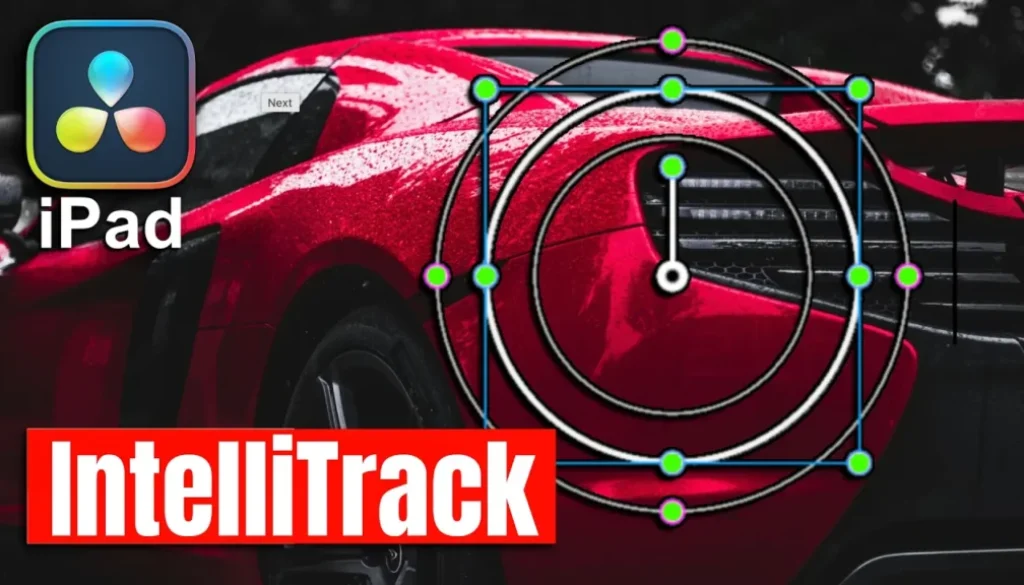
How to Use IntelliTrack AI Point Tracker (DVR iPad)
In this article/video i will show you how to use the IntelliTrack AI Point Tracker in DaVinci Resolve for iPad. This is a new tracking method on the Color Page that uses AI and makes tracking objects on the iPad easier than ever.
Pro Tip: Make your Videos Cinematic (and save a tone of time) with our Seamless Transition Pack for DaVinci Resolve iPad.

Contents
- [Video] How to Use the IntelliTrack AI Point Tracker in DaVinci Resolve iPad
- Where to Find the IntelliTrack AI Point Tracker on the Color Page
- How to Set Up IntelliTrack with a Power Window
- How to Track with the IntelliTrack AI Point Tracker
- Tips for Better Tracking Results
- If you want to host your own Online Course use CC360
- BONUS: All DaVinci Resolve iPad Masterclass Students get the Transition Pack & the 8K Film Grain Pack for FREE!
[Video] How to Use the IntelliTrack AI Point Tracker in DaVinci Resolve iPad
Where to Find the IntelliTrack AI Point Tracker on the Color Page
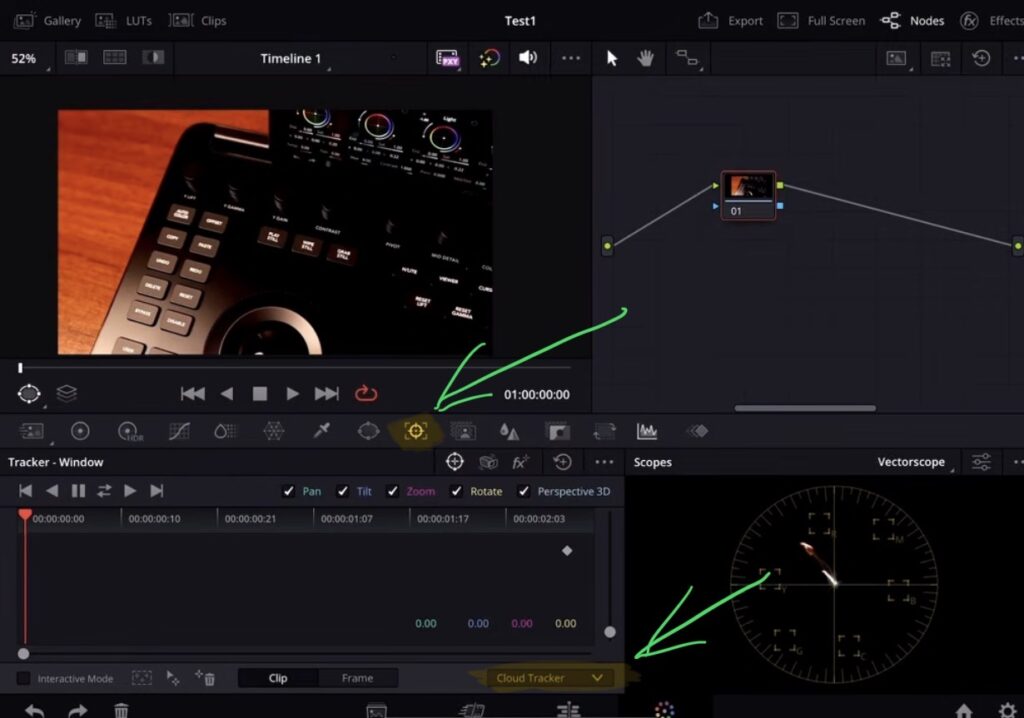
The IntelliTrack AI Point Tracker is a new tracking method that you can find on the Color Page. It also works on the Fusion Page and the Fairlight Page on Desktop, but on the iPad the Color Page is where you will use it.
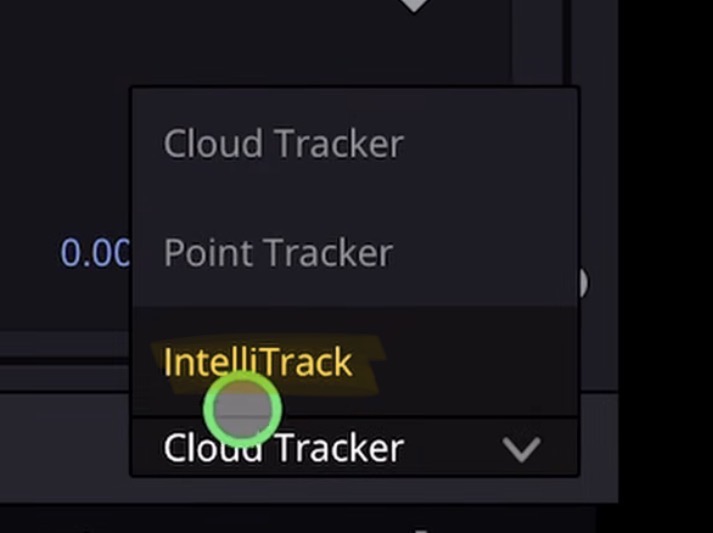
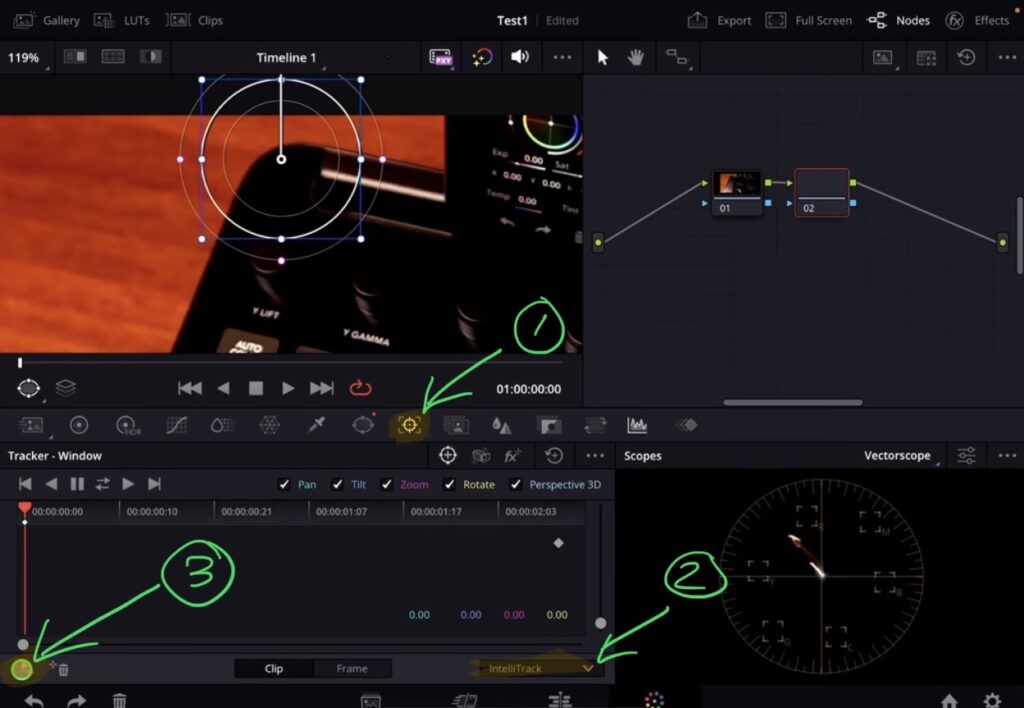
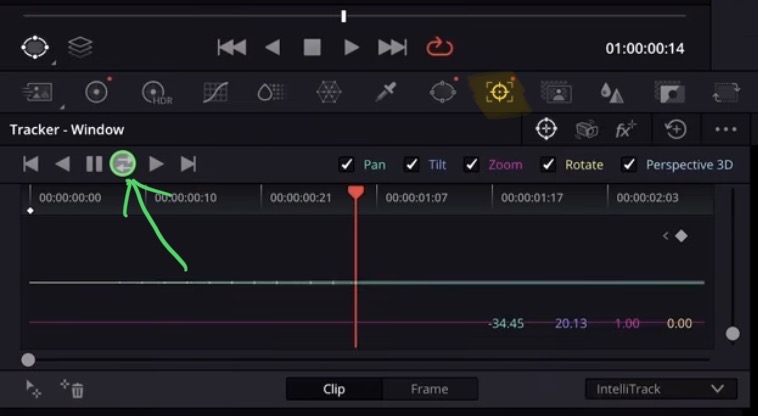
To find it, go to the Color Page and open the Tracking section. Instead of choosing the Cloud Tracker or the regular Point Tracker, you can now select IntelliTrack.
How to Set Up IntelliTrack with a Power Window
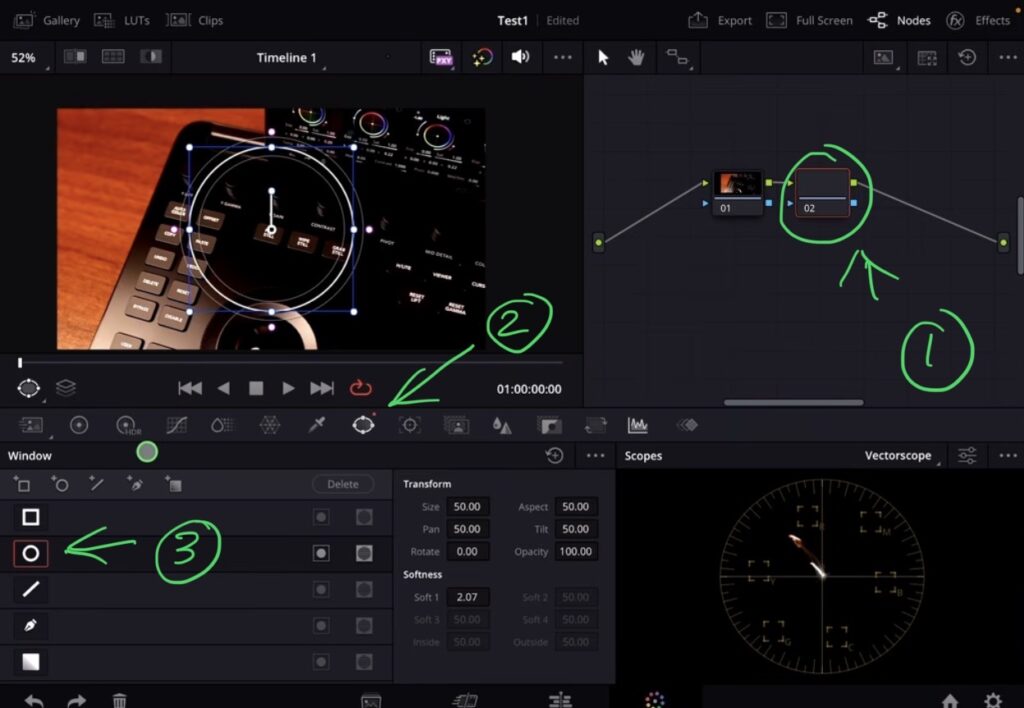
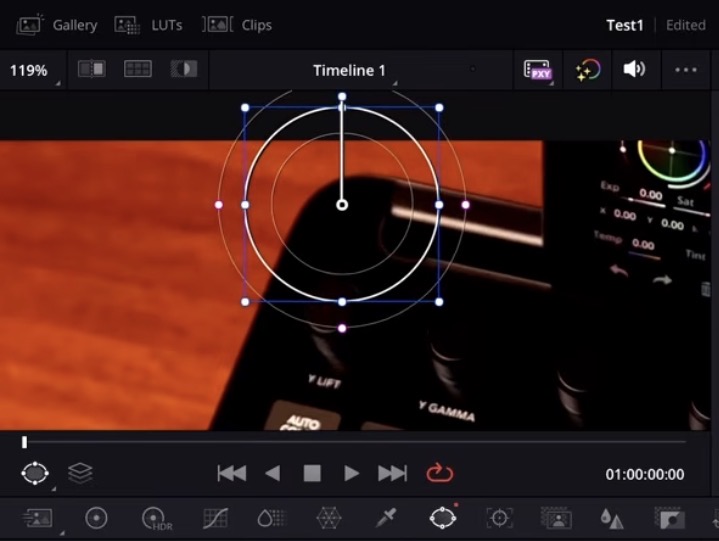
Before you can use the IntelliTrack AI Point Tracker, you need to set up a few things first. Create a new Node on the Color Page. Then create a Power Window. Position the Power Window where you want your tracked effect to appear.
On the iPad you can just use your fingers to drag and position the Power Window. That is one of the great things about editing on the iPad.
How to Track with the IntelliTrack AI Point Tracker
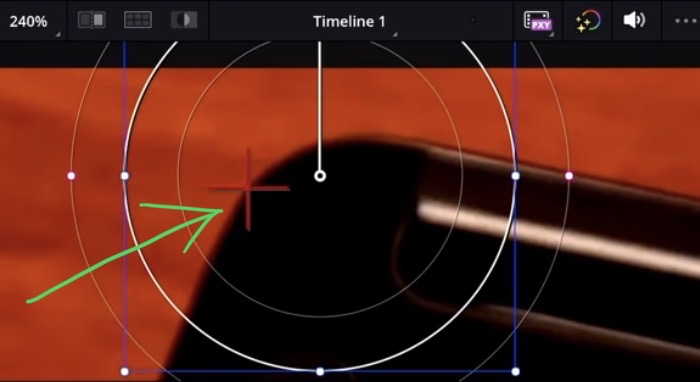
Once your Power Window is in place, go back to the Tracking section and select IntelliTrack. Now set a tracking point by tapping the set point button. Drag that point to the position you want to track in your footage.
You can also make adjustments to your Power Window before you start tracking. For example, you could change the color of everything inside the window so you can clearly see what is being tracked.
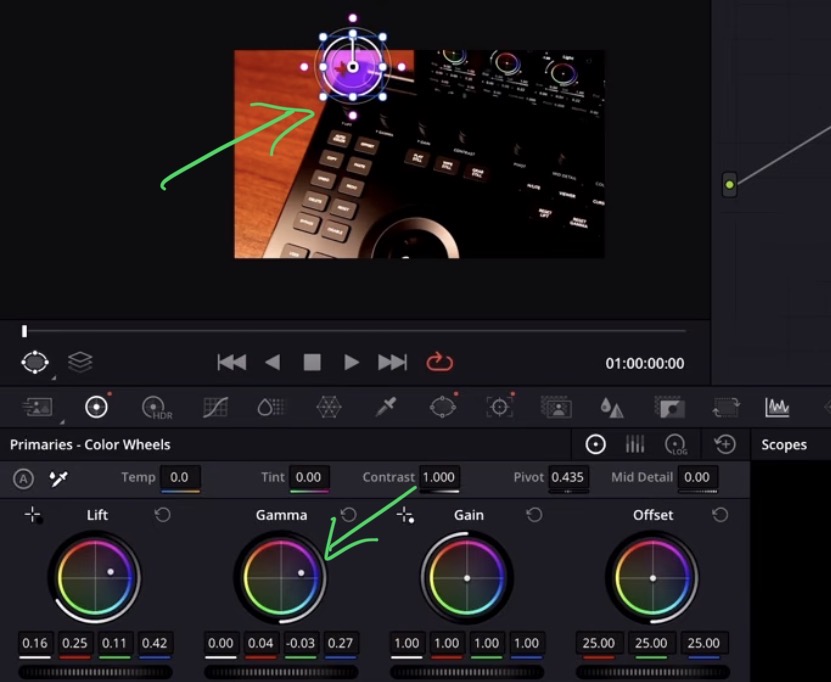
Now you can start tracking forward or backward. DaVinci Resolve will analyze your footage and keep the Power Window locked to your tracking point as the shot moves.
Tips for Better Tracking Results
If your shot changes dramatically (like a scene cut in the middle), the tracking can get confused. In that case, split up your clip at the cut point and track each part separately. This will give you much better results.
The IntelliTrack AI Point Tracker works smooth even on the M1 iPad Pro. So for everyone who was always asking about a way to track on the iPad, this is it. Combined with the other tracking tools on the Color Page, you now have powerful AI tracking available right on your iPad.
Tip: If you don’t know how to get the other pages (FUSION, FAIRLIGHT, EDIT) on the iPad read this article first: How to UNLOCK ALL PAGES in DaVinci Resolve for iPad Pro
If you want to host your own Online Course use CC360
I really believe, that CC360 is the best Platform to host your own Online Course currently on the market. And each week they introduce new features. Amazing. Check it out here.
BONUS: All DaVinci Resolve iPad Masterclass Students get the Transition Pack & the 8K Film Grain Pack for FREE!
You can either get the Transition Pack separate here: Seamless Transition Pack for DaVinci Resolve iPad. Or the 8K Film Grain Pack here: 8K Film Grain Bundle. but all of our DaVinci Resolve iPad Packs are a FREE Bonus for the DaVinci Resolve iPad Masterclass Students.
Check It Out here DaVinci Resolve iPad MasterClass: From Beginner To Pro.
Read Next
• How COPY Color Grade to MULTIPLE Clips in DaVinci Resolve iPad
• DO THIS to make DaVinci Resolve FASTER! (Instead of rage smashing your iPad)
• How To Delete Cache Files in DaVinci Resolve iPad
• How To Color Correct iPhone Footage in DaVinci Resolve iPad
• Easy Sync Audio & Video in DaVinci Resolve iPad



![Grainy Night Shots? [This Fixes It!]](https://exlima.net/wp-content/uploads/2026/10/Grainy-Night-Shots-This-Fixes-It-1024x576-394x330.webp)