
How to Find Any Clip Instantly in DaVinci Resolve for iPad (AI IntelliSearch)
If you have a big project in DaVinci Resolve for iPad, finding the right clip can take forever. With AI IntelliSearch you can now search your footage for objects and people instead of scrolling through every single clip. In this article i will show you how to download it, how to analyze your clips and how to turn a search result into a Smart Bin.
Pro Tip: Make your Videos Cinematic (and save a tone of time) with our Seamless Transition Pack for DaVinci Resolve iPad.

Contents
- [Video] How to Find Any Clip Instantly in DaVinci Resolve for iPad (AI IntelliSearch)
- What is AI IntelliSearch in DaVinci Resolve for iPad?
- Download IntelliSearch in the Extras Download Manager
- What you get on the iPad and what stays on the Mac
- How to analyze your clips for IntelliSearch
- The AI Analysis window: four ways to analyze
- What does Analyze for Slate do?
- How to search for people and objects with IntelliSearch
- Full Clips or Segments
- Create a Smart Bin from your IntelliSearch results
- Just one of many DaVinci Resolve 21 features
- If you want to host your own Online Course use CC360
- BONUS: All DaVinci Resolve iPad Masterclass Students get the Transition Pack & the 8K Film Grain Pack for FREE!
[Video] How to Find Any Clip Instantly in DaVinci Resolve for iPad (AI IntelliSearch)
What is AI IntelliSearch in DaVinci Resolve for iPad?
AI IntelliSearch analyzes the visual content of every frame in your clips. After the analysis you can type “car” or “woman” into the search field and DaVinci Resolve shows you the clips where a car or a woman actually appears. It can also identify faces if you want that. The same AI analysis also covers slates, transcription and audio classification, so we go through all of it.
Download IntelliSearch in the Extras Download Manager
Before you can use IntelliSearch you have to download it. Go to the DaVinci Resolve menu at the top and open the Extras Download Manager. DaVinci Resolve is getting bigger and bigger because of all the AI tools, so Blackmagic Design moved them into optional downloads. You only install what you actually use.
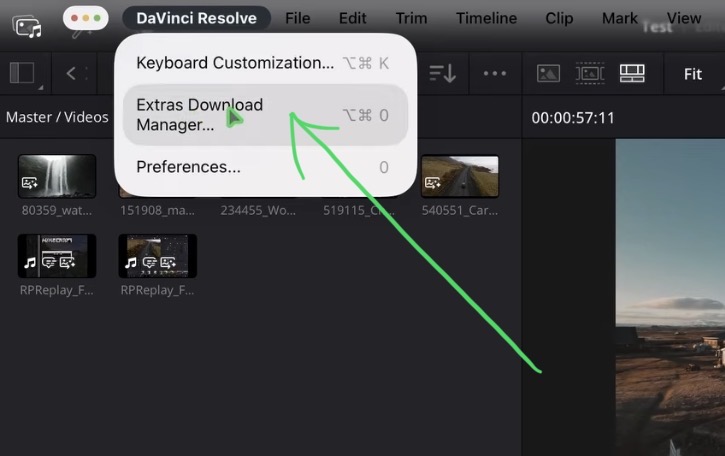
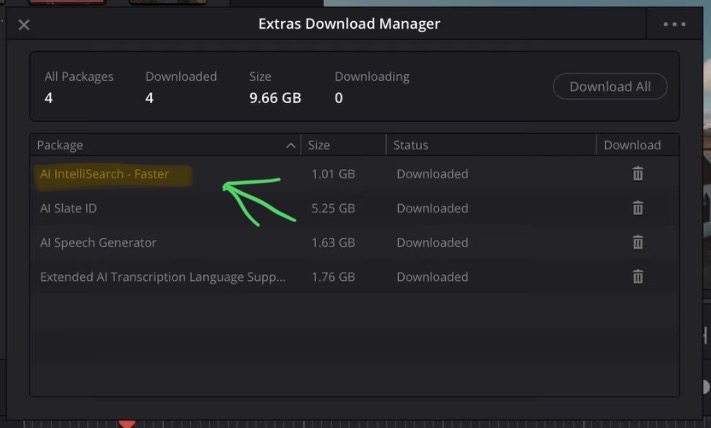
On the iPad you get four downloads: IntelliSearch faster, Slate ID, Speech Generator and Extended AI transcription language support. IntelliSearch is around 1 GB. The Slate ID is around 5 GB, so if you never work with slates you can delete that one and get the space back. The Extended AI transcription language support is worth it if you make videos in another language than English.
What you get on the iPad and what stays on the Mac
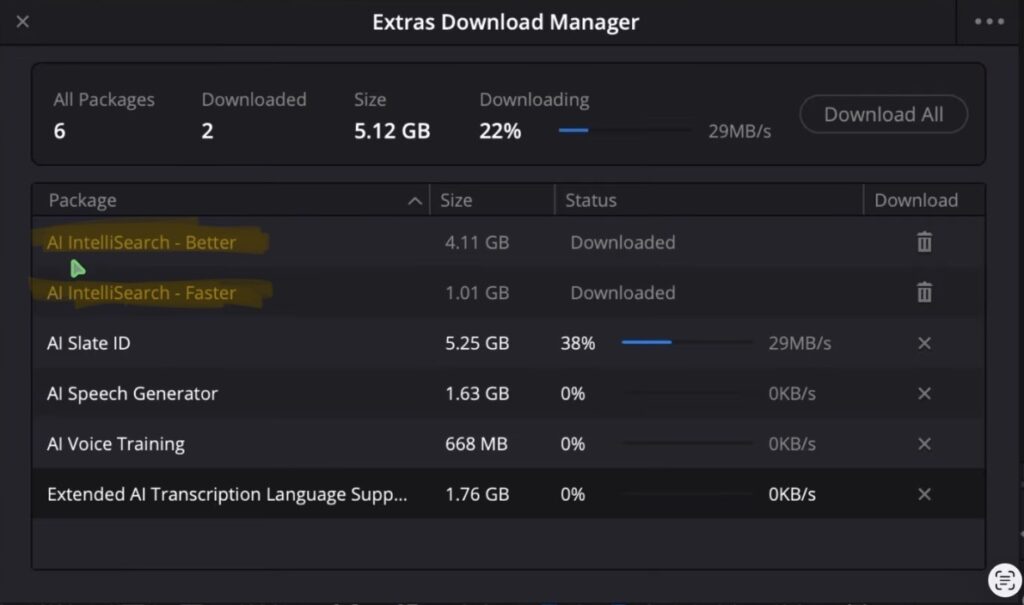
On the Mac you can also download “IntelliSearch better”. It recognizes more objects, but it is around four times the size and it takes much longer to analyze. That is probably the reason why it is not on the iPad, because even the faster version already takes a while. The AI Voice Training is also missing on the iPad.
Be aware: The analysis costs a lot of battery. On my M1 iPad i went from around 40% down to almost 15% just from analyzing. My iPad is four to five years old, so on a newer M4 or M5 iPad this will look better, but plan for it.
How to analyze your clips for IntelliSearch
Go to the Edit Page and select the clips you want to analyze in the Media Pool. There is a new icon at the top. Right click on it and you can either run the AI analysis on the selected clips only, or on all clips in your project. On a big project always select just the clips you need, because the analysis takes time.
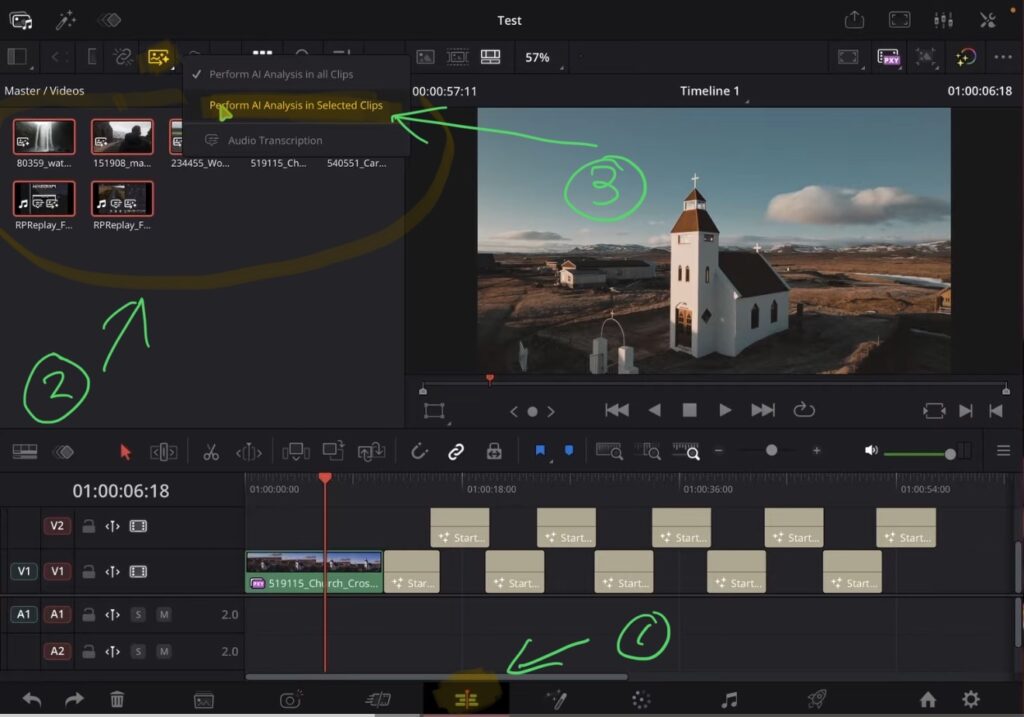
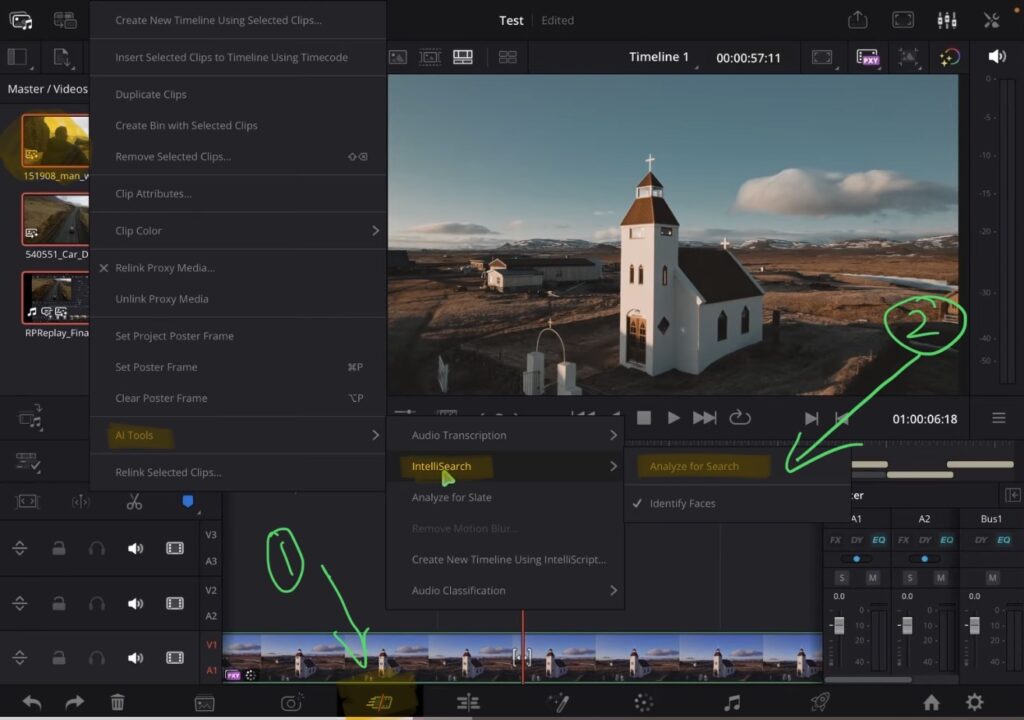
It also works in the Cut Page, but there you do not get the icon. Instead you right click on a clip or a folder and go to AI Tools, then IntelliSearch, then “Analyze for search”. That starts the analysis immediately without any options, which is why i prefer the Edit Page route.
The AI Analysis window: four ways to analyze
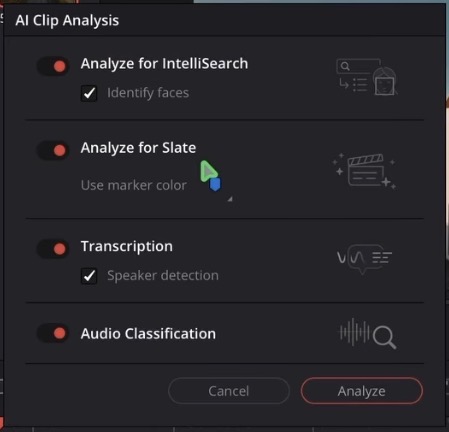
• Analyze for IntelliSearch: reads the visual content of every frame so you can search for objects and people.
• Analyze for slate: finds slates in your footage and writes what is on them into the clip metadata.
• Transcription: transcribes the spoken words, with speaker detection.
• Audio classification: sorts your sound effects into categories.
• Identify faces: an extra toggle inside the IntelliSearch option.
If you are a YouTuber like me and you only want to find your shots faster, turn off slate, transcription and audio classification and leave IntelliSearch on. If you have no faces in your footage you can turn off Identify Faces too. Then hit Analyze.
What does Analyze for Slate do?
A slate is the clapperboard you use on a proper film set where you write down the scene, the shot and the take. If you shoot a big project with slates, the AI goes through your footage, finds the slates and reads them.
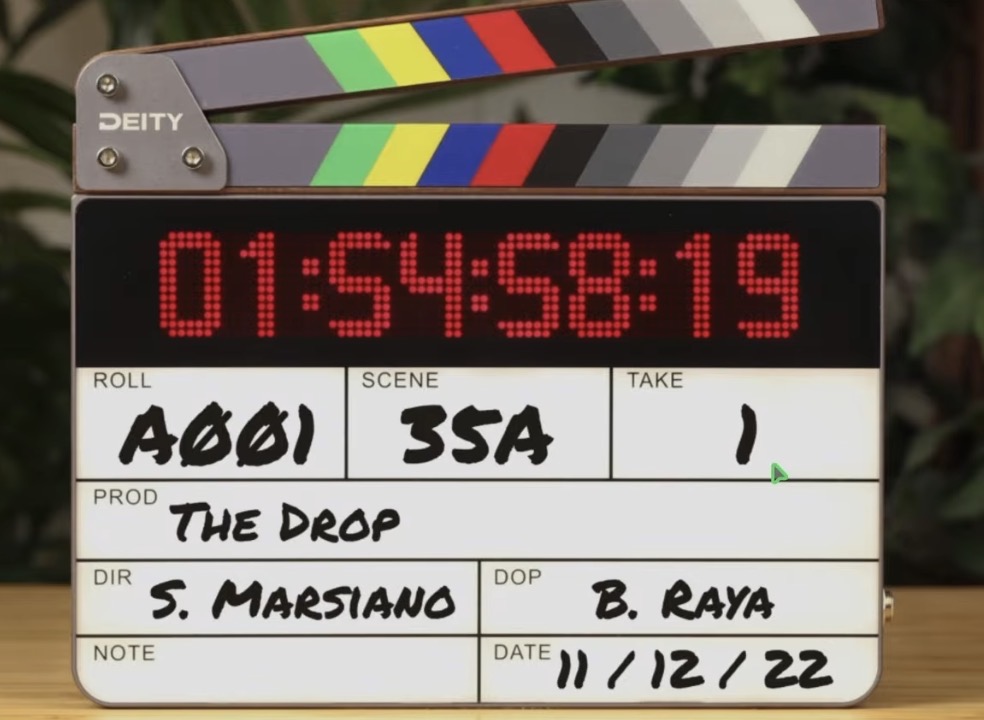
So if the slate says scene 35A, take one, that goes straight into the metadata of the clip. It is around 90 to 95% accurate and it depends a lot on your handwriting. The AI is not great with bad handwriting. It also takes a lot of time, so only turn it on if you actually shoot with slates.
The transcription and the audio classification were already there before. If you work with podcasts or interviews, the transcription is very powerful and i covered it here: How To Transcribe Audio in DaVinci Resolve iPad and here: How To Detect Speakers in Text Based Editing (DaVinci Resolve iPad).
How to search for people and objects with IntelliSearch
After the analysis is done, go to the search field in the Media Pool. You now get more options than before. You can search in All, Visual only, Transcripts or Metadata. Type in “car” and you get the clips with a car in them. Type in “woman” and you get the clips where a woman appears.
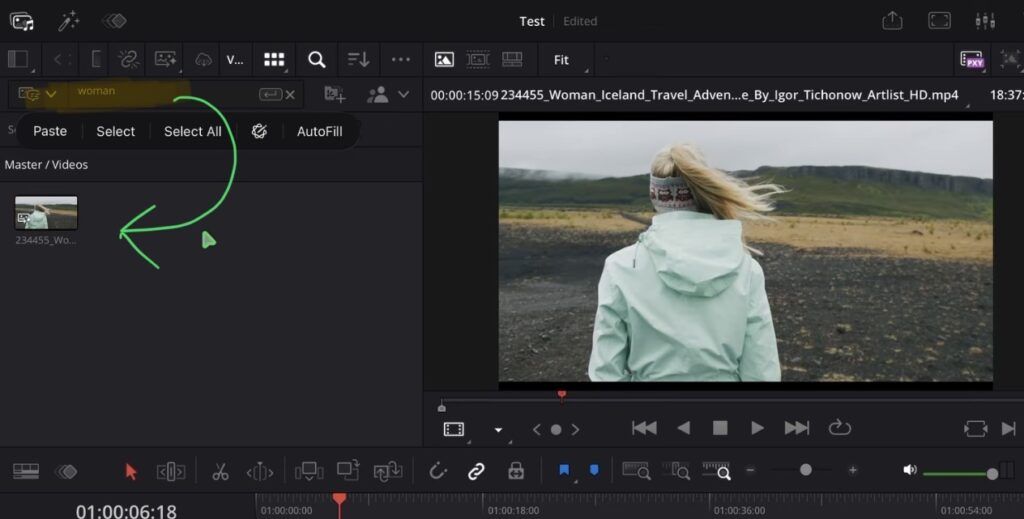
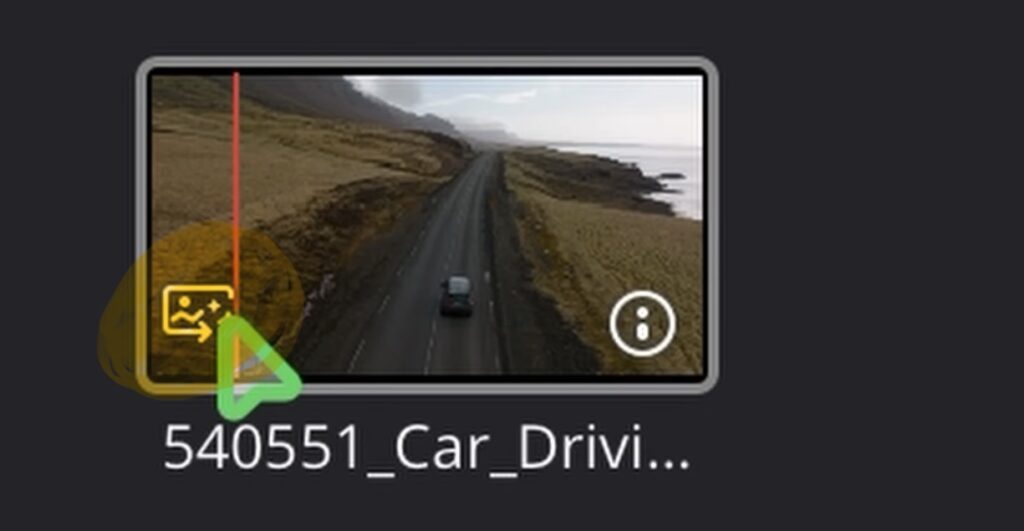
If nothing shows up: The first time i searched with “all bins” selected i got no results. Switch to “selected bins”, then switch back to “all bins” and it works. Give that a try before you think the analysis failed.
The search also works in the Cut Page. Every clip that was analyzed gets a small IntelliSearch tag icon on the thumbnail, so you can always see which clips are already in the index and which ones are not.
Full Clips or Segments
Full Clips gives you the whole clip. Segments is the better option on long takes, because it shows you only the section where the car, the dog or the person is actually on screen. That saves you from scrubbing through a ten minute clip to find the two seconds you need.
Create a Smart Bin from your IntelliSearch results
Next to the search results there is a new button to create a Smart Bin from your selection. A Smart Bin is basically a filter, and it was already in DaVinci Resolve before. You can filter for drone shots, slow motion shots, keywords, flags and much more. I go deeper into that here: How To Create Smart Bins in DaVinci Resolve iPad.
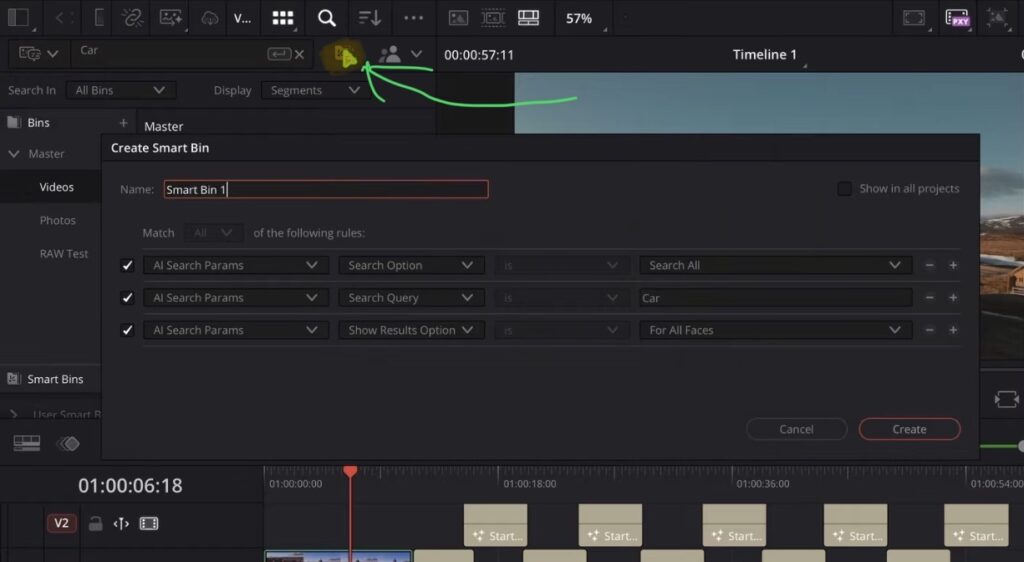
If you do not see the Smart Bins on the left side, make sure the side panel is active and then look under the three dots for “Show Smart Bins”. If that is off, turn it on first.
Heads up: On my MacBook the IntelliSearch Smart Bin works straight away. On my iPad the clips often do not show up in the bin. Switching from “selected bins” to “all bins” brings them back, and editing the Smart Bin and hitting OK also works, but as soon as you move around they are gone again. The Edit Page is not officially launched yet, so this is probably something that gets fixed in a future update.
Tip: If you don’t know how to get the other pages (FUSION, FAIRLIGHT, EDIT) on the iPad read this article first: How to UNLOCK ALL PAGES in DaVinci Resolve for iPad Pro
Just one of many DaVinci Resolve 21 features
AI IntelliSearch is only one of the many things we got with the newest version. I made a full video where i go through every single new feature that we can use on the iPad. Definitely check it out here: DaVinci Resolve iPad Version 21 – All Features explained
If you want to host your own Online Course use CC360
I really believe, that CC360 is the best Platform to host your own Online Course currently on the market. And each week they introduce new features. Amazing. Check it out here.
BONUS: All DaVinci Resolve iPad Masterclass Students get the Transition Pack & the 8K Film Grain Pack for FREE!
You can either get the Transition Pack separate here: Seamless Transition Pack for DaVinci Resolve iPad. Or the 8K Film Grain Pack here: 8K Film Grain Bundle. but all of our DaVinci Resolve iPad Packs are a FREE Bonus for the DaVinci Resolve iPad Masterclass Students.
Check It Out here DaVinci Resolve iPad MasterClass: From Beginner To Pro.
Read Next
• How COPY Color Grade to MULTIPLE Clips in DaVinci Resolve iPad
• DO THIS to make DaVinci Resolve FASTER! (Instead of rage smashing your iPad)
• How To Delete Cache Files in DaVinci Resolve iPad
• How To Color Correct iPhone Footage in DaVinci Resolve iPad
• Easy Sync Audio & Video in DaVinci Resolve iPad

![Grainy Night Shots? [This Fixes It!]](https://exlima.net/wp-content/uploads/2026/10/Grainy-Night-Shots-This-Fixes-It-1024x576-394x330.webp)