DaVinci Resolve iPad Full Screen external Monitor support!
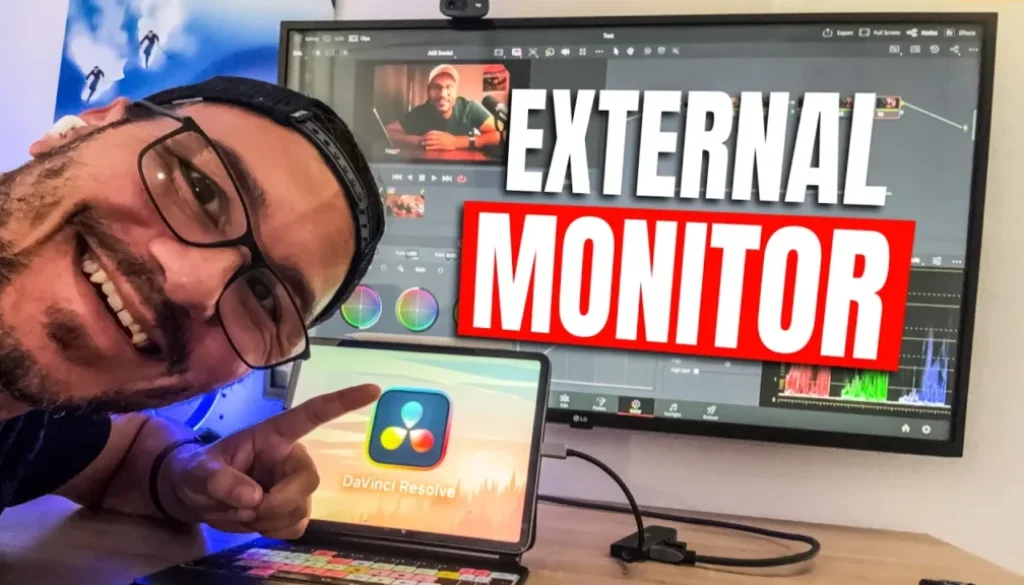
If you connect an external monitor to your iPad, DaVinci Resolve was always limited to the iPad screen size. Even on a huge display you could not use the whole screen. With DaVinci Resolve 21 that changed and in this article i will show you how to get full screen DaVinci Resolve on your external monitor.
Pro Tip: Make your Videos Cinematic (and save a tone of time) with our Seamless Transition Pack for DaVinci Resolve iPad.

Contents
- [Video] DaVinci Resolve iPad Full Screen external Monitor support!
- How to send a Video Clean Feed Out to your external monitor
- Turn on the Menu Bar with the Windowed App setting
- Use your external monitor as an Extended Display, not as a mirror
- Double tap for Full Screen DaVinci Resolve on the external monitor
- A hidden DaVinci Resolve 21 feature
- If you want to host your own Online Course use CC360
- BONUS: All DaVinci Resolve iPad Masterclass Students get the Transition Pack & the 8K Film Grain Pack for FREE!
[Video] DaVinci Resolve iPad Full Screen external Monitor support!
How to send a Video Clean Feed Out to your external monitor
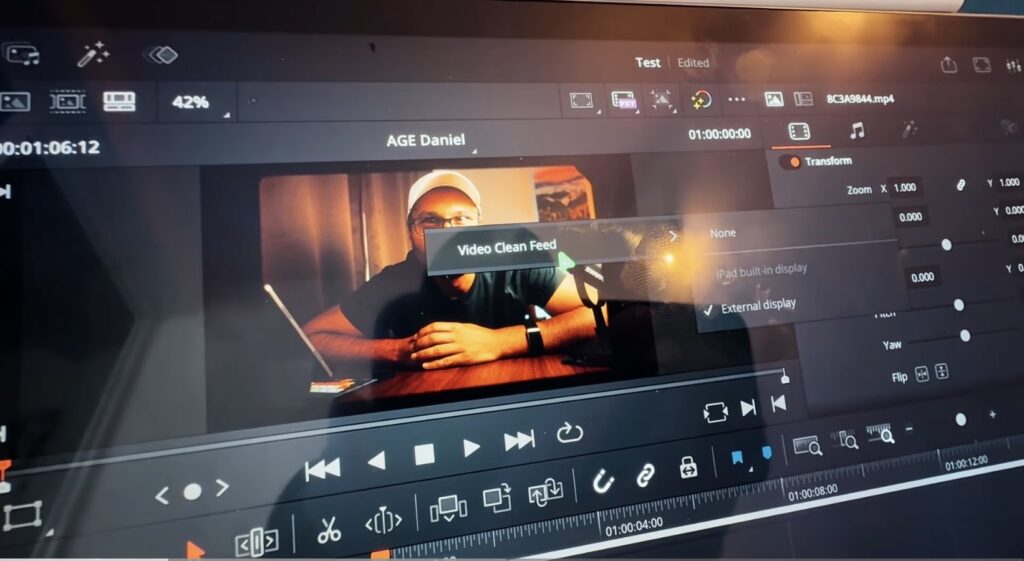
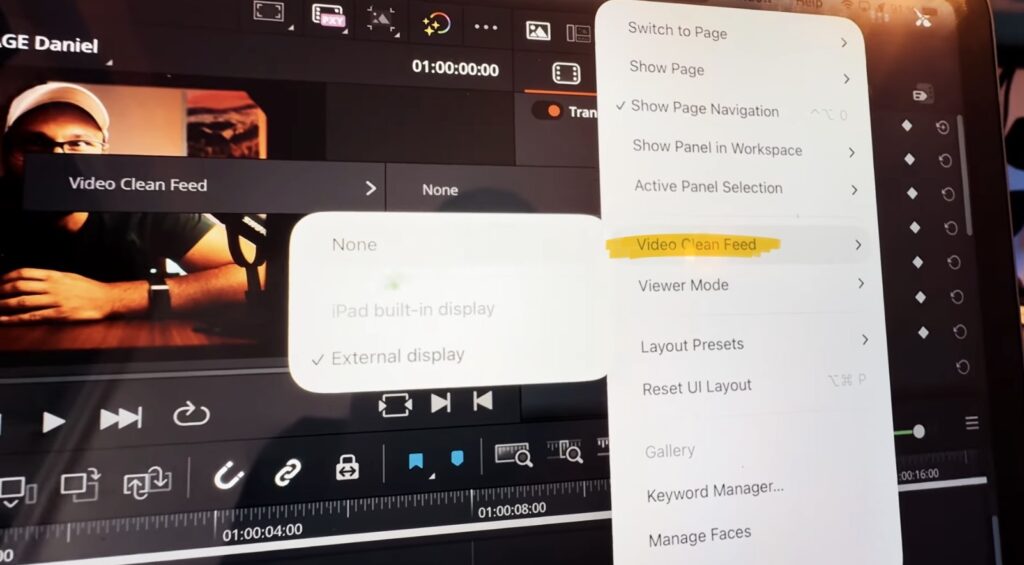
The first option is the clean feed. Right click on your viewer, choose Video Clean Feed Out and then select your external display. If you have the menu bar at the top you can also go to Workspace and you will find Video Clean Feed Out in there as well. This one is not new, but keep in mind that you need a Studio license for it. With the free version the clean feed does not work.
Tip: If you don’t know how to get the other pages (FUSION, FAIRLIGHT, EDIT) on the iPad read this article first: How to UNLOCK ALL PAGES in DaVinci Resolve for iPad Pro
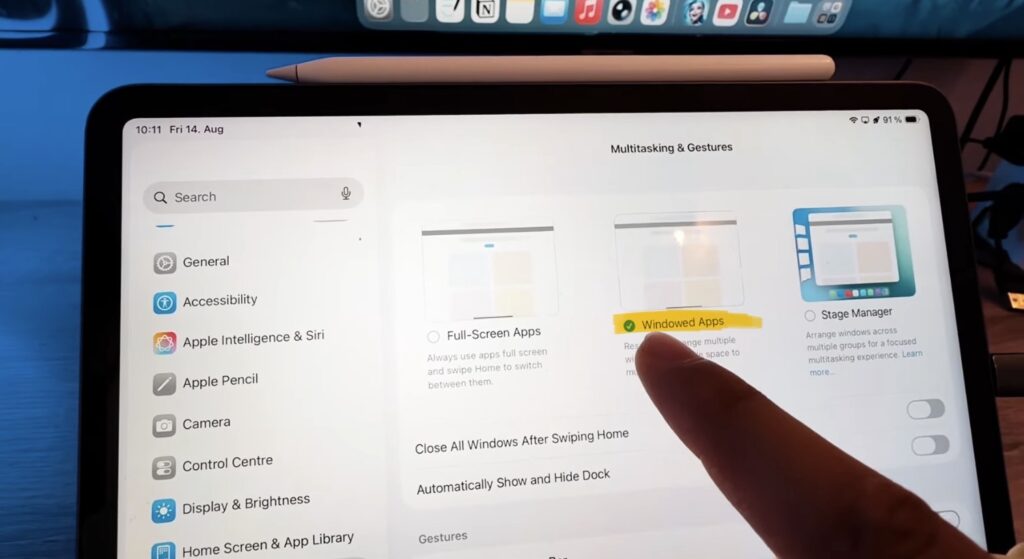
Turn on the Menu Bar with the Windowed App setting
If you don’t see the menu bar at the top, go to the iPad Settings, open Multitasking and switch from Full Screen to Windowed App. Only then you get the menu bar. This setting is also what makes the next part possible, because you need windows that you can move around.
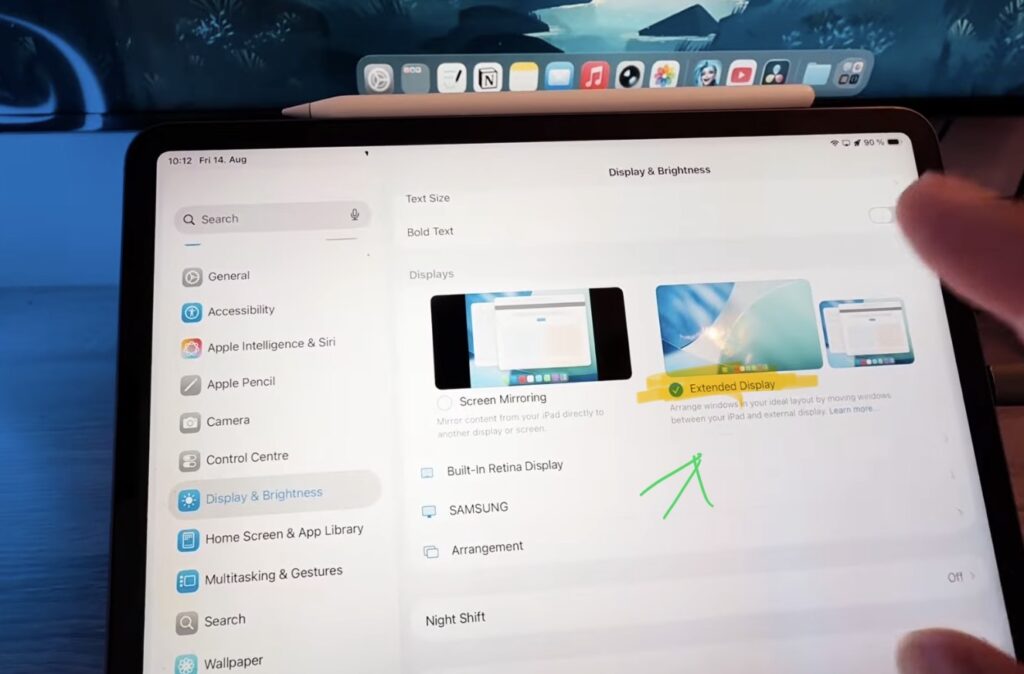
Use your external monitor as an Extended Display, not as a mirror
This is the important part. Go to Display in your iPad Settings and instead of Screen Mirroring choose Extended Display. Now your external monitor is a second screen and not a copy of your iPad. This depends on your iPad. On my iPad Pro it works, my iPad mini only offers screen mirroring. Let me know in the comments if it is different for you.
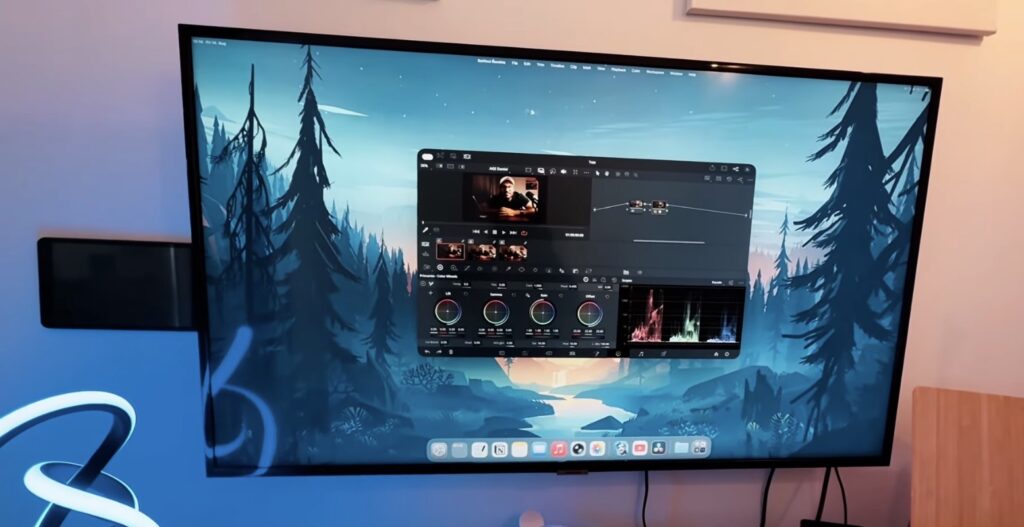
Double tap for Full Screen DaVinci Resolve on the external monitor
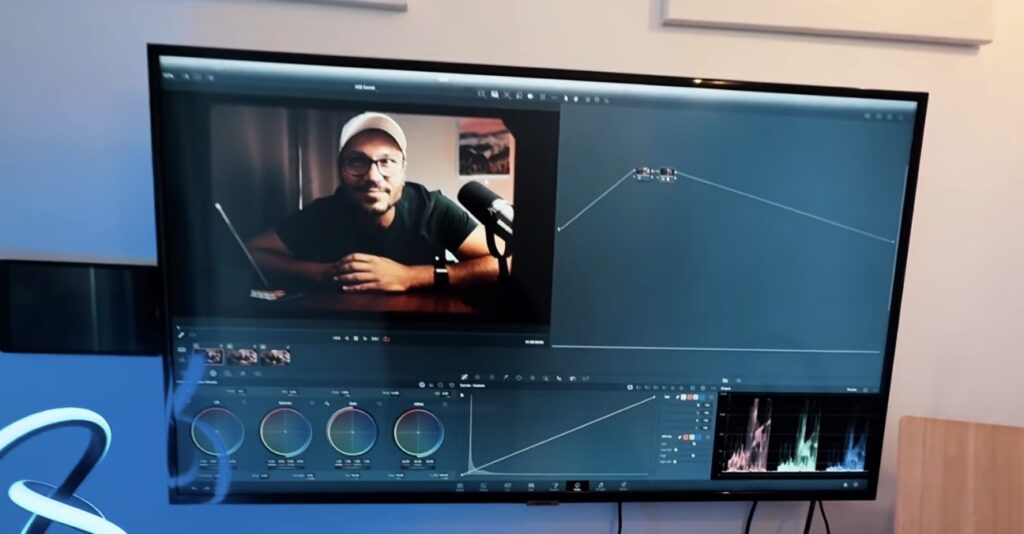
Now drag the DaVinci Resolve window over to your external monitor and double tap on it. That is the whole trick. In the past the window was locked to the iPad size, so even with a big monitor you could not use the whole screen. Now you get full screen and the entire resolution changes on every page.
Go to the Edit Page and you have so much more real estate. On a really big screen the interface can get a bit small, but that is just the resolution. Together with a mouse and a keyboard this is a completely different way to edit on the iPad.
This one came with DaVinci Resolve 21 and it was not even in the official update notes. I made a full video where i go through every single new feature that we can use on the iPad. Definitely check it out here: DaVinci Resolve iPad Version 21 – All Features explained
SALE: Because of the DaVinci Resolve 21 Update i run a discount right now. Use the code DVR21 at the checkout and get 21% off the DaVinci Resolve iPad MasterClass: From Beginner To Pro.
If you want to host your own Online Course use CC360
I really believe, that CC360 is the best Platform to host your own Online Course currently on the market. And each week they introduce new features. Amazing. Check it out here.
BONUS: All DaVinci Resolve iPad Masterclass Students get the Transition Pack & the 8K Film Grain Pack for FREE!
You can either get the Transition Pack separate here: Seamless Transition Pack for DaVinci Resolve iPad. Or the 8K Film Grain Pack here: 8K Film Grain Bundle. but all of our DaVinci Resolve iPad Packs are a FREE Bonus for the DaVinci Resolve iPad Masterclass Students.
Check It Out here DaVinci Resolve iPad MasterClass: From Beginner To Pro.
Read Next
• How COPY Color Grade to MULTIPLE Clips in DaVinci Resolve iPad
• DO THIS to make DaVinci Resolve FASTER! (Instead of rage smashing your iPad)
• How To Delete Cache Files in DaVinci Resolve iPad
• How To Color Correct iPhone Footage in DaVinci Resolve iPad
• Easy Sync Audio & Video in DaVinci Resolve iPad


![Grainy Night Shots? [This Fixes It!]](https://exlima.net/wp-content/uploads/2026/10/Grainy-Night-Shots-This-Fixes-It-1024x576-394x330.webp)