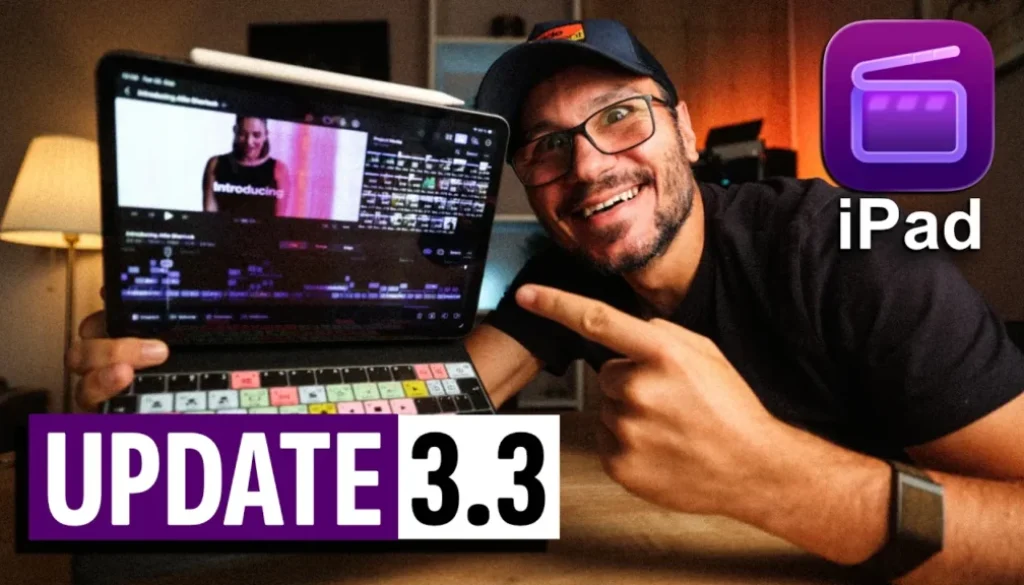
FCP iPad UPDATE: Easy add CAPTIONS !!!
In this article/video i will show you the new Final Cut Pro for iPad Update Version 3.3. The biggest new feature is Generate Captions, which adds animated subtitles to your videos automatically. We also got Edit Detection, detach audio, new keyboard shortcuts like Split All and new Creator Themes.

Contents
- [Video] FCP iPad UPDATE: Easy add CAPTIONS !!!
- How to Generate Captions in Final Cut Pro for iPad
- How to Animate Captions Word by Word
- Vertical Social Media Safe Zone for Reels and Shorts
- Edit Detection: Split a Video into Separate Clips Automatically
- How to Detach Audio from Video in Final Cut Pro for iPad
- Best Practice: Create Captions at the End on a Duplicate Timeline
- New Keyboard Shortcuts: Split All in Final Cut Pro for iPad
- New Creator Themes, Titles and Backgrounds
- Final Cut Pro or DaVinci Resolve on the iPad Mini?
- Join the Smartphone Filmmaker Pro: The First Founding Cohort
[Video] FCP iPad UPDATE: Easy add CAPTIONS !!!
Final Cut Pro for iPad Version 3.3 (30.6.2026)
Powerful Intelligence
• Use Generate Captions to quickly add subtitles and easily customize their look to create accessible, ready-to-share content for social media and video platforms (requires iPadOS 26 or later and available only in U.S. English)
• Analyze any rendered video with Edit Detection to reveal its shot changes and automatically split it into separate clips with just a tap
Workflow Enhancements
• Easily separate audio from a video clip in the timeline so you can move, trim, or edit it independently
• Accelerate your editing with even more keyboard shortcuts for position mode, split all, raise audio volume, lower audio volume, and more
New Content
• Elevate your social content using new Creator Themes with support for multiple aspect ratios, dynamic titles featuring additional styles, and even more vibrant, customizable backgrounds
Info: Version 3.2 did not bring anything new that i haven’t already covered. If you want to see all the big features that came with Version 3.0, check out this article: Final Cut Pro iPad 3.0: Every New Feature Tested (AI, Beat Detection & More)
How to Generate Captions in Final Cut Pro for iPad
After a few seconds all the captions show up in your timeline. You can change the basic look and theme, but you can also make them more unique and animate them.
How to Animate Captions Word by Word
Fade lets the words appear one by one. Highlight colors the word that is currently spoken. You can animate word by word, by line, by character or all at once.
Important: If you only select one caption, the change only applies to that one caption. So zoom out in your timeline and draw a box around all captions to select them together.
Vertical Social Media Safe Zone for Reels and Shorts
This is perfect if you create Instagram Reels, TikToks or YouTube Shorts and you don’t want your text to be cut off.
Edit Detection: Split a Video into Separate Clips Automatically
So you don’t have to cut these videos manually anymore. Keep in mind that this only works if the video actually has different shots. If you have a talking head clip with the same frame the whole time, there is nothing to detect.
How to Detach Audio from Video in Final Cut Pro for iPad
Important: If you already generated captions, they don’t move with the detached audio. They stay where they were placed first. So first move your audio where you want it and then create the captions.
Best Practice: Create Captions at the End on a Duplicate Timeline
Always create your captions when your video is finished. Don’t make them while you are still building your story. My tip is to duplicate your finished timeline and add the captions to the copy. So you have one timeline without captions and one with captions.
New Keyboard Shortcuts: Split All in Final Cut Pro for iPad
Version 3.3 adds more keyboard shortcuts for position mode, split all, raise audio volume, lower audio volume and more. My favorite is Split All. Before, we always had to select everything first.
Split All = Shift + Command + B
Place your playhead where you want to cut and hit Shift + Command + B. Final Cut Pro cuts through every clip under the playhead on all layers at once.
You can find the full list of shortcuts in the official Final Cut Pro for iPad User Guide from Apple. What i still miss is the option to set your own custom shortcuts like we can in DaVinci Resolve. But no worries, the app works perfectly without a keyboard. It is optimized for touch and the Apple Pencil.
New Creator Themes, Titles and Backgrounds
The new Creator Themes support multiple aspect ratios, dynamic titles with more styles and more vibrant backgrounds. Apple keeps adding more to this library with every update.
Final Cut Pro or DaVinci Resolve on the iPad Mini?
Someone in the comments asked me how it was when i only used the iPad Mini. Last Christmas i traveled to Germany and Turkey with only my MacBook and my iPad Mini, no iPad Pro, no keyboard and no mouse.
The short answer: I edited way more in Final Cut Pro. Especially in vertical mode i saw more of my timeline than on my iPad Pro, because Final Cut Pro is designed for touch. In DaVinci Resolve i only used a few features like Voice Isolation. For heavy editing i switched to my MacBook. DaVinci Resolve is a big software and it really shines on the iPad when you have a keyboard and mouse for all the shortcuts. On the small iPad Mini screen without a keyboard it felt more limited.
So if you only use your iPad with touch and the Apple Pencil, i still think Final Cut Pro is the better app. Yes, it is a subscription, but it is simpler and not as bloated. If you want Hollywood level software that is the same as on the desktop, DaVinci Resolve is the better choice. I will make a separate video about my iPad Mini learnings.
If you want to learn everything about Final Cut Pro on the iPad, check out my Final Cut Pro iPad MasterClass: From Beginner to Pro.
Join the Smartphone Filmmaker Pro: The First Founding Cohort
I’m starting a smartphone filmmaking course as a closed community cohort. If you want to create amazing videos for Instagram, TikTok, Reels or your travel and holiday videos, this is for you. We all start at the same time, you get live calls with me throughout the week and a guided online course that you can access later. Spots are limited, and everyone on the waiting list gets a big discount when the cohort starts. Because this is the first founding cohort, you will help me shape the course. It works with any smartphone, iPhone or Android.
➡️ Join the Smartphone Filmmaker Pro COHORT Waiting here!
Read Next
• How To Turn ON/OFF Audio Skimming in Final Cut Pro iPad
• How To DUPLICATE Timeline in Final Cut Pro iPad
• How to add KEYFRAMES in Final Cut Pro iPad