Compound Nodes in DaVinci Resolve iPad: How to Create & Open Them
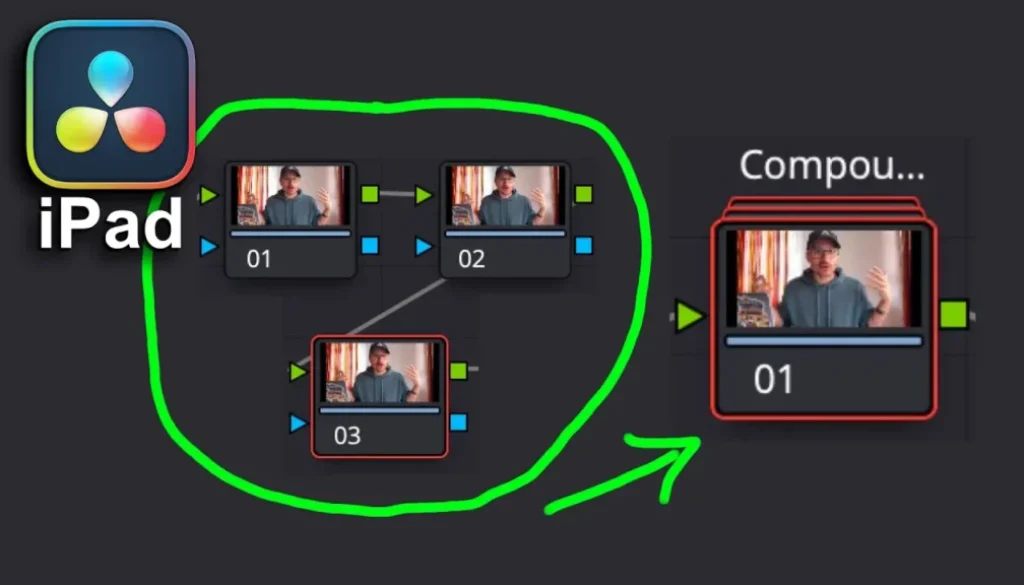
In this article/video i will show you how to use Compound Nodes in the Color Page of DaVinci Resolve for iPad. You can combine multiple nodes into one, open them with a simple double click and even decompose them when you don’t need them anymore.
Pro Tip: Make your Videos Cinematic (and save a tone of time) with our Seamless Transition Pack for DaVinci Resolve iPad.

Contents
- [Video] How To Use Compound Nodes in DaVinci Resolve iPad
- How to Create a Compound Node in DaVinci Resolve iPad
- How to Open a Compound Node on iPad
- How to Decompose a Compound Node
- If you want to host your own Online Course use CC360
- BONUS: All DaVinci Resolve iPad Masterclass Students get the Transition Pack & the 8K Film Grain Pack for FREE!
[Video] How To Use Compound Nodes in DaVinci Resolve iPad
How to Create a Compound Node in DaVinci Resolve iPad
In the Color Page of DaVinci Resolve for iPad you can combine multiple nodes into one single Compound Node. This is great if you want to keep your Node Tree clean and organized.
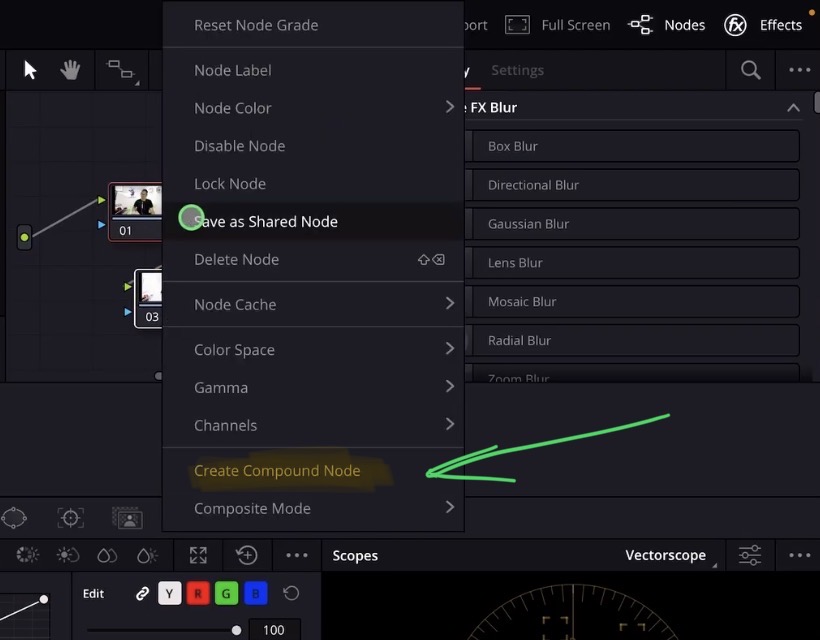
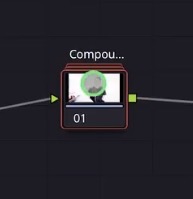
To create a Compound Node, simply select all the nodes you want to combine. Then right click and choose “Create Compound Node”. All selected nodes will now be grouped inside one single node.
How to Open a Compound Node on iPad
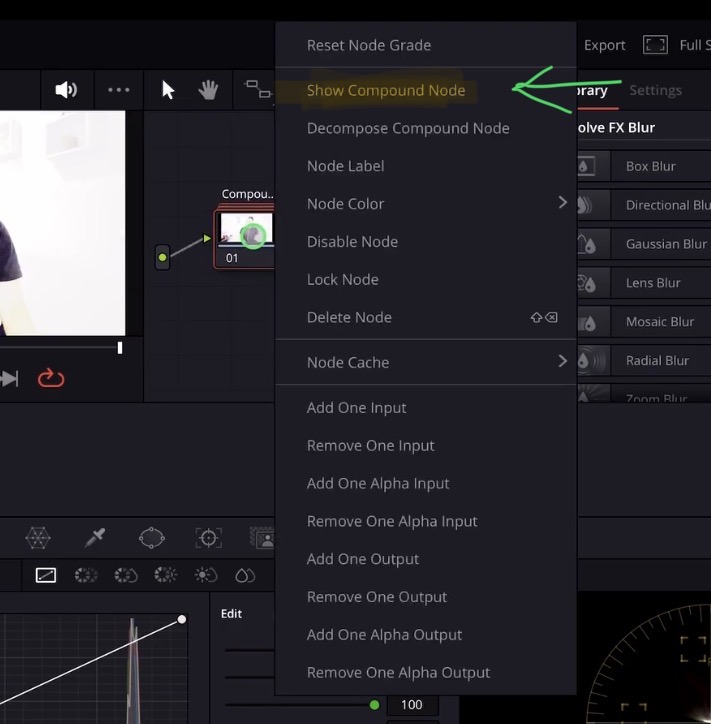
To see what is inside your Compound Node you have two options. You can right click on the Compound Node and select “Show Compound Node”. Or you can simply double click on the Compound Node to open it. This double click support is a newer addition to the iPad version of DaVinci Resolve.
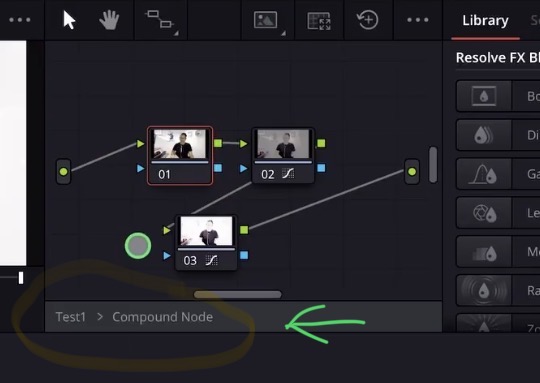
Once you are inside the Compound Node you will see a separate view with all the individual nodes. You can give this Compound Node a name to keep everything organized. To go back to the main Node Tree, simply double click on the Compound Node name at the top.
How to Decompose a Compound Node
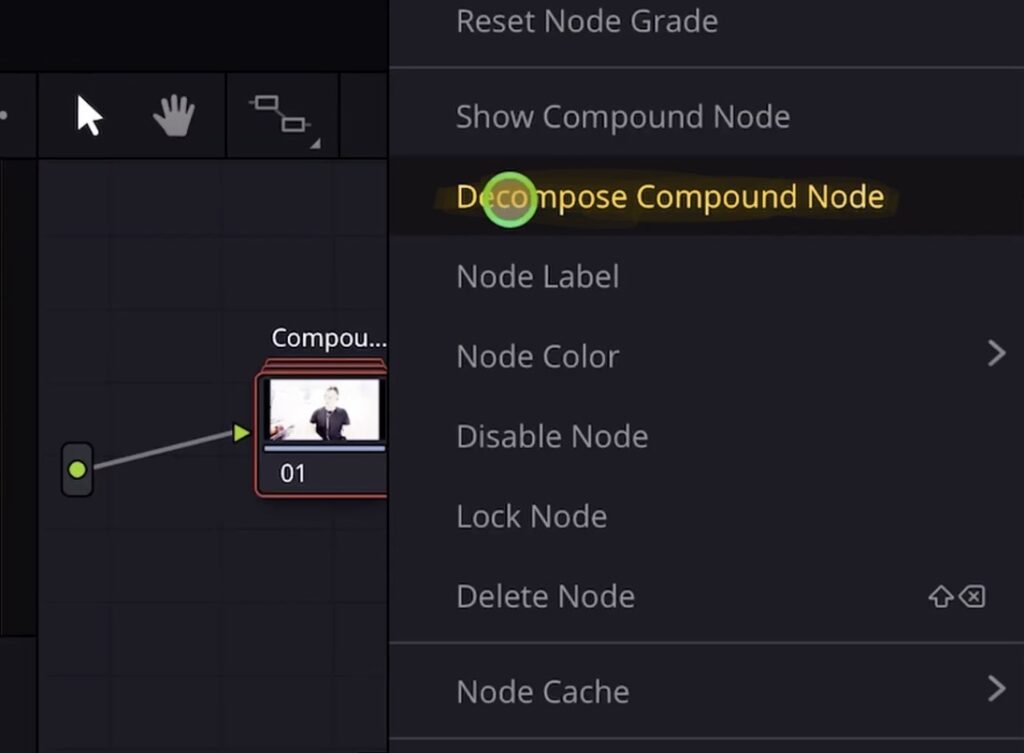
If you don’t need the Compound Node anymore and want to bring back all the individual nodes, you can right click on the Compound Node and select “Decompose Compound Node”. This will break it apart and all your original nodes will be back in the main Node Tree.
Tip: If you don’t know how to get the other pages (FUSION, FAIRLIGHT, EDIT) on the iPad read this article first: How to UNLOCK ALL PAGES in DaVinci Resolve for iPad Pro
If you want to host your own Online Course use CC360
I really believe, that CC360 is the best Platform to host your own Online Course currently on the market. And each week they introduce new features. Amazing. Check it out here.
BONUS: All DaVinci Resolve iPad Masterclass Students get the Transition Pack & the 8K Film Grain Pack for FREE!
You can either get the Transition Pack separate here: Seamless Transition Pack for DaVinci Resolve iPad. Or the 8K Film Grain Pack here: 8K Film Grain Bundle. but all of our DaVinci Resolve iPad Packs are a FREE Bonus for the DaVinci Resolve iPad Masterclass Students.
Check It Out here DaVinci Resolve iPad MasterClass: From Beginner To Pro.
Read Next
• How COPY Color Grade to MULTIPLE Clips in DaVinci Resolve iPad
• DO THIS to make DaVinci Resolve FASTER! (Instead of rage smashing your iPad)
• How To Delete Cache Files in DaVinci Resolve iPad
• How To Color Correct iPhone Footage in DaVinci Resolve iPad
• Easy Sync Audio & Video in DaVinci Resolve iPad