Animated Word-By-Word Subtitles on iPad?
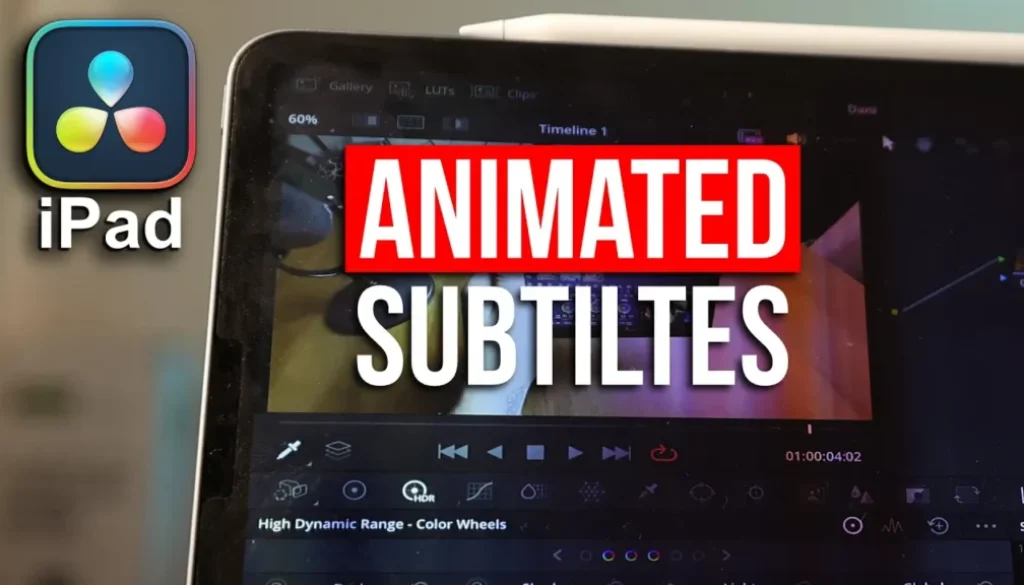
In this article/video i will show you how to use the new AI Animated Subtitles in DaVinci Resolve for iPad. This feature highlights each word as it is spoken, giving your captions a professional animated look. Let me show you how to set it up.
Pro Tip: Make your Videos Cinematic (and save a tone of time) with our Seamless Transition Pack for DaVinci Resolve iPad.

Contents
- [Video] AI Animated Subtitles in DaVinci Resolve iPad
- How to Create Captions in DaVinci Resolve iPad
- Where to Find the AI Animated Subtitles
- Important: Use the Edit Page for Animated Subtitles
- How to Apply the Animated Subtitle to All Captions
- If you want to host your own Online Course use CC360
- BONUS: All DaVinci Resolve iPad Masterclass Students get the Transition Pack & the 8K Film Grain Pack for FREE!
[Video] AI Animated Subtitles in DaVinci Resolve iPad
How to Create Captions in DaVinci Resolve iPad

Before you can use the AI Animated Subtitles you first need to create captions for your video. On the Cut Page click on the subtitle icon and select “Create Subtitles from Audio”. Choose your language (for example English) and click create. DaVinci Resolve will now analyze your timeline and generate subtitles automatically.


Where to Find the AI Animated Subtitles
Go to Titles and type “animated” in the search field. You will find a complete new category called Animated Subtitles. These subtitles will highlight word by word as you speak, which looks really professional for captions.

Important: Use the Edit Page for Animated Subtitles
If you try to drag the animated subtitle onto your captions track on the Cut Page it might crash. At least on my iPad this was happening every time. The solution is to switch to the Edit Page. On the Edit Page you can grab the animated subtitle and drag it onto your captions track without any issues.
How to Apply the Animated Subtitle to All Captions

Simply drag the animated subtitle on top of your entire captions track. This will affect all of the captions and subtitles that you have created. Now when you play back your video you will see the words highlighting as they are spoken.
Tip: If you don’t know how to get the other pages (FUSION, FAIRLIGHT, EDIT) on the iPad read this article first: How to UNLOCK ALL PAGES in DaVinci Resolve for iPad Pro
If you want to host your own Online Course use CC360
I really believe, that CC360 is the best Platform to host your own Online Course currently on the market. And each week they introduce new features. Amazing. Check it out here.
BONUS: All DaVinci Resolve iPad Masterclass Students get the Transition Pack & the 8K Film Grain Pack for FREE!
You can either get the Transition Pack separate here: Seamless Transition Pack for DaVinci Resolve iPad. Or the 8K Film Grain Pack here: 8K Film Grain Bundle. but all of our DaVinci Resolve iPad Packs are a FREE Bonus for the DaVinci Resolve iPad Masterclass Students.
Check It Out here DaVinci Resolve iPad MasterClass: From Beginner To Pro.
Read Next
• How COPY Color Grade to MULTIPLE Clips in DaVinci Resolve iPad
• DO THIS to make DaVinci Resolve FASTER! (Instead of rage smashing your iPad)
• How To Delete Cache Files in DaVinci Resolve iPad
• How To Color Correct iPhone Footage in DaVinci Resolve iPad
• Easy Sync Audio & Video in DaVinci Resolve iPad