
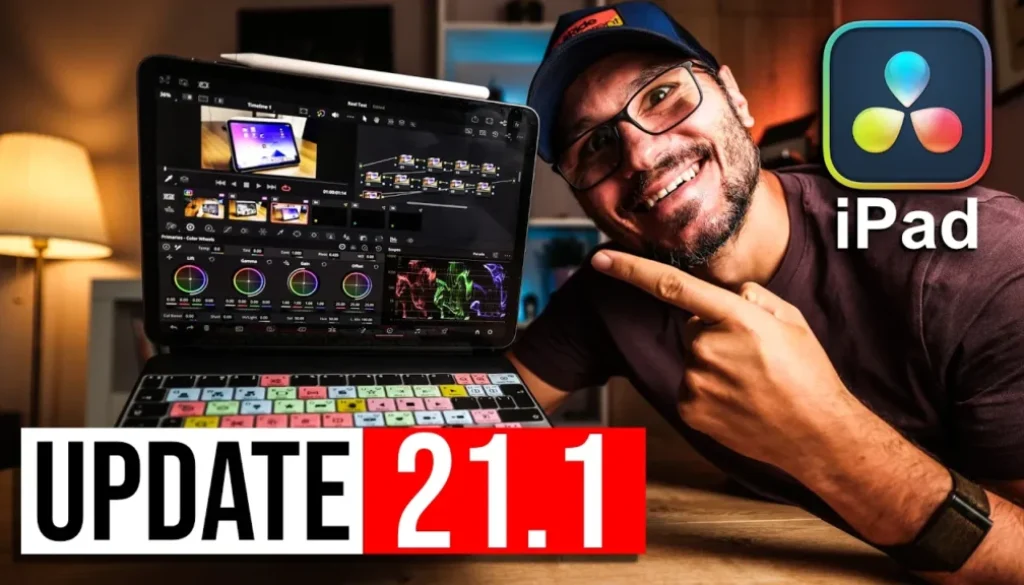
DaVinci Resolve iPad UPDATE: All New Features Explained!
DaVinci Resolve for iPad just got Version 21.1 and this is a massive update. In this article/video I will show you all the new iPad features, from Inspector Presets and Camera RAW controls for photos to the new Font Browser preview and finally Voice Over support.
Pro Tip: Make your Videos Cinematic (and save a tone of time) with our Seamless Transition Pack for DaVinci Resolve iPad.

Contents
- [Video] DaVinci Resolve iPad UPDATE: All New Features Explained!
- How to customize Media Pool columns in DaVinci Resolve iPad
- Search now includes Sub Bins and exact text
- Use Proxy Media for AI Tools
- Source Viewer shows the original Aspect Ratio
- Change Starting Timecode for multiple Clips
- How to delete multiple Markers in the Media Pool
- Camera RAW Settings for Photos in DaVinci Resolve iPad
- How to create Inspector Presets in DaVinci Resolve iPad
- Finally Voice Over on the iPad
- Edit multiple Fusion Titles at once
- Draw Ellipse Annotations on Markers
- Edit in the Inspector without selecting a Clip
- Two Timers in the Multiview
- New Editing Preferences: Blade selects the right Clip
- Pick Colors directly from the Viewer
- Font Browser with Text Preview
- All other Improvements in Version 21.1
- If you want to host your own Online Course use CC360
- BONUS: All DaVinci Resolve iPad Masterclass Students get the Transition Pack & the 8K Film Grain Pack for FREE!
[Video] DaVinci Resolve iPad UPDATE: All New Features Explained!
DaVinci Resolve iPad Version 21.1 (9.9.2026)
• Editable media pool list view text and checkbox fields.
• Search includes sub bins and supports exact text matching.
• AI tools preference to use proxy media if originals are offline. (Studio)
• Source viewer supports original aspect ratios and interlaced media previews.
• Preview geometry assets.
• Change starting timecode for multiple selected clips.
• Delete selected media pool list view markers.
• Created/modified dates for compound clips and timelines.
• Change photo inspector settings from color panels.
• Improved post decode sharpening for RAW images.
• Inspector reset controls for each RAW parameter.
• DNG file support for lens distortion, aberration and shading.
• Resolve FX Sky Replacement support for album photos.
• Support for inspector presets.
• Support for recording voiceovers.
• Edit Fusion properties for multiple selected clips in inspector.
• Marker annotation support for drawing ellipses.
• Playhead indicator for current clip in inspector and viewer.
• Two timer options for source tape and multiview.
• Restored timeline backups retain backup history.
• Preference options to stop playback on scrub, play audio on move and select right clip after blade.
• Fusion effect color picker support in viewer.
• Font browser option to display text preview from title.
• AI music editor retains more content, avoids repetition and offers better mix choices. (Studio)
• Improved MultiText layer align behavior.
• Support for ProRes RAW controls.
• Support for Resolve FX Panomap. (Studio)
• Retain playhead position when navigating between tracks.
• Missing DCTLs show as viewer overlay, can be linked from the LUT Manager.
• Support for DJI D-Gamut2 and D-Log2.
• Support for GoPro Log.
• Support for Leica L-Log IDT and LUT.
• Support for Vivo Wide Gamut and Vivo Log.
• New controls in Resolve FX Beauty and Film Grain. (Studio)
• Improved effect scaling for Resolve FX with Gaussian blur.
• Render EXR with HTJ2K compression.
• Improved iXML metadata support from WAV audio.
• Presentation export option to include subtitles.
• QuickTime renders support multiple embedded captions.
• Improved media management error handling and reporting.
• Project level media management now includes a .drp export.
• Project archive options for stills, LUTs and used media.
• Ability to cancel opening a cloud project.
• Multiple actions can now be assigned key shortcuts.
• General performance and stability improvements.
That is a big list. Below I go over all the features that you can actually see and use on the iPad. Some of them are Studio features, I mark them when that is the case.
How to customize Media Pool columns in DaVinci Resolve iPad
In the Media Page this was always possible. Now you can also open this window in the Edit Page and add or remove columns. In the Cut Page it does not work, even in List View the right click menu does not show up. If you find another way to open it there, let me know in the comments of the video.
Search now includes Sub Bins and exact text
The Media Pool search now also looks inside your sub folders and supports exact text. This is really useful in combination with the new AI search from Version 21, where DaVinci Resolve builds a database of people, objects and text in your clips. I covered all of that here: DaVinci Resolve iPad Version 21 – All Features explained.
Use Proxy Media for AI Tools
If you turn this setting off, the AI tools use whatever you selected above, for example Prefer Proxies or Prefer Camera Originals. Only if the originals are offline it falls back to the proxies.
Source Viewer shows the original Aspect Ratio
In the past the source preview always followed your timeline format. Now you see the clip how it was intended in the original file. On top of that you can now also preview 3D geometry assets in the Source Viewer, in the Cut Page and the Edit Page.
Change Starting Timecode for multiple Clips
This was not possible before. Keep in mind that it also changes the clips that are already in your timeline. The same Clip Attributes window now also works for compound clips and timelines, so you can change the starting timecode there as well.
How to delete multiple Markers in the Media Pool
To add markers to a source clip, go to the Edit Page, move the playhead in the Source Viewer, right click and choose Add Marker. In the List View you can also tap on a marker to jump straight to that position. If you want to learn all the different ways to use markers, read this: How to use Markers in DaVinci Resolve iPad.
Camera RAW Settings for Photos in DaVinci Resolve iPad
A few of the new features only work with RAW photos. Important: if you import from the Photos library, DaVinci Resolve only takes the JPEG. To get the RAW file (for example the CR3 file from a Canon camera), copy it into a folder in the Files app first. Then right click in the Photo Page, choose Import Media and select the RAW file.
So with this update we got improved post decode sharpening for RAW images and reset controls for every single RAW parameter, like everywhere else in the Inspector. This also works in the Edit Page: double click the RAW file in the Media Pool (not in the timeline) and the Camera RAW tab shows up in the Inspector.
Some more photo features in this update:
• DNG Lens Correction: Lens Correction in the Video tab of the Inspector now works with DNG files, including aberration and shading in the Color Page.
• Sky Replacement: The Resolve FX Sky Replacement now works on photos in your album in the Photo Page.
• Color Panels: You can now change the photo settings in the Photo Page with a hardware panel like the DaVinci Resolve Micro Color Panel.
If you don’t see the Photo Page on your iPad yet, read this first: How to unlock the Photo Page in DaVinci Resolve iPad.
How to create Inspector Presets in DaVinci Resolve iPad
This is a big one. Every section in the Inspector now has a new settings icon. With it you can save your current settings as a preset and use them again on any other clip.
The best part: the presets are not saved only in one project. I created a brand new project and my preset was still there. It also works in both the Cut Page and the Edit Page.
Finally Voice Over on the iPad
We waited almost 2 years for this. The Voice Over tool came to the desktop version with DaVinci Resolve 19 and now we finally have it on the iPad too. In the Cut Page you find the new Voice Over icon, tap it and record. I made a separate article about this feature with all the settings: DaVinci Resolve iPad UPDATE: Finally VOICE OVER is here!!!
Edit multiple Fusion Titles at once
Select multiple Fusion titles in the timeline and open the Inspector. Parameters that are different show dots, but a change like the size now applies to all selected clips.
Draw Ellipse Annotations on Markers
This one was funny. The tool is there, the icon just does not show up, at least on my iPad. Let me know in the comments of the video if you can see it. This only works in the Edit Page, in the Cut Page you can see the annotations but you cannot edit them.
Edit in the Inspector without selecting a Clip
This makes editing faster because you don’t have to select a clip first. If you want to change the clip below, you still have to select it like before. I see the highlight only in the Edit Page.
Two Timers in the Multiview
Also new: when you restore a timeline backup, it now keeps the whole backup history.
New Editing Preferences: Blade selects the right Clip
Pick Colors directly from the Viewer
This even works with the Apple Pencil. Just don’t lift the pencil before you reach the color, you have to drag it in one move. It also works for other color fields like the shading of a title.
Font Browser with Text Preview
You can also make the window smaller and change the view to see more fonts next to each other, depending on your iPad size.
All other Improvements in Version 21.1
The AI Music Editor got better and now keeps more of your song, avoids repetition and gives you a better mix of choices (Studio feature). MultiText layers align better, and we got ProRes RAW controls and the Resolve FX Pano Map (Studio). There are new sliders in Resolve FX Beauty and Film Grain (Studio), plus support for a lot of new log formats like DJI D-Log 2, GoPro Log, Leica L-Log and vivo log. The rest are export, media management and performance improvements, you find all of them in the list above.
If you want to learn how to create a project archive with the new options, read this: How to export a Project Archive in DaVinci Resolve iPad. And if you missed the big Version 21 update with all the new AI tools, here is the full overview: DaVinci Resolve iPad Version 21 – All Features explained.
Tip: If you don’t know how to get the other pages (FUSION, FAIRLIGHT, EDIT) on the iPad read this article first: How to UNLOCK ALL PAGES in DaVinci Resolve for iPad Pro
If you want to host your own Online Course use CC360
I really believe, that CC360 is the best Platform to host your own Online Course currently on the market. And each week they introduce new features. Amazing. Check it out here.
BONUS: All DaVinci Resolve iPad Masterclass Students get the Transition Pack & the 8K Film Grain Pack for FREE!
You can either get the Transition Pack separate here: Seamless Transition Pack for DaVinci Resolve iPad. Or the 8K Film Grain Pack here: 8K Film Grain Bundle. but all of our DaVinci Resolve iPad Packs are a FREE Bonus for the DaVinci Resolve iPad Masterclass Students.
Check It Out here DaVinci Resolve iPad MasterClass: From Beginner To Pro.
Read Next
• How COPY Color Grade to MULTIPLE Clips in DaVinci Resolve iPad
• DO THIS to make DaVinci Resolve FASTER! (Instead of rage smashing your iPad)
• How To Delete Cache Files in DaVinci Resolve iPad
• How To Color Correct iPhone Footage in DaVinci Resolve iPad
• Easy Sync Audio & Video in DaVinci Resolve iPad


![How to Fix Blurry Video on iPad? [EASY FIX]](https://exlima.net/wp-content/uploads/2026/09/How-to-Fix-Blurry-Video-on-iPad-EASY-FIX-1024x576-394x330.webp)