

I Built My Own Wispr Flow. 100% Private. No Subscription. (Early Access)
In this article/video I will show you Phoenix Flow, a voice dictation app I built for my Mac. You speak, and a local AI turns your words into clean, formatted text in any app. Everything runs 100% on your Mac, nothing goes to the cloud, and there is no subscription.
Get Phoenix Flow (Early Access): 100% private dictation for your Mac. One-time payment, no subscription.
Contents
- [Video] I Built My Own Wispr Flow. 100% Private. No Subscription. (Early Access)
- What is Phoenix Flow?
- Why I built a Wispr Flow alternative
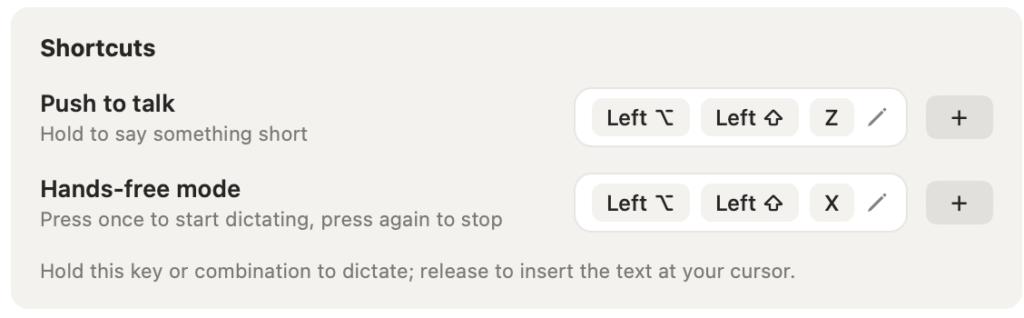
- Push-to-Talk and Hands-Free Mode
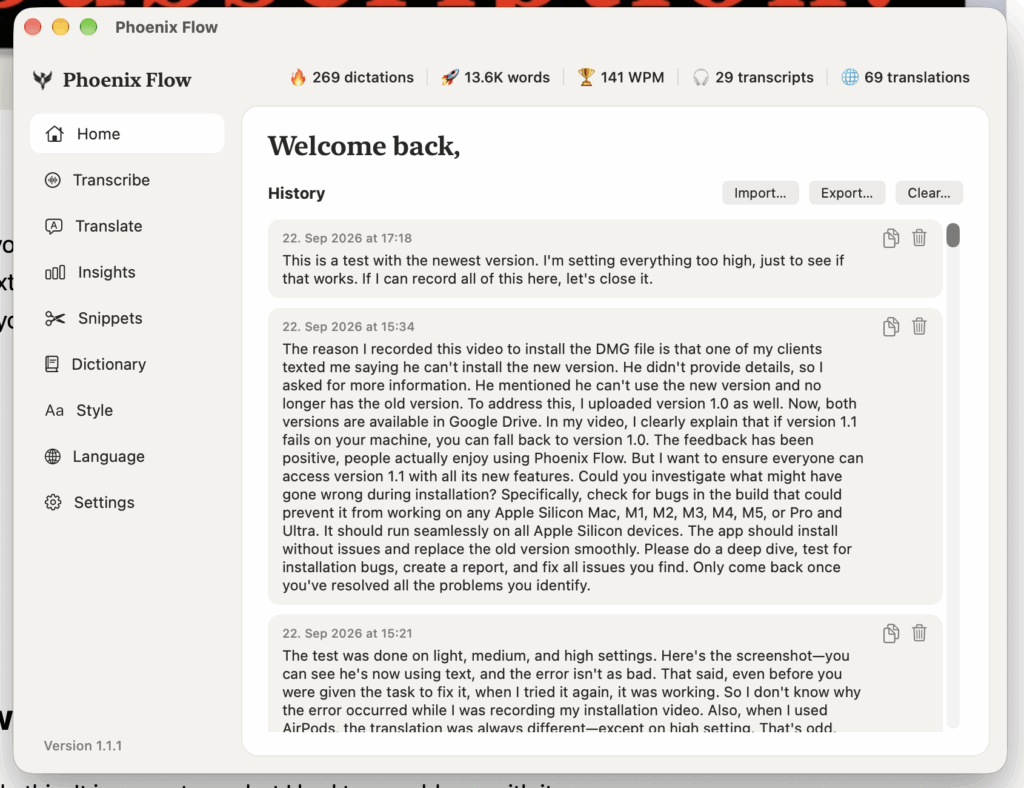
- Your transcript history stays on your Mac
- Record Microphone, System Audio or Both
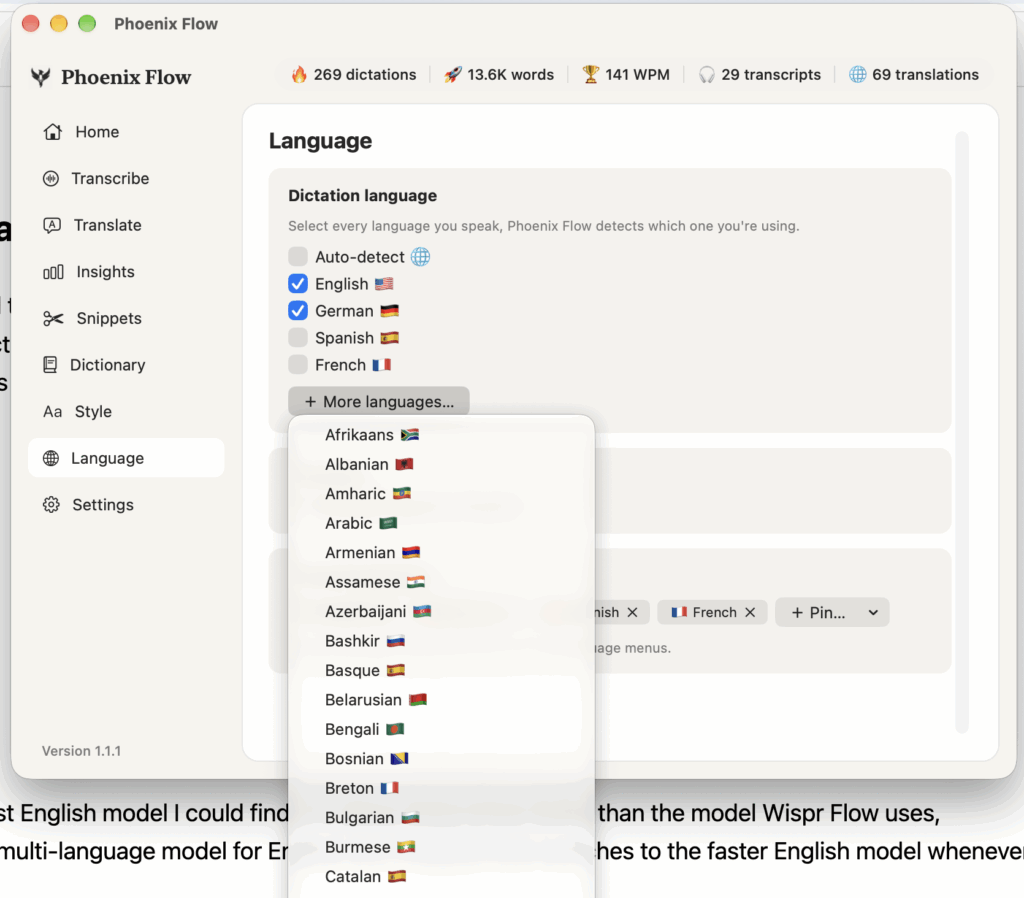
- Over 100 Languages, all offline
- Transcribe Audio and Video Files
- Offline Translation
- Voice Snippets
- Dictionary, AI Formatting and Tone
- Developer Mode for Coding
- Early Access and System Requirements
[Video] I Built My Own Wispr Flow. 100% Private. No Subscription. (Early Access)
What is Phoenix Flow?
You can speak so much faster than you can type. That is the whole idea behind Phoenix Flow. You press a button, talk, release the button, and your words appear as text wherever your cursor is. In your notes, in an email, in Claude or ChatGPT. In the background a local AI cleans up and formats what you said.
Why I built a Wispr Flow alternative
There are apps like Wispr Flow that do this. It is a great app, but I had two problems with it.
• Your data sits in their cloud. I want control over my own data. With Phoenix Flow everything stays local on your Mac. Nothing is sent anywhere.
• It is a subscription. Around $12 per month adds up to about $144 per year. Stay subscribed for 10 years and you paid over $1,400 just to talk to an AI. Phoenix Flow is a one-time purchase.
Push-to-Talk and Hands-Free Mode
You have two ways to dictate. With push-to-talk you hold a button while you speak. With hands-free mode you toggle recording on and off. In the settings you choose which key does what, and you can even assign two or three different keys to the same action.
Your transcript history stays on your Mac
Every transcript you ever create is saved, so you can always go back and copy something out again. If you don’t want to keep something, just delete it. The whole list also sits in your Documents folder, so you can clean it up there too. It’s your data.
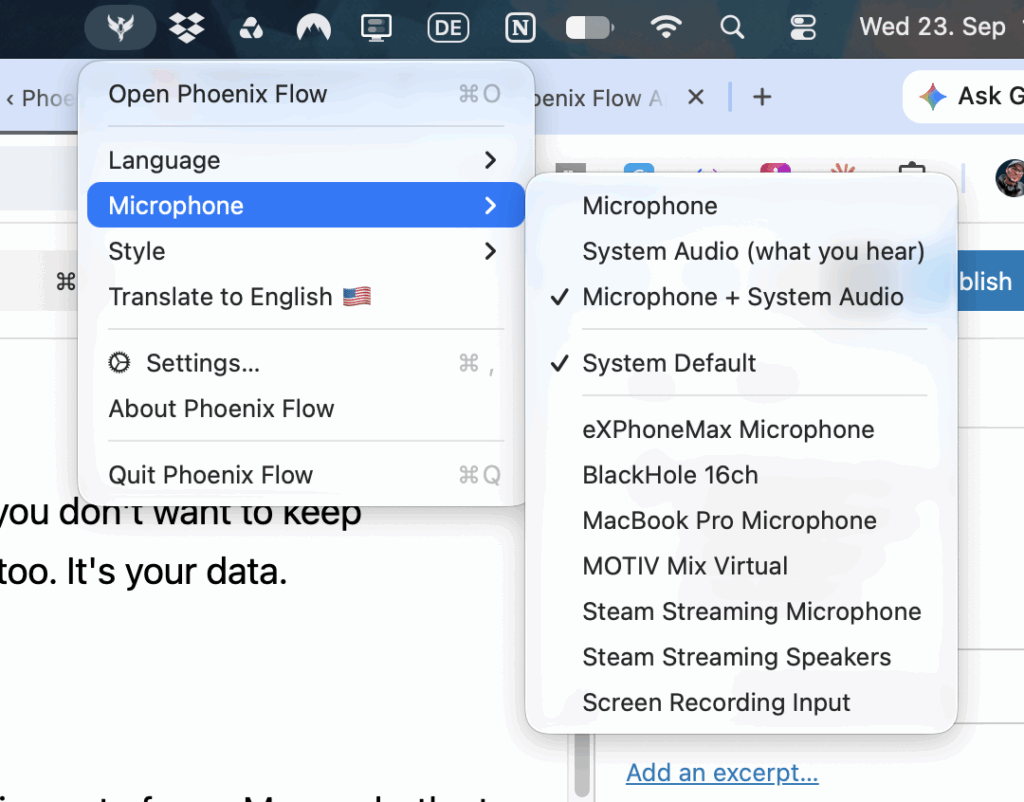
Record Microphone, System Audio or Both
Under Microphone you decide what Phoenix Flow listens to. Only your microphone, only the audio coming out of your Mac, or both at the same time. That means you can let it run in the background during a Zoom call and get a full transcript without a meeting bot joining the call. I used this to record my Spanish class.
Over 100 Languages, all offline
English is included when you install the app. Under Settings you find the additional downloads, like the multi-language pack with 100+ languages and speaker detection. The multi-language pack is the same AI model Wispr Flow uses for its languages, but it still runs on your Mac. In the Languages menu you pick which languages are active right now. I currently use English, German and Spanish.
Fun fact: for English I use the fastest English model I could find. It’s about three times faster than the model Wispr Flow uses, because Wispr Flow only uses the multi-language model for English too. Phoenix Flow switches to the faster English model whenever you speak English.
Transcribe Audio and Video Files
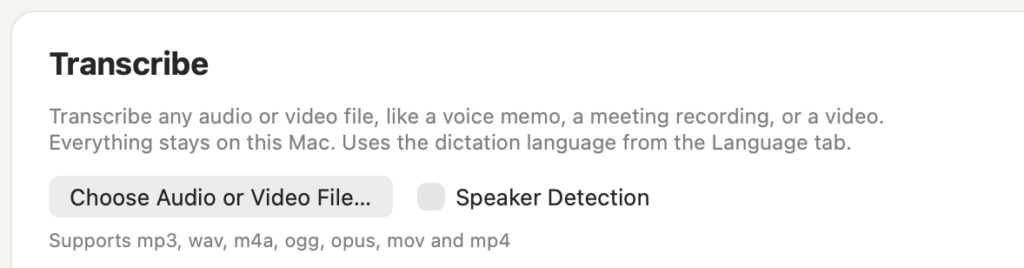
With Transcribe you choose any audio or video file and Phoenix Flow turns the whole audio into a transcript you can copy out. I tested it with one of my YouTube update videos. Every transcription is saved in its own history.
Offline Translation
Translate works like Google Translate, just completely offline. It remembers your last language settings, so you can come back and continue right away. Your translations also get their own history.
Under Insights you see your stats: how many dictations, how many words, your words per minute, and how many transcripts and translations you created.
Voice Snippets
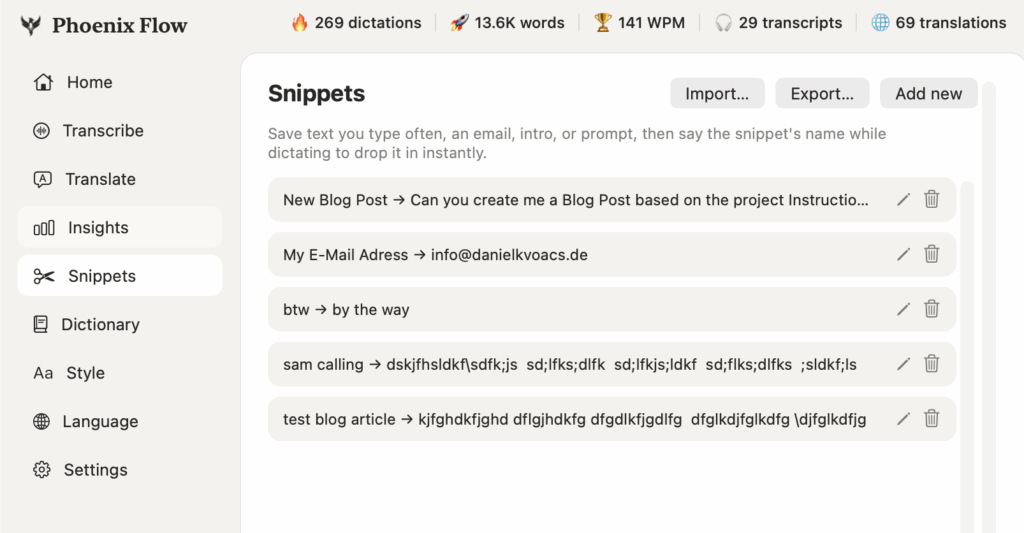
This is one of my favorite features. You create your own snippets and trigger them with your voice. For example, I always give Claude the same text when I create a blog post. Instead of copy pasting it, I say “new blog post” and the whole text is placed in. Or I say my email address trigger and my email appears. Your creativity is the limit.
Dictionary, AI Formatting and Tone
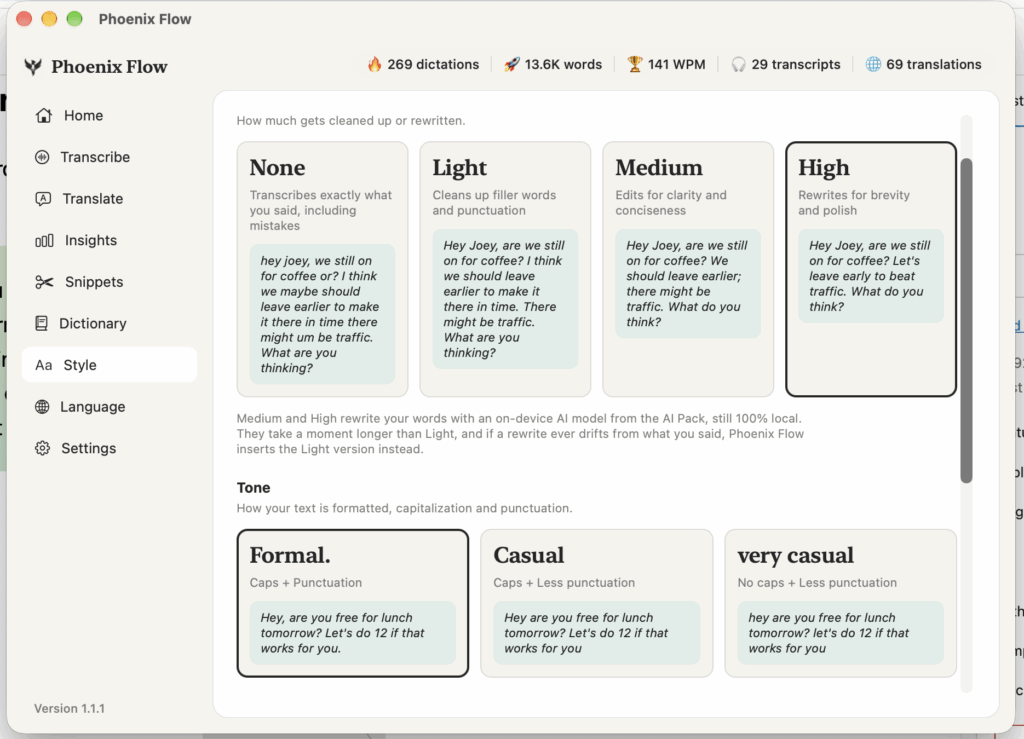
If the app doesn’t understand a word, add it to the Dictionary. And because the AI sits on your machine, you decide how much it should shape your text.
• None: Exactly the words you said.
• Light: Adds punctuation, corrects and formats your text so it reads better.
• Medium and High: Coming in a future update with another local AI.
• Tone: Formal, casual or very casual. Casual for WhatsApp, formal for emails.
• Spoken punctuation: Turn it on if you like to say “dot”, “question mark” or “exclamation mark” yourself.
Developer Mode for Coding
When you enable developer mode, Phoenix Flow understands coding language. Say something like “document py” and it formats it as code. Over 100 developer snippets are added automatically in the background. You can also set it to only work in code editors and terminals, so your normal notes stay untouched. If you are not a developer, just leave it off.
Early Access and System Requirements
I’m starting Phoenix Flow as early access with over $100 off. It’s a one-time payment with lifetime access, so you get all future updates. No subscription and no hidden costs. This is my way of saying thank you to every subscriber, customer and everyone on my email list.
To be straight with you: right now Phoenix Flow only works on Macs with Apple Silicon (M1, M2, M3, M4). It doesn’t work on older Intel Macs and there is no Windows version yet. If the app sells well, I can hire someone to help port it to Windows. An iPhone app is also planned for the future.
Get Phoenix Flow (Early Access): 100% private dictation for your Mac. One-time payment, no subscription.



![How to Install Phoenix Flow App to Mac? [Solved]](https://exlima.net/wp-content/uploads/2026/09/How-to-Install-Phoenix-Flow-App-to-Mac-Solved-1024x576-394x330.webp)