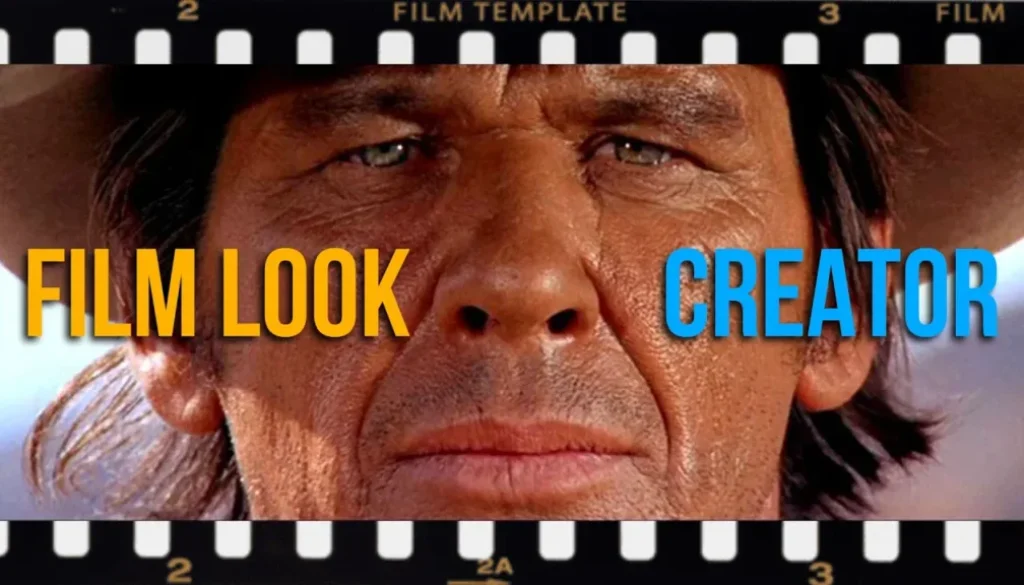
Film Look Creator Explained (DaVinci Resolve iPad)
In this article/video i will show you the Film Look Creator in DaVinci Resolve for iPad. This is a powerful color effect that can help you create cinematic film looks with just a few settings. Let me give you a quick introduction to what it does and how you can use it.
Pro Tip: Make your Videos Cinematic (and save a tone of time) with our Seamless Transition Pack for DaVinci Resolve iPad.

Contents
- [Video] Film Look Creator in DaVinci Resolve: A Quick Introduction
- How to find the Film Look Creator in DaVinci Resolve iPad
- How to apply Film Look Creator to multiple clips with an Adjustment Clip
- Film Look Creator Settings in the Inspector
- How to use Film Look Creator in the Color Page
- My thoughts on the Film Look Creator
- If you want to host your own Online Course use CC360
- BONUS: All DaVinci Resolve iPad Masterclass Students get the Transition Pack & the 8K Film Grain Pack for FREE!
[Video] Film Look Creator in DaVinci Resolve: A Quick Introduction
How to find the Film Look Creator in DaVinci Resolve iPad
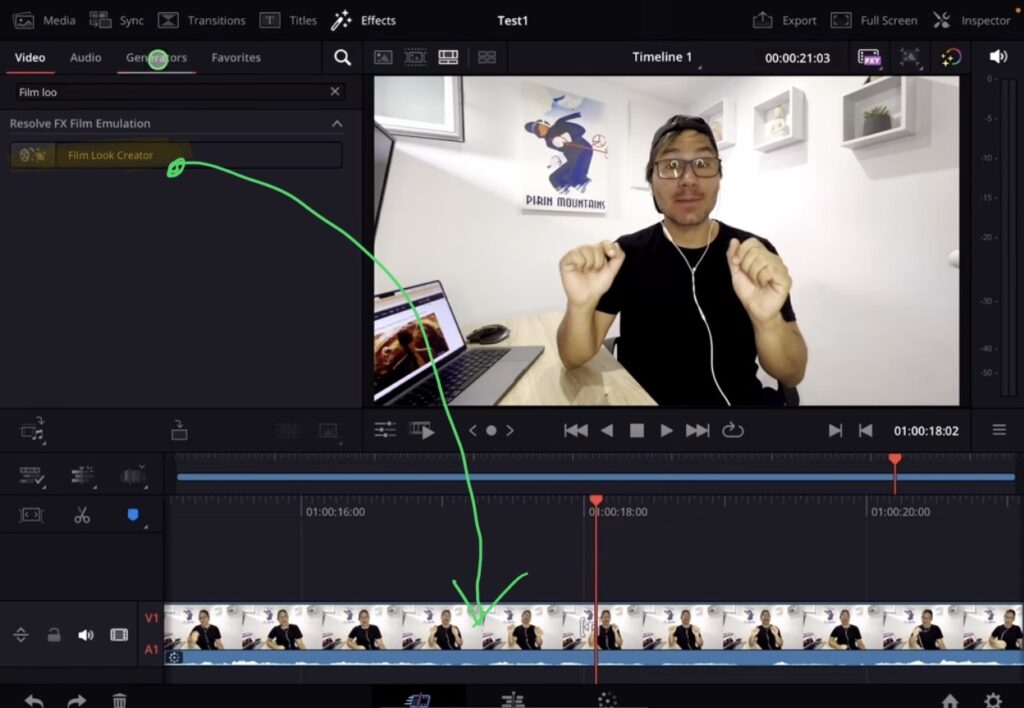
The Film Look Creator is an effect inside of DaVinci Resolve. Go to the Effects panel and search for “Film Look”. You will find the Film Look Creator there. You can drag and drop this effect directly onto a clip in your Timeline.
How to apply Film Look Creator to multiple clips with an Adjustment Clip
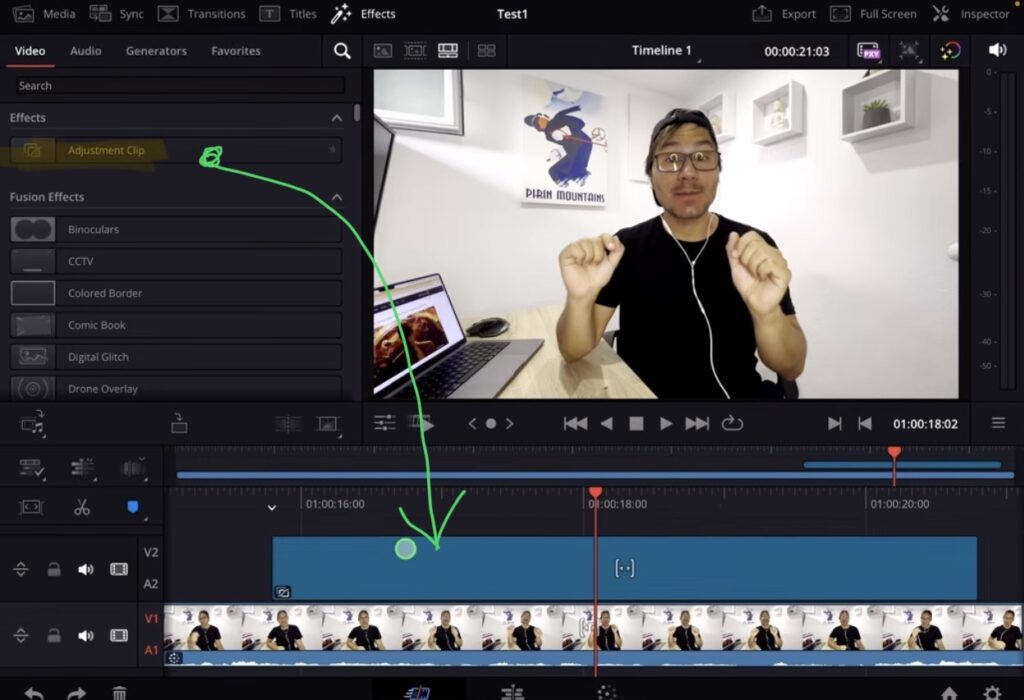
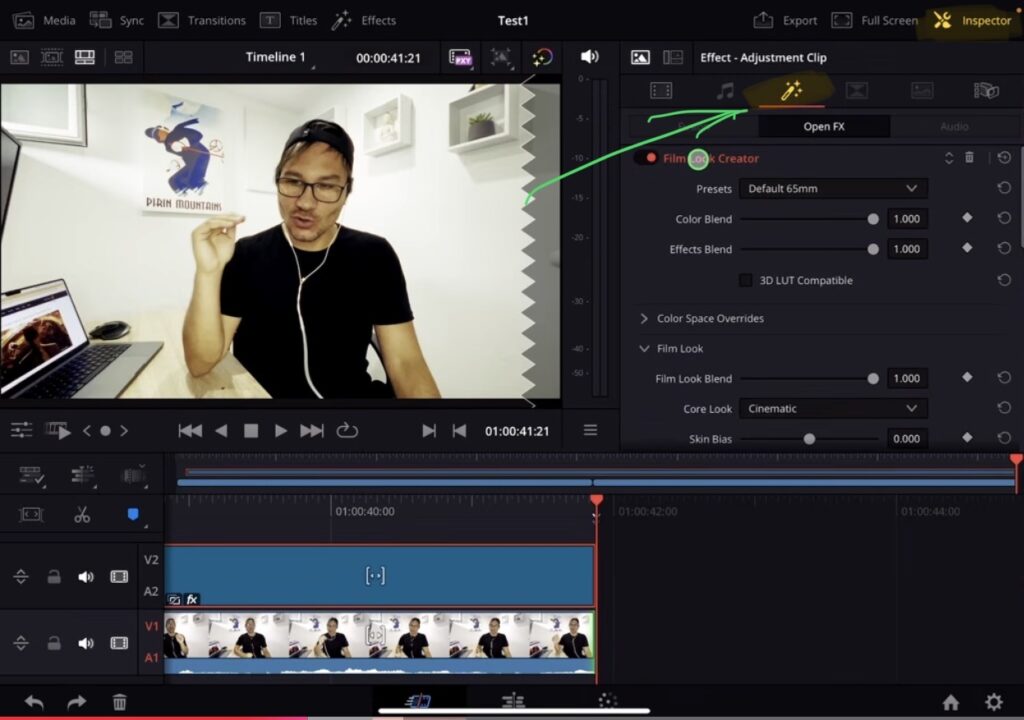
If you want to apply the same film look to multiple clips you can use an Adjustment Clip. Place the Adjustment Clip on top of your clips and stretch it to cover all the clips you want. Then drag and drop the Film Look Creator effect onto the Adjustment Clip. Now the effect will apply to everything underneath.
Film Look Creator Settings in the Inspector
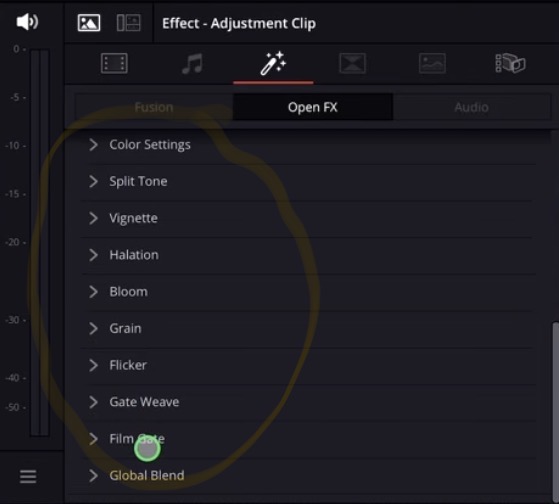
Once you select the clip (or Adjustment Clip) with the Film Look Creator applied, go to the Inspector and look under Effects. Here you will find all the settings. There are a lot of options including presets, color space override, film look effects, color settings, split tone, vignette, halation, bloom, grain, flicker, gate weave, film gate and global blend.
How to use Film Look Creator in the Color Page
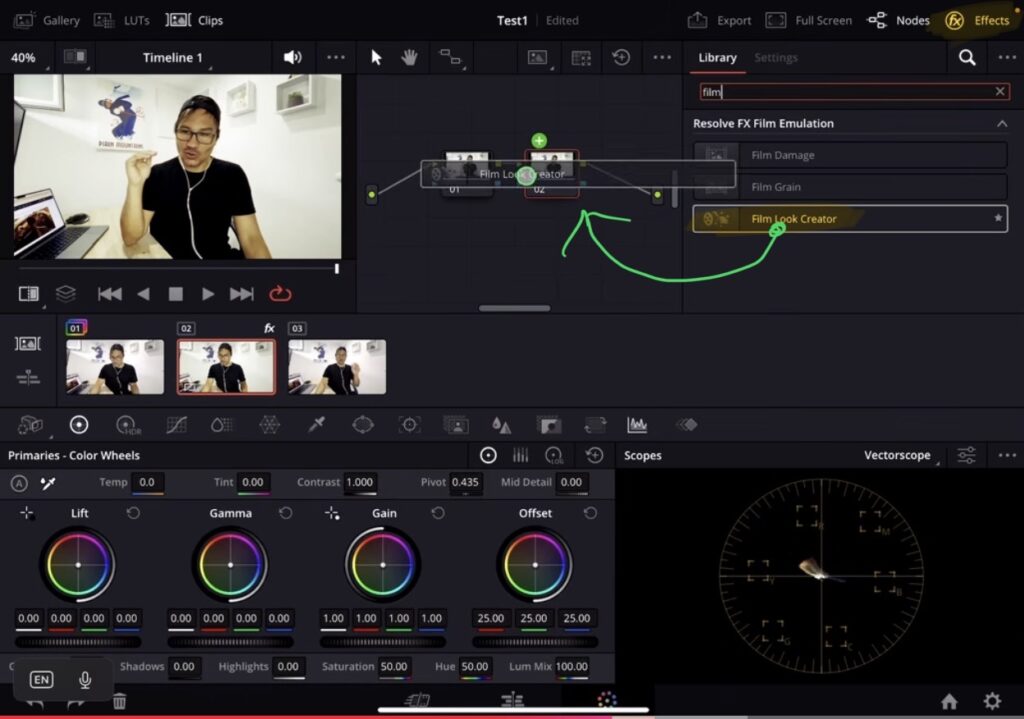
You can also use the Film Look Creator in the Color Page. Create a new node and then go to Effects. Search for “Film Look Creator” and add it to the node. All the same settings will be available here as well.
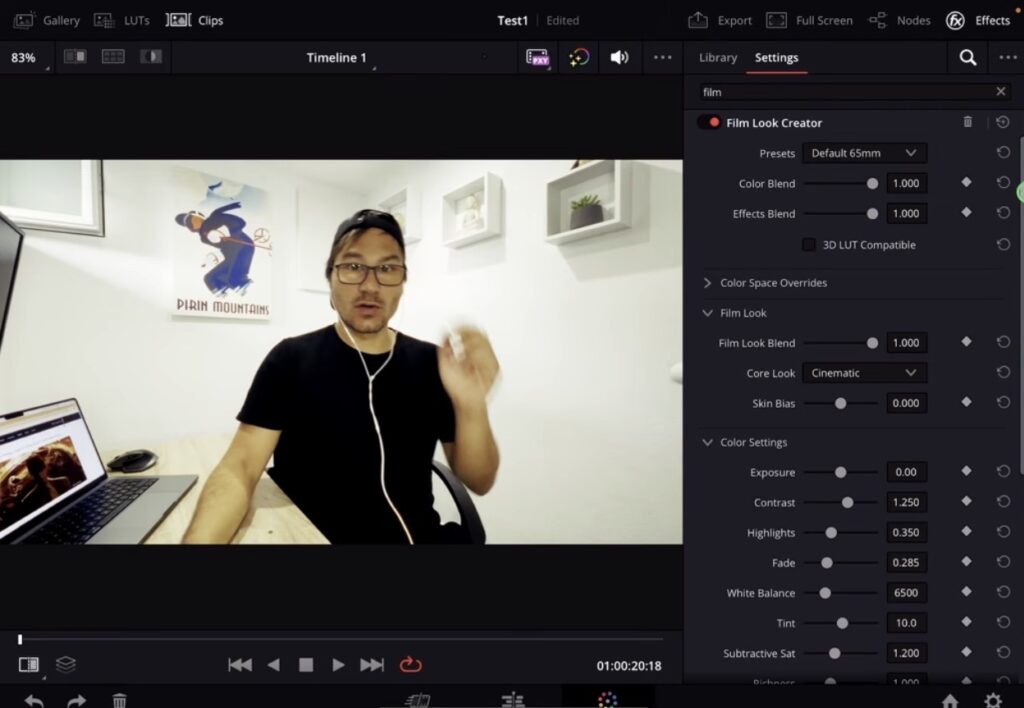
Quick tip: If you want more space in the Color Page press Shift + F on your keyboard. This will enlarge the viewer and the settings panel so you can see and adjust all the sliders more comfortably.
My thoughts on the Film Look Creator
The Film Look Creator is an amazing tool with lots of sliders to play around with. Especially if you are not so familiar with the Color Page yet it can help you create a nice cinematic look quickly. But if you are learning the Color Page and the node system you might find the slider approach less flexible than working with individual nodes. Coming from Premiere Pro where everything was done with sliders i actually started to prefer the node based approach. So give it a try and see if it works for your workflow.
Tip: If you don’t know how to get the other pages (FUSION, FAIRLIGHT, EDIT) on the iPad read this article first: How to UNLOCK ALL PAGES in DaVinci Resolve for iPad Pro
If you want to host your own Online Course use CC360
I really believe, that CC360 is the best Platform to host your own Online Course currently on the market. And each week they introduce new features. Amazing. Check it out here.
BONUS: All DaVinci Resolve iPad Masterclass Students get the Transition Pack & the 8K Film Grain Pack for FREE!
You can either get the Transition Pack separate here: Seamless Transition Pack for DaVinci Resolve iPad. Or the 8K Film Grain Pack here: 8K Film Grain Bundle. but all of our DaVinci Resolve iPad Packs are a FREE Bonus for the DaVinci Resolve iPad Masterclass Students.
Check It Out here DaVinci Resolve iPad MasterClass: From Beginner To Pro.
Read Next
• How COPY Color Grade to MULTIPLE Clips in DaVinci Resolve iPad
• DO THIS to make DaVinci Resolve FASTER! (Instead of rage smashing your iPad)
• How To Delete Cache Files in DaVinci Resolve iPad
• How To Color Correct iPhone Footage in DaVinci Resolve iPad
• Easy Sync Audio & Video in DaVinci Resolve iPad


![How to Fix Blurry Video on iPad? [EASY FIX]](https://exlima.net/wp-content/uploads/2026/09/How-to-Fix-Blurry-Video-on-iPad-EASY-FIX-1024x576-394x330.webp)