Ripple Trimming on Secondary Tracks in DaVinci Resolve iPad
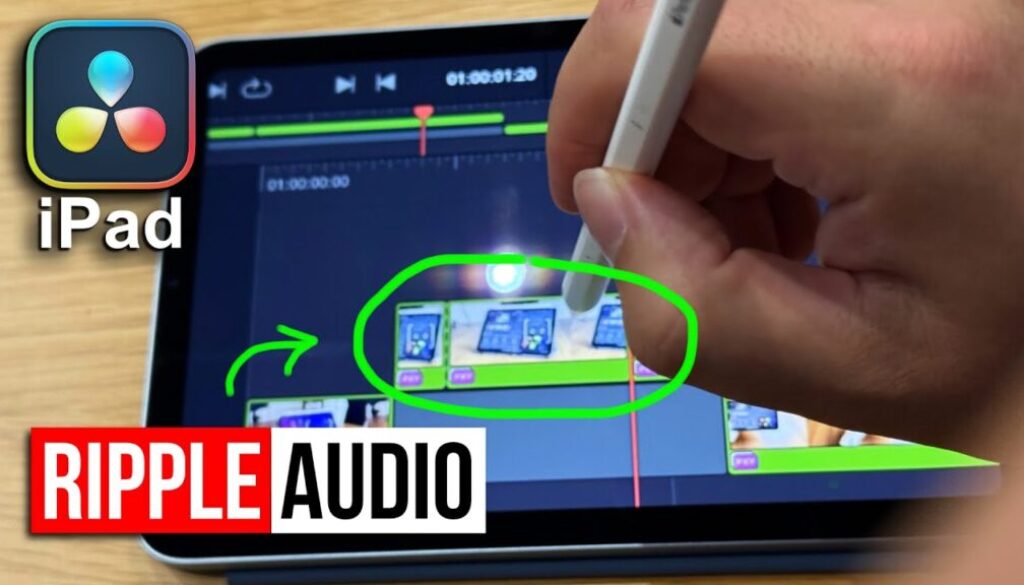
In this article/video I will show you how ripple trimming now works on secondary audio tracks in DaVinci Resolve for iPad. This is a feature that was always available on the primary track, but with DaVinci Resolve 20, you can now use ripple trimming on track two, three, four and beyond in the Cut Page.
Pro Tip: Make your Videos Cinematic (and save a tone of time) with our Seamless Transition Pack for DaVinci Resolve iPad.

Contents
- [Video] DaVinci Resolve iPad Just Fixed Audio Editing — Finally!
- What is Ripple Trimming in the Cut Page?
- How Ripple Trimming Works on Track One (Primary Track)
- NEW: Ripple Trimming on Secondary Tracks (Track 2, 3, 4…)
- If you want to host your own Online Course use CC360
- BONUS: All DaVinci Resolve iPad Masterclass Students get the Transition Pack & the 8K Film Grain Pack for FREE!
[Video] DaVinci Resolve iPad Just Fixed Audio Editing — Finally!
What is Ripple Trimming in the Cut Page?
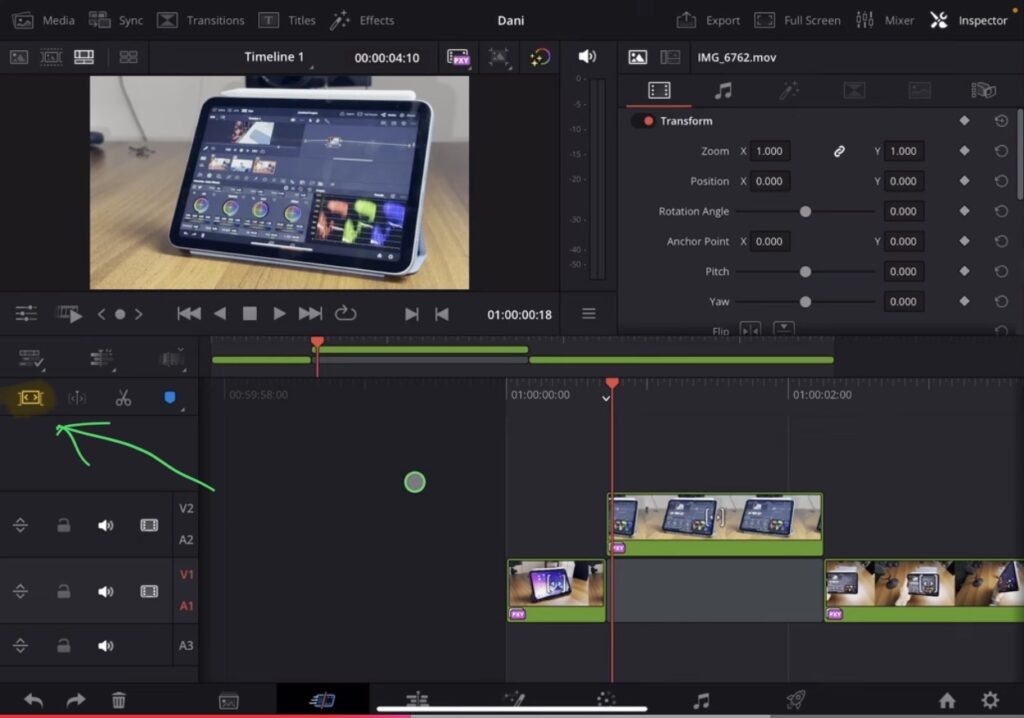
Ripple trimming (also known as the Magnetic Timeline in Final Cut Pro) is a feature that automatically closes gaps in your timeline when you delete clips. When you enable this feature by clicking the magnetic timeline icon, any cuts or deletions will cause the remaining clips to ripple forward, keeping your timeline tight without empty spaces.
How Ripple Trimming Works on Track One (Primary Track)
Before DaVinci Resolve 20, ripple trimming only worked on track one (the primary track). When you had the magnetic timeline enabled and deleted a clip from track one, the timeline would automatically pull all following clips forward to close the gap.
NEW: Ripple Trimming on Secondary Tracks (Track 2, 3, 4…)
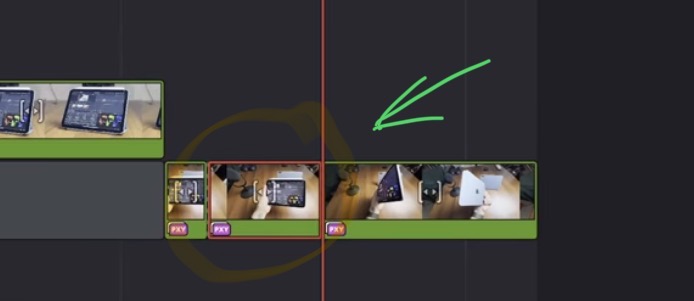
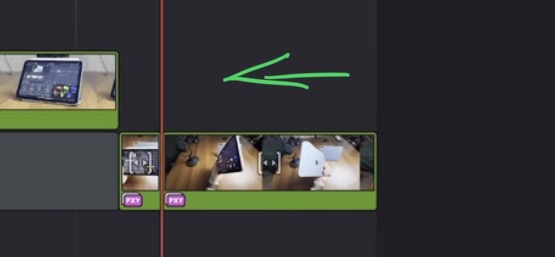
With DaVinci Resolve 20, this feature now works on secondary tracks too. This means you can now ripple delete clips on track two, three, four, and beyond even if nothing is on primary track one.
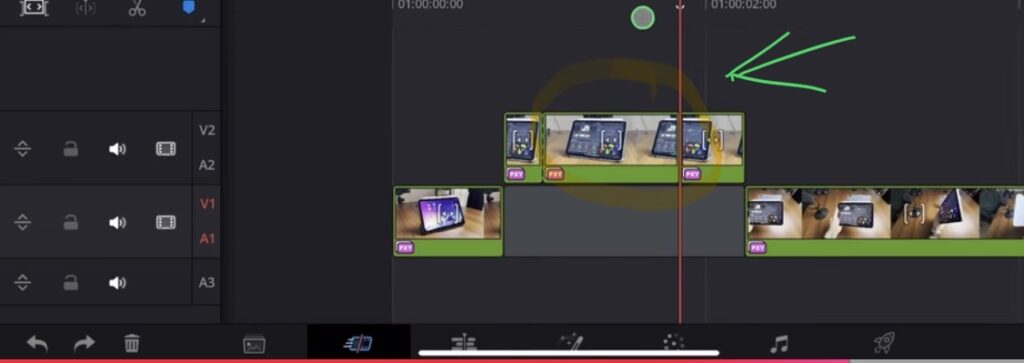
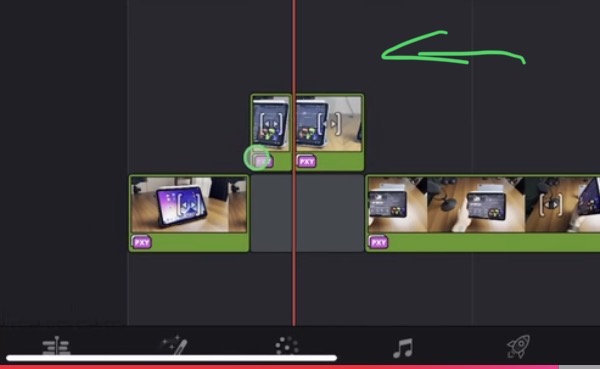
For example, if you make a cut on track two, select the clip, and delete it, the timeline will automatically bring in the rest of the clips to that point just like it did on track one.
Tip: If you don’t know how to get the other pages (FUSION, FAIRLIGHT, EDIT) on the iPad read this article first: How to UNLOCK ALL PAGES in DaVinci Resolve for iPad Pro
If you want to host your own Online Course use CC360
I really believe, that CC360 is the best Platform to host your own Online Course currently on the market. And each week they introduce new features. Amazing. Check it out here.
BONUS: All DaVinci Resolve iPad Masterclass Students get the Transition Pack & the 8K Film Grain Pack for FREE!
You can either get the Transition Pack separate here: Seamless Transition Pack for DaVinci Resolve iPad. Or the 8K Film Grain Pack here: 8K Film Grain Bundle. but all of our DaVinci Resolve iPad Packs are a FREE Bonus for the DaVinci Resolve iPad Masterclass Students.
Check It Out here DaVinci Resolve iPad MasterClass: From Beginner To Pro.
Read Next
• How COPY Color Grade to MULTIPLE Clips in DaVinci Resolve iPad
• DO THIS to make DaVinci Resolve FASTER! (Instead of rage smashing your iPad)
• How To Delete Cache Files in DaVinci Resolve iPad
• How To Color Correct iPhone Footage in DaVinci Resolve iPad
• Easy Sync Audio & Video in DaVinci Resolve iPad