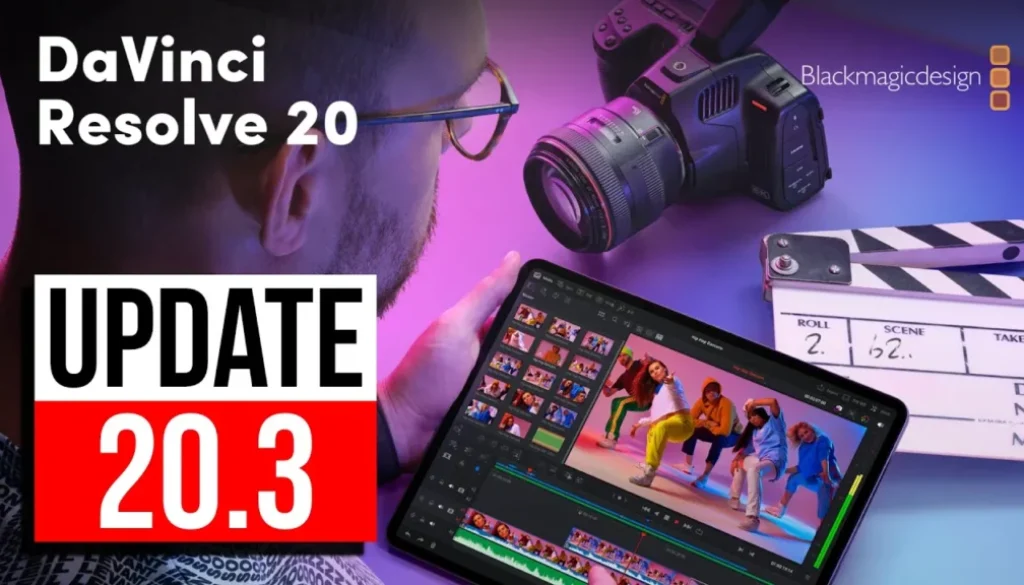
DaVinci Resolve iPad UPDATE: Finally Render in background!
In this video i will show you all the new features in DaVinci Resolve iPad Update Version 20.3. The biggest addition is background rendering, which lets you render your timeline while using other apps on your iPad. I also test how well it works on an M1 iPad.
Pro Tip: Make your Videos Cinematic (and save a tone of time) with our Seamless Transition Pack for DaVinci Resolve iPad.

Contents
- [Video] DaVinci Resolve iPad UPDATE 20.3: Background Rendering is HERE!
- DaVinci Resolve iPad Version 20.3 Update Notes
- How to Use Background Rendering in DaVinci Resolve iPad
- Does Background Rendering Work on M1 iPad?
- Alpha Support for Film Look Creator and Film Damage
- Media Pool Improvements
- If you want to host your own Online Course use CC360
- BONUS: All DaVinci Resolve iPad Masterclass Students get the Transition Pack & the 8K Film Grain Pack for FREE!
[Video] DaVinci Resolve iPad UPDATE 20.3: Background Rendering is HERE!
DaVinci Resolve iPad Version 20.3 Update Notes
DaVinci Resolve iPad Version 20.3 (12.01.2025)
• Render in the background with iPadOS 26 with M4 and newer chips.
• Improved performance for Resolve FX noise reduction.
• Media pool metadata ILA import and export support.
• Media pool views and states are now retained for each project.
• Added 2.39 and 2.40 broadcast safe as aspect ratio.
• Alpha support for Film Look Creator and Film Damage and Analog Damage.
• General performance and stabilization improvements.
How to Use Background Rendering in DaVinci Resolve iPad
Background rendering is the biggest feature in this update. Instead of using Quick Export (which renders your timeline immediately and blocks you from doing anything else), you can now use the Deliver Page to queue up your render jobs and let them run in the background.
Here is how it works. First, set your in and out points on the timeline to mark what you want to render. Then go to the Deliver Page. Choose your render settings or a preset, give your job a name, and click “Add to Render Queue”. You can repeat this for multiple jobs with different in/out points or settings. When you are ready, select all jobs and hit “Render All”.
Does Background Rendering Work on M1 iPad?
Officially, Blackmagic says background rendering requires iPadOS 26 with M4 and newer chips. But in testing on an M1 iPad, it does work with some limitations. If you already have apps open in window mode, you can switch between those windows while rendering. But if you open a new app in full screen, it will cancel your render jobs.
So on the M1 iPad, keep your apps in window mode and do not open any new full screen apps while rendering. The render completed successfully and both files were exported correctly. This means background rendering likely works on any iPad with an M chip, but the experience will be smoother on M4 and M5 iPads.
Alpha Support for Film Look Creator and Film Damage
Version 20.3 also adds alpha support for the Film Look Creator and the Film Damage and Analog Damage effects. This is a nice addition if you work with these effects regularly.
Media Pool Improvements
Two small but useful improvements for the Media Pool. First, metadata ILA import and export is now supported. Second, your media pool views and states are now saved for each project. That means when you switch between projects, your media pool layout stays the way you set it up.
Tip: If you don’t know how to get the other pages (FUSION, FAIRLIGHT, EDIT) on the iPad read this article first: How to UNLOCK ALL PAGES in DaVinci Resolve for iPad Pro
If you want to host your own Online Course use CC360
I really believe, that CC360 is the best Platform to host your own Online Course currently on the market. And each week they introduce new features. Amazing. Check it out here.
BONUS: All DaVinci Resolve iPad Masterclass Students get the Transition Pack & the 8K Film Grain Pack for FREE!
You can either get the Transition Pack separate here: Seamless Transition Pack for DaVinci Resolve iPad. Or the 8K Film Grain Pack here: 8K Film Grain Bundle. but all of our DaVinci Resolve iPad Packs are a FREE Bonus for the DaVinci Resolve iPad Masterclass Students.
Check It Out here DaVinci Resolve iPad MasterClass: From Beginner To Pro.
Read Next
• How COPY Color Grade to MULTIPLE Clips in DaVinci Resolve iPad
• DO THIS to make DaVinci Resolve FASTER! (Instead of rage smashing your iPad)
• How To Delete Cache Files in DaVinci Resolve iPad
• How To Color Correct iPhone Footage in DaVinci Resolve iPad
• Easy Sync Audio & Video in DaVinci Resolve iPad