AI Extends Music to Any Length Automatically (DVR iPad)
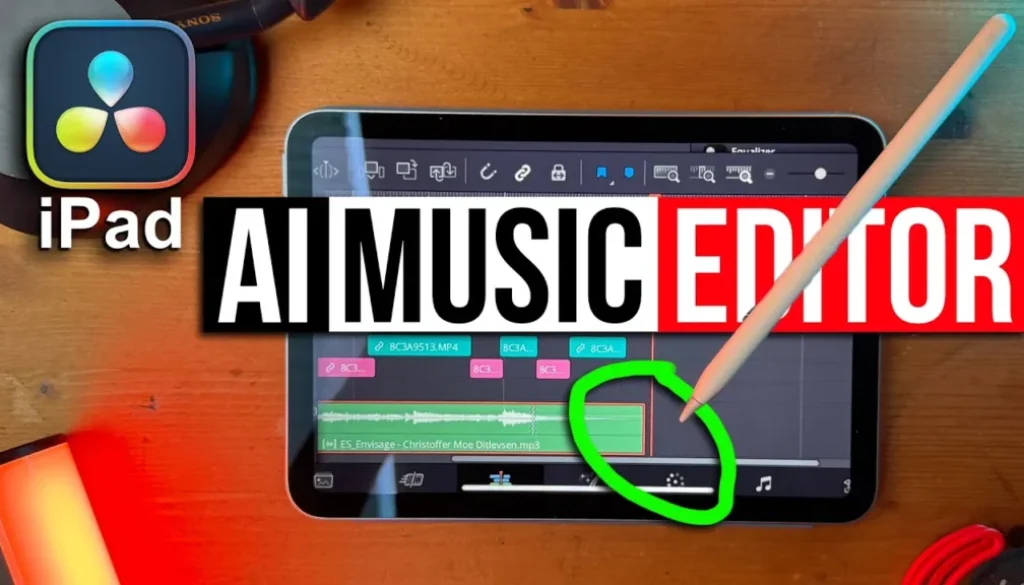
In this article/video I will show you how to use the new AI Music Editor in DaVinci Resolve for iPad to automatically change the ending of songs. If your music track is too long or you just don’t like how it ends, this new AI tool can generate new endings for you.
Pro Tip: Make your Videos Cinematic (and save a tone of time) with our Seamless Transition Pack for DaVinci Resolve iPad.

Contents
- [Video] DaVinci Resolve AI Music Editor: Automatically Change the End of Songs
- How to Use the AI Music Editor in DaVinci Resolve iPad
- How to Analyze Your Music Track
- Important: Use the Cut Page, Not the Edit Page
- How to Use Live Trim and the 4 Variations
- Does the AI Music Editor Work Perfectly?
- If you want to host your own Online Course use CC360
- BONUS: All DaVinci Resolve iPad Masterclass Students get the Transition Pack & the 8K Film Grain Pack for FREE!
[Video] DaVinci Resolve AI Music Editor: Automatically Change the End of Songs
How to Use the AI Music Editor in DaVinci Resolve iPad
The AI Music Editor is a new AI tool in DaVinci Resolve Version 20 for iPad. It lets you analyze a music track and then automatically create new endings for it. This is useful when your music clip is longer than your video and you need a proper ending instead of just cutting the music off abruptly.
How to Analyze Your Music Track
First, select your music clip on the timeline. Then open the Inspector. When you scroll down in the Inspector, you will find a new section called AI Music Editor. Click on Analyze and the tool will process your music track.

Important: Use the Cut Page, Not the Edit Page
One thing to keep in mind: If you try to analyze in the Edit Page, it might crash. Use the Cut Page instead when you hit Analyze. The analysis process can take a moment depending on your iPad model. On an M1 iPad Pro it takes a bit longer, but if you have a newer M4 iPad it should be faster.
How to Use Live Trim and the 4 Variations
Once the analysis is done, the AI Music Editor will give you four different variations for new endings. You have to let each variation run through one time before you can instantly swap between them. To use these variations, go to the end of your music clip and trim it down to where you want the song to end.

In the Inspector, go back to the AI Music Editor section and activate Live Trim. Now you can switch between Version 1, 2, 3, and 4. The tool also shows you specific points where it can create a new ending. Place your trim at one of these points and the AI will generate a complete new end for your music track.

Does the AI Music Editor Work Perfectly?
The AI Music Editor does not always produce perfect results. You might have to play around with the different versions to get a good ending. Sometimes the results are better than other times and it depends on the song itself. If you compare it to something like Final Cut Pro where certain built-in songs can be trimmed wherever you want, this AI approach works on any music file you bring in, for example from services like Epidemic Sound.
This is just one of the many new features in DaVinci Resolve Version 20 for iPad. There are a lot more AI tools and features that can make your editing faster and easier.
Tip: If you don’t know how to get the other pages (FUSION, FAIRLIGHT, EDIT) on the iPad read this article first: How to UNLOCK ALL PAGES in DaVinci Resolve for iPad Pro
If you want to host your own Online Course use CC360
I really believe, that CC360 is the best Platform to host your own Online Course currently on the market. And each week they introduce new features. Amazing. Check it out here.
BONUS: All DaVinci Resolve iPad Masterclass Students get the Transition Pack & the 8K Film Grain Pack for FREE!
You can either get the Transition Pack separate here: Seamless Transition Pack for DaVinci Resolve iPad. Or the 8K Film Grain Pack here: 8K Film Grain Bundle. but all of our DaVinci Resolve iPad Packs are a FREE Bonus for the DaVinci Resolve iPad Masterclass Students.
Check It Out here DaVinci Resolve iPad MasterClass: From Beginner To Pro.
Read Next
• How COPY Color Grade to MULTIPLE Clips in DaVinci Resolve iPad
• DO THIS to make DaVinci Resolve FASTER! (Instead of rage smashing your iPad)
• How To Delete Cache Files in DaVinci Resolve iPad
• How To Color Correct iPhone Footage in DaVinci Resolve iPad
• Easy Sync Audio & Video in DaVinci Resolve iPad