AI Voiceover in DaVinci Resolve iPad: No Microphone Needed!
DaVinci Resolve for iPad can now turn written text into spoken words with the new AI Speech Generator from Blackmagic Design. No microphone, no recording, just type your text and pick a voice. In this article i will show you how it works and what does not work yet on the iPad.
Pro Tip: Make your Videos Cinematic (and save a tone of time) with our Seamless Transition Pack for DaVinci Resolve iPad.

Contents
- [Video] AI Voiceover in DaVinci Resolve iPad: No Microphone Needed!
- How to open the AI Speech Generator in DaVinci Resolve for iPad
- Type your text and choose a voice
- Where does the generated voice go?
- Can you clone your own voice on the iPad?
- If you want to host your own Online Course use CC360
- BONUS: All DaVinci Resolve iPad Masterclass Students get the Transition Pack & the 8K Film Grain Pack for FREE!
[Video] AI Voiceover in DaVinci Resolve iPad: No Microphone Needed!
How to open the AI Speech Generator in DaVinci Resolve for iPad
It does not matter if you are in the Cut Page or in the Edit Page, the AI Speech Generator works in both. First place your playhead where you want the AI voice to start. Then go up to the menu and select Timeline, then AI Tools, then Speech Generator.
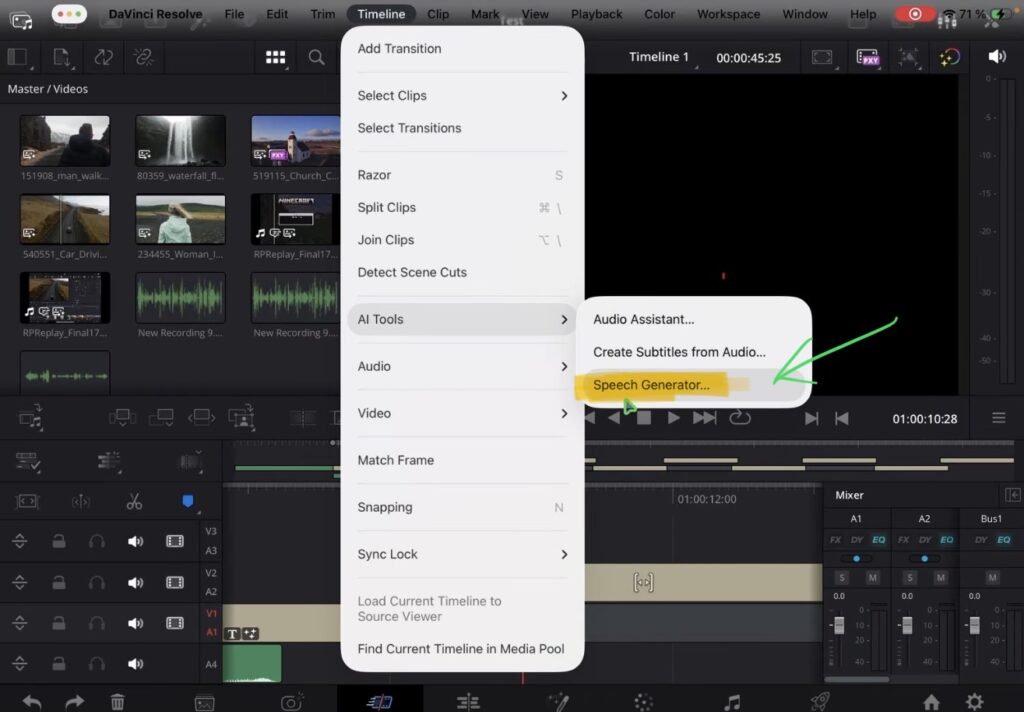
Important: You need the AI Speech Generator base model installed first. You get it in the Download Manager under the AI extras. Without that model the feature will not generate anything.
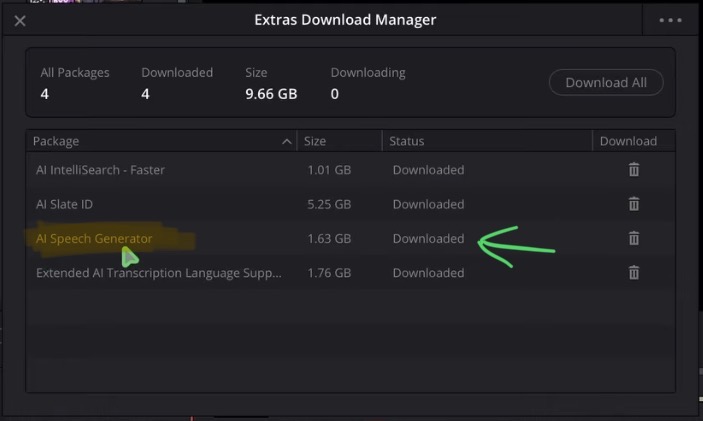
Type your text and choose a voice
A new window opens where you can type in the text you want to hear. Once the base model is installed you get four voices to choose from, two male voices and two female voices. You can also change the speed, the variation and the pitch before you generate.
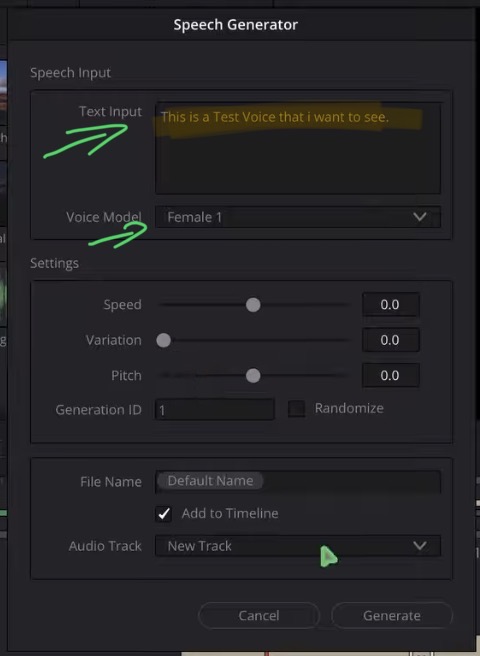
When you are happy with the settings just hit Generate. DaVinci Resolve will analyze the text and create the audio for you.
Where does the generated voice go?
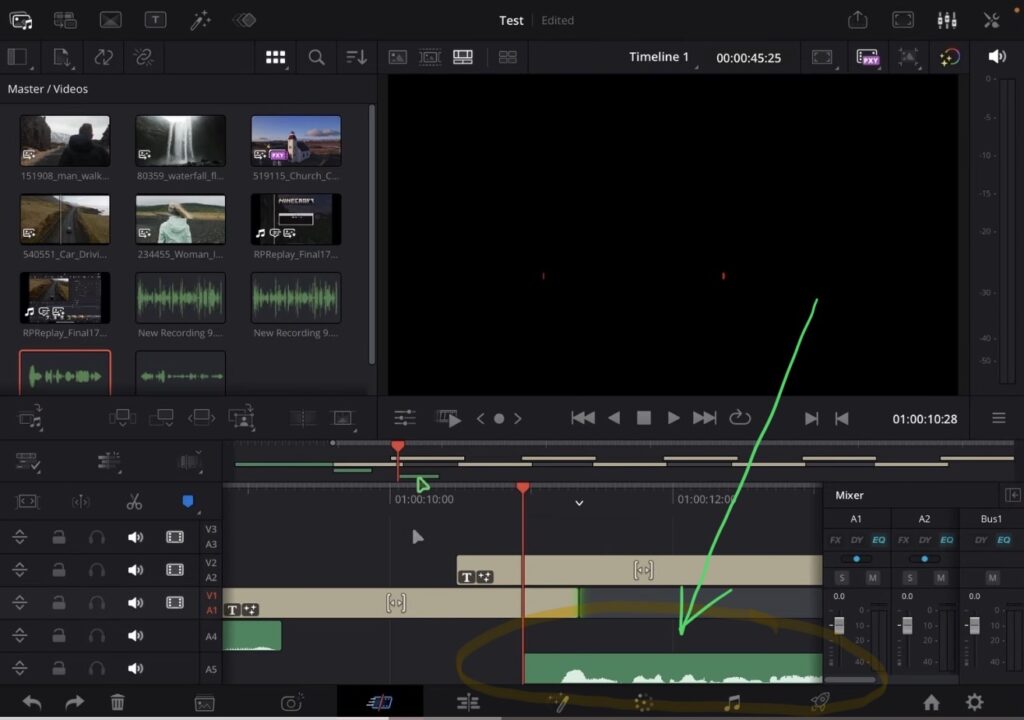
The generated voice is placed as a clip on a new audio track in your timeline, right at the position of your playhead. So you can move it, trim it and mix it like any other audio clip.
Can you clone your own voice on the iPad?
In the Speech Generator window there is also a Custom Voice option instead of the four preset voices. That is the voice cloning part, and this is where it gets tricky on the iPad.
I tested this and here is what happened. I recorded my voice with the Voice Memos app on my iPhone and sent it to my iPad. That gives you an M4A file, and DaVinci Resolve on the iPad crashed with it. So i moved the same file to my Mac and even there the M4A did not work. I converted it to MP3 and that did not work either.
The only audio format that actually works for voice cloning is a WAV file. M4A and MP3 do not work.
On my Mac the WAV file worked perfectly and the generated voice really sounds like me. Back on the iPad i loaded the same WAV file into the Custom Voice option, hit Generate, and DaVinci Resolve crashed again. The reason is that the voice training model is only available on the desktop version in the Download Manager. The iPad only gets the Speech Generator model.
So the short version: text to speech with the four built in voices works great on the iPad. Voice cloning with your own voice is still a desktop only feature for now.
Tip: If you don’t know how to get the other pages (FUSION, FAIRLIGHT, EDIT) on the iPad read this article first: How to UNLOCK ALL PAGES in DaVinci Resolve for iPad Pro
If you want to host your own Online Course use CC360
I really believe, that CC360 is the best Platform to host your own Online Course currently on the market. And each week they introduce new features. Amazing. Check it out here.
BONUS: All DaVinci Resolve iPad Masterclass Students get the Transition Pack & the 8K Film Grain Pack for FREE!
You can either get the Transition Pack separate here: Seamless Transition Pack for DaVinci Resolve iPad. Or the 8K Film Grain Pack here: 8K Film Grain Bundle. but all of our DaVinci Resolve iPad Packs are a FREE Bonus for the DaVinci Resolve iPad Masterclass Students.
Check It Out here DaVinci Resolve iPad MasterClass: From Beginner To Pro.
Read Next
• How COPY Color Grade to MULTIPLE Clips in DaVinci Resolve iPad
• DO THIS to make DaVinci Resolve FASTER! (Instead of rage smashing your iPad)
• How To Delete Cache Files in DaVinci Resolve iPad
• How To Color Correct iPhone Footage in DaVinci Resolve iPad
• Easy Sync Audio & Video in DaVinci Resolve iPad


![How to Fix Blurry Video on iPad? [EASY FIX]](https://exlima.net/wp-content/uploads/2026/09/How-to-Fix-Blurry-Video-on-iPad-EASY-FIX-1024x576-394x330.webp)