How to Apply Transitions to ALL Clips at Once in DaVinci Resolve iPad
In this article/video i will show you how you can apply transitions to all edits at once in DaVinci Resolve for iPad. You can also set a default transition and even create your own transition presets. Let me show you how it works.
Pro Tip: Make your Videos Cinematic (and save a tone of time) with our Seamless Transition Pack for DaVinci Resolve iPad.

Contents
- [Video] How to Apply Transitions to All Edits in DaVinci Resolve iPad
- How to Set a Default Transition in DaVinci Resolve iPad
- How to Add Transitions to All Edits at Once
- Can You Apply Custom Transition Settings to All Edits?
- How to Create a Transition Preset in DaVinci Resolve iPad
- How to Change Settings for Multiple Transitions at Once
- If you want to host your own Online Course use CC360
- BONUS: All DaVinci Resolve iPad Masterclass Students get the Transition Pack & the 8K Film Grain Pack for FREE!
[Video] How to Apply Transitions to All Edits in DaVinci Resolve iPad
How to Set a Default Transition in DaVinci Resolve iPad
Open the Transitions panel at the top of your Timeline. You will find all of the DaVinci Resolve transitions here. You can preview how each one looks before you apply it.
You can drag and drop any transition to an edit point in your Timeline. But if you want to add the same transition to multiple edit points, doing this one by one takes forever.
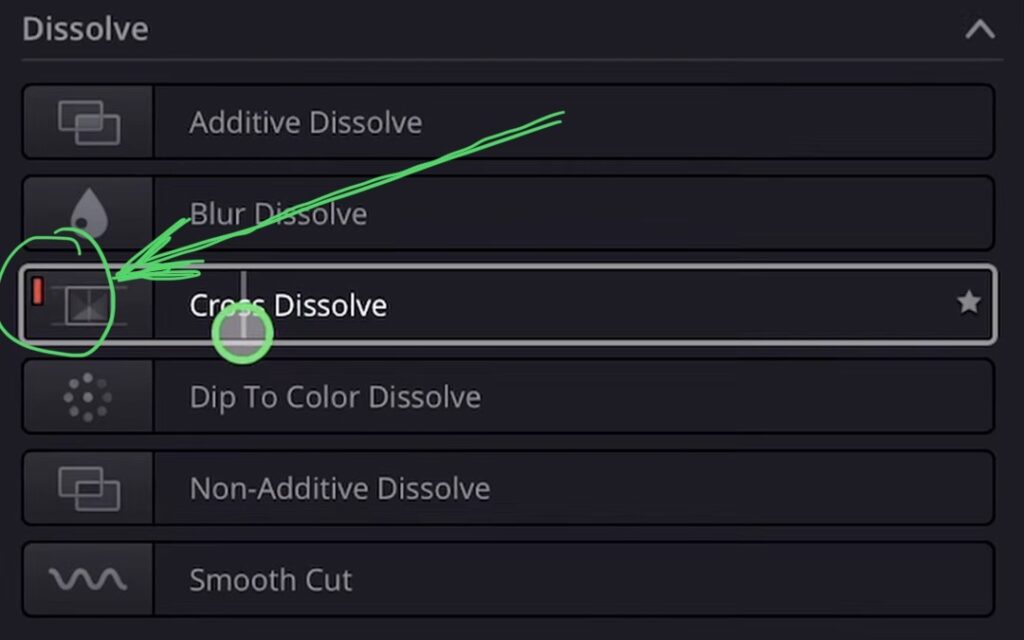
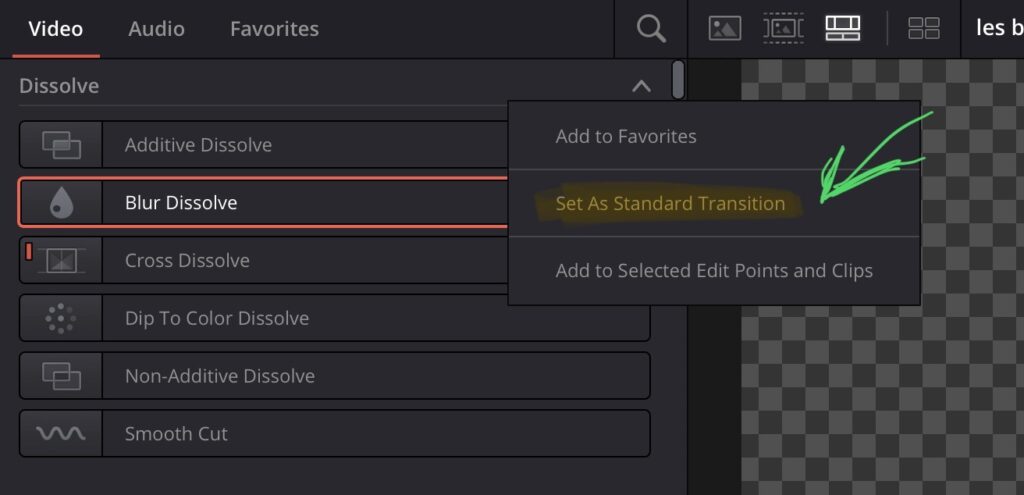
The first method is to set a default transition. Right click on any transition and set it as your default. You will see a red line appear on the transition. That red line means it is your default transition.
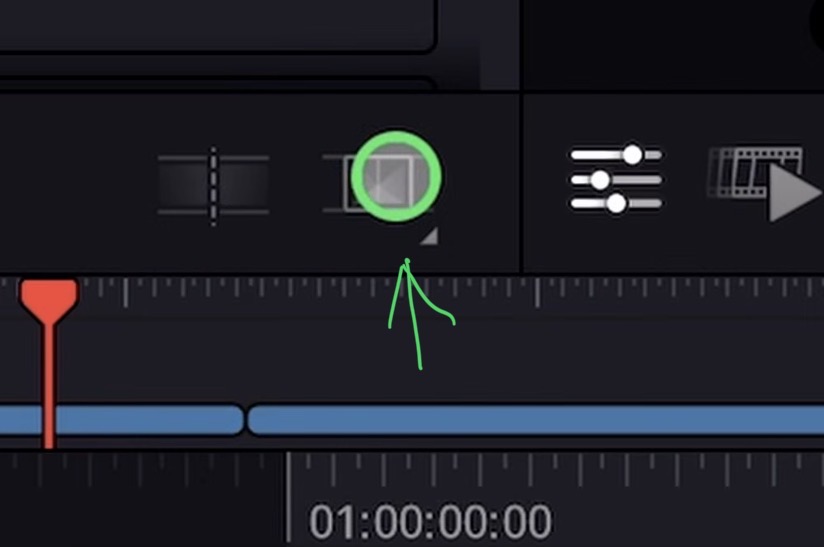
Move your Playhead to the next edit point and click again to add another one.
How to Add Transitions to All Edits at Once
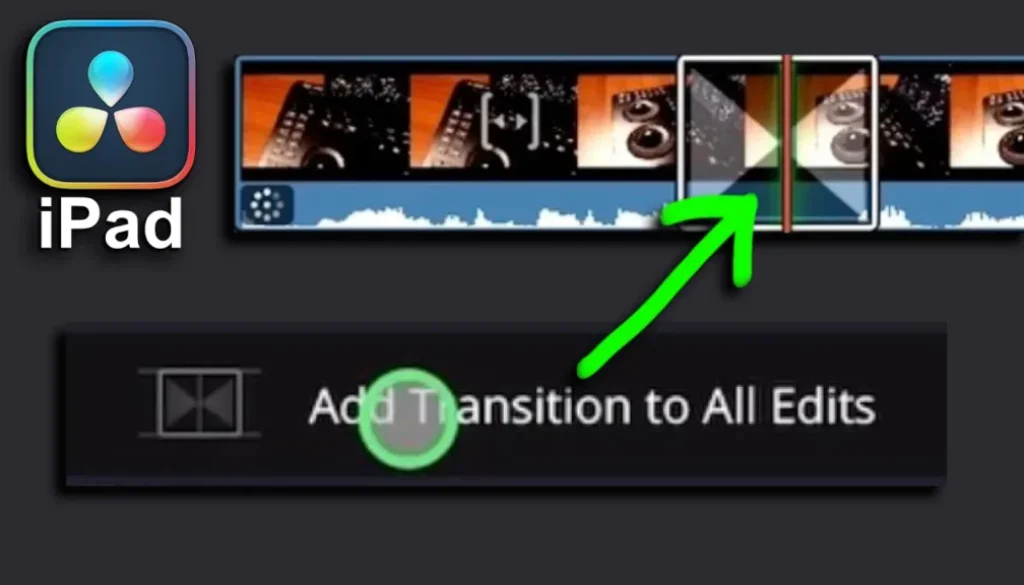
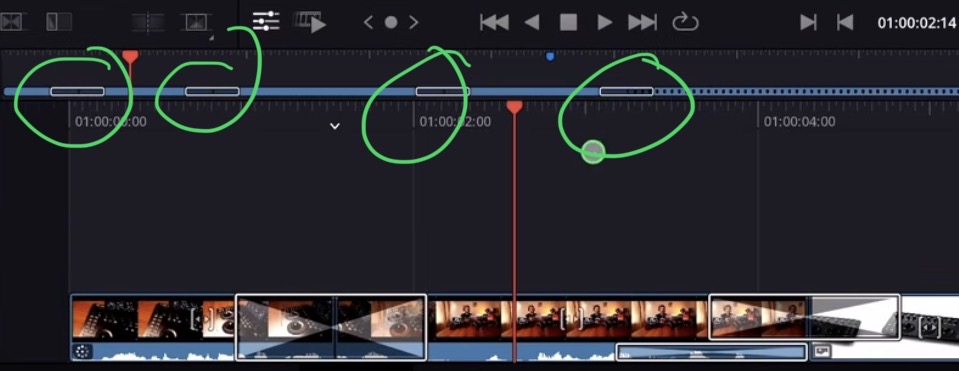
Here is the faster way. First, add any transition to one edit point in your Timeline. Then click on the transition icon in the toolbar and select “Add Transition to All Edits”.
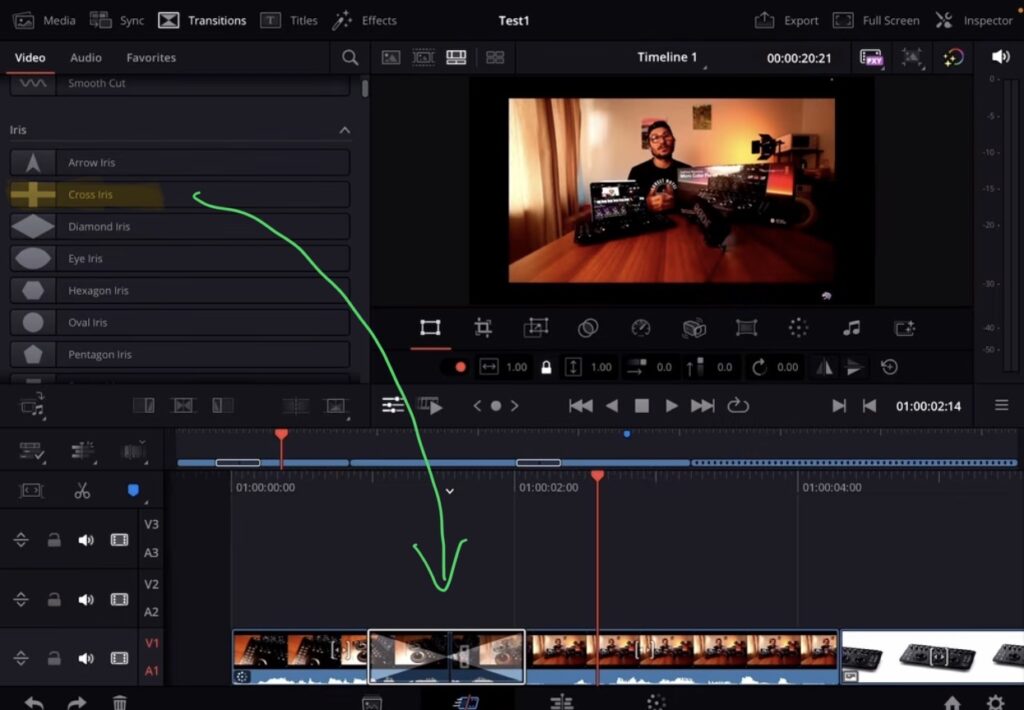
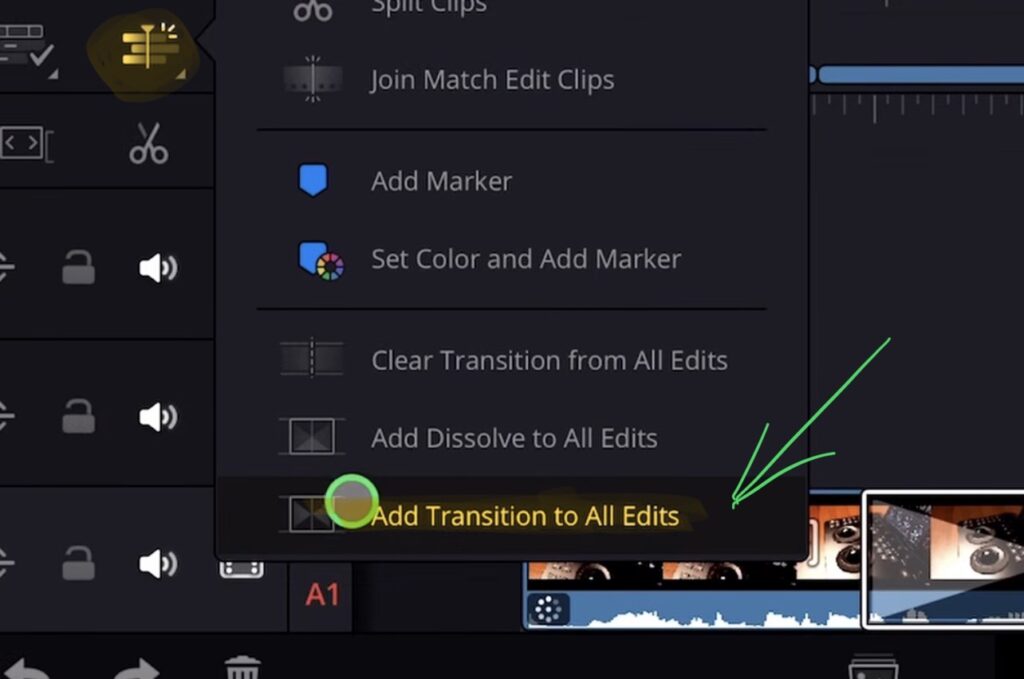
DaVinci Resolve will use the last transition you added and apply it to every edit point in your Timeline. This works with any transition including third party ones like from Motion VFX or the Seamless Transition Pack.
Can You Apply Custom Transition Settings to All Edits?
Unfortunately, if you customize a transition (change the duration, add a feather, change the transition curve, adjust ease in and ease out) and then use “Add Transition to All Edits”, it will not copy your custom settings. It will apply the original transition with default settings.
How to Create a Transition Preset in DaVinci Resolve iPad
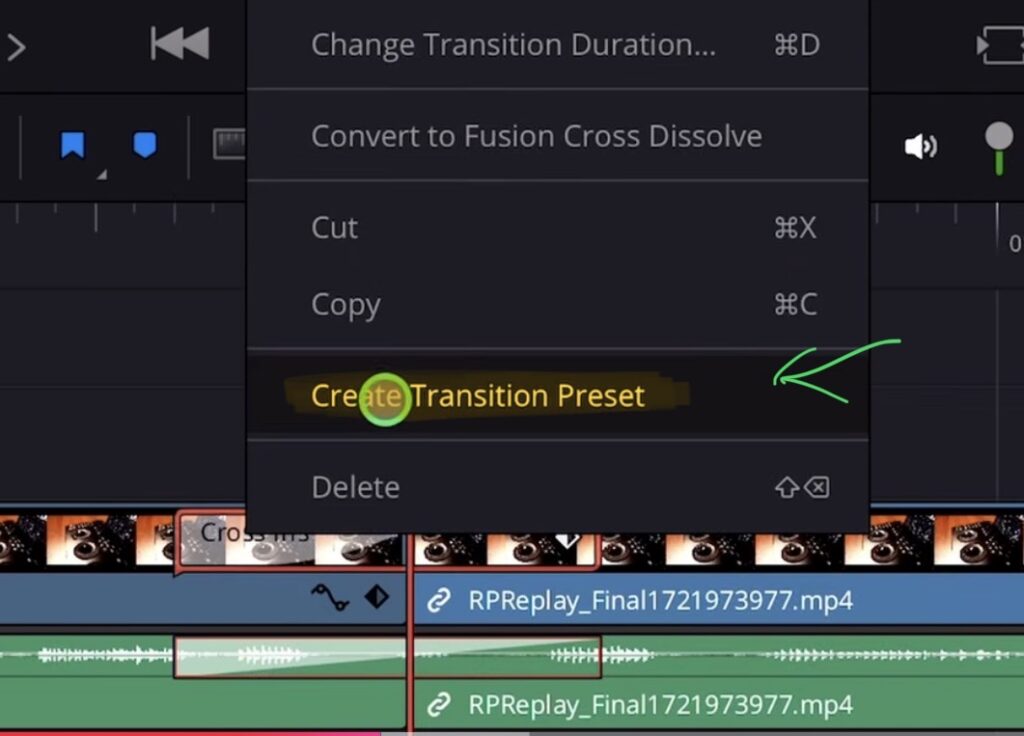
If you want to save your custom transition settings, you have to create a transition preset. This does not work in the Cut Page. You need to switch to the Edit Page.
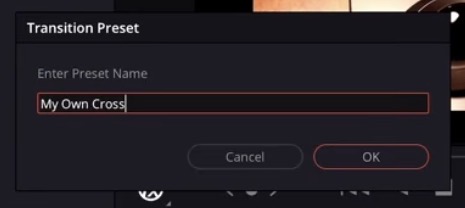
In the Edit Page, right click on your customized transition and select “Create Transition Preset”. Give it a name and click okay.
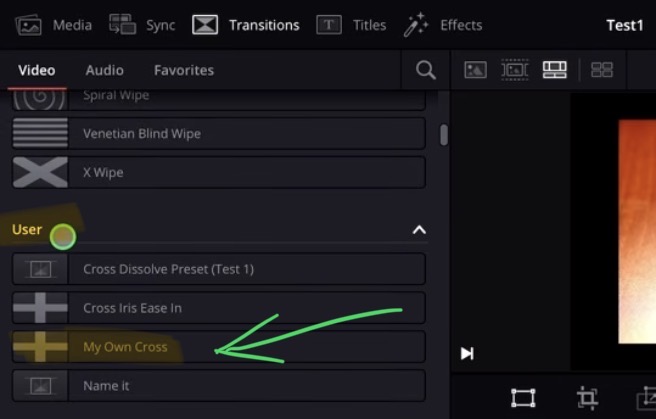
Info: Unfortunately, using “Add Transition to All Edits” with a user preset does not apply the custom settings either. Hopefully this will be fixed in a future update.
How to Change Settings for Multiple Transitions at Once
There is a workaround. After you add transitions to all edits, you can select multiple transitions by holding Command and clicking on each one. Then open the Inspector and change the settings there. This will apply the changes to all selected transitions at once.
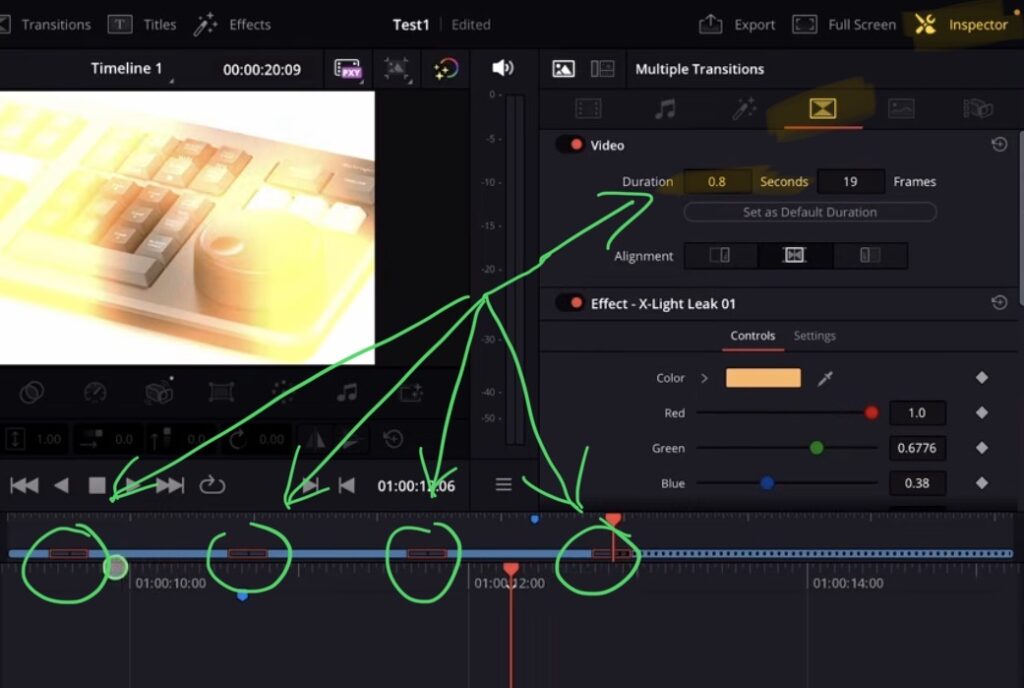
You can change the duration, color, and other parameters. All selected transitions will update with your new settings.
Tip: If you don’t know how to get the other pages (FUSION, FAIRLIGHT, EDIT) on the iPad read this article first: How to UNLOCK ALL PAGES in DaVinci Resolve for iPad Pro
If you want to host your own Online Course use CC360
I really believe, that CC360 is the best Platform to host your own Online Course currently on the market. And each week they introduce new features. Amazing. Check it out here.
BONUS: All DaVinci Resolve iPad Masterclass Students get the Transition Pack & the 8K Film Grain Pack for FREE!
You can either get the Transition Pack separate here: Seamless Transition Pack for DaVinci Resolve iPad. Or the 8K Film Grain Pack here: 8K Film Grain Bundle. but all of our DaVinci Resolve iPad Packs are a FREE Bonus for the DaVinci Resolve iPad Masterclass Students.
Check It Out here DaVinci Resolve iPad MasterClass: From Beginner To Pro.
Read Next
• How COPY Color Grade to MULTIPLE Clips in DaVinci Resolve iPad
• DO THIS to make DaVinci Resolve FASTER! (Instead of rage smashing your iPad)
• How To Delete Cache Files in DaVinci Resolve iPad
• How To Color Correct iPhone Footage in DaVinci Resolve iPad
• Easy Sync Audio & Video in DaVinci Resolve iPad