Top 7 iPhone Hacks That Instantly Make You More Productive (Stop Wasting Time)
In this video i will show you 7 productivity hacks for your iPhone. From disabling distracting settings and using Focus Modes to apps like Notion, Siri Shortcuts and timer apps that will help you get more done.
Pro Tip: Make your Videos Cinematic (and save a tone of time) with our Seamless Transition Pack for DaVinci Resolve iPad.

Contents
- [Video] 7 iPhone Productivity Hacks You Need to Know
- Hack 1: Disable Raise to Wake on iPhone
- Hack 2: Organize Your Home Screen and Hide Pages
- Hack 3: Control Notifications and Use Focus Modes
- Hack 4: Use Notion as Your All-in-One Note App
- Hack 5: iPhone Text Replacement to Type Faster
- Hack 6: Siri Shortcuts for iPhone Productivity
- Hack 7: Use a Timer App to Track Your Time
- Bonus: Command Browser for Research
- Bonus: GoodNotes App for Handwriting on iPad
- Bonus: The Pomodoro Technique and Time Blocking
- If you want to host your own Online Course use CC360
- BONUS: All DaVinci Resolve iPad Masterclass Students get the Transition Pack & the 8K Film Grain Pack for FREE!
[Video] 7 iPhone Productivity Hacks You Need to Know
Hack 1: Disable Raise to Wake on iPhone
Every time you pick up your phone and the screen lights up, you see notifications. And that is already enough to pull you out of your focus. The idea comes from the book “Indistractable” where you put as many barriers as possible between you and the things that distract you.
To change this go to Settings > Display & Brightness and turn off “Raise to Wake”. Now your phone will only turn on when you actually press a button or tap the screen.

Hack 2: Organize Your Home Screen and Hide Pages
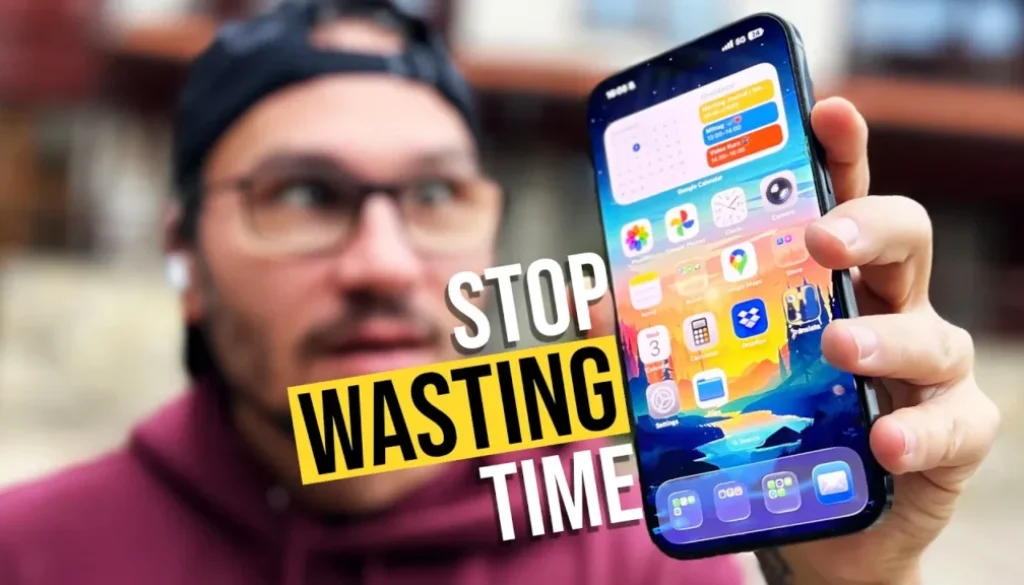
Another way to add barriers is to organize your home screen so that only productivity apps are on your main screen. All the distracting apps like social media should be deeper in the system. You can even hide full pages on your iPhone so the apps are still installed but not visible on your home screen. If you need them you can always search in the App Library.
Hack 3: Control Notifications and Use Focus Modes
Notifications are one of the biggest productivity killers. Every ping takes you out of your work and it takes time to get back into focus. Go to Settings > Notifications and disable notifications for every app that does not need to interrupt you.
If you don’t want to go through every app individually, you can swipe down and enable Do Not Disturb. But even better are custom Focus Modes. You can create a Focus Mode for specific tasks like writing, gaming or working. For each Focus Mode you can set which people are allowed to contact you, which apps can send notifications and even which home screen pages are visible.

Hack 4: Use Notion as Your All-in-One Note App
Notion is not just a note-taking app. It can be your to-do list, your kanban board, your journal and so much more. The best part is that it syncs across all your devices. So whatever you write on your iPhone is also available on your iPad and your computer. It has a bit of a learning curve but once you get into it, it replaces multiple apps.

Hack 5: iPhone Text Replacement to Type Faster
Text Replacement is a feature that has been on the iPhone for a long time but many people don’t use it. You can set up short codes that automatically expand into full phrases. For example you type “mfg” and it writes out a full greeting. This is great for replies to comments, emails or anything you type often.
To set this up go to Settings > General > Keyboards > Text Replacement. Tap the plus icon and add your phrase and the shortcut you want to trigger it.

Hack 6: Siri Shortcuts for iPhone Productivity
Siri Shortcuts is built into iOS and it lets you automate almost anything on your iPhone. If you have a workflow where you do multiple steps, you can combine them into one shortcut and run it with a tap or even with your voice.
There are many ways to start a shortcut. You can use Siri voice commands, create icons on your home screen, add widgets, use the share menu inside other apps or just run them from the Shortcuts app itself. For example you can create a shortcut that pastes your Instagram hashtags, one that turns your smart lights on or off, one that plays YouTube in the background, or a “Take a Break” shortcut that sets a 25-minute Pomodoro timer and enables Do Not Disturb automatically.

Hack 7: Use a Timer App to Track Your Time
If you want to know where your time goes, start tracking it. A timer app helps you see how much time you actually spend on different projects. This is especially useful when you start working with clients. Apps like Clockify or Timery let you set up different projects and start a timer with one tap. You can also create widgets on your home screen to start timers even faster.

Bonus: Command Browser for Research
Command Browser is a different kind of browser app. When you browse the internet and do research, you can highlight text on any website and those highlights are saved forever inside the app. You can go back to your highlights at any time and find all the important parts you marked. This is very useful when you do research for articles, YouTube videos or any kind of project.

Bonus: GoodNotes App for Handwriting on iPad
GoodNotes is a paid app but it is one of the best note-taking apps for iPad. Whatever you write with your hand, you can search for it later inside the app. It recognizes your handwriting and makes it searchable. If you use your iPad with an Apple Pencil this app is a must-have.

Bonus: The Pomodoro Technique and Time Blocking
The Pomodoro Technique is simple. Set a timer for 25 minutes, focus on one task, then take a short break. Science shows that your focus drops after about 25 minutes so this technique helps you stay productive. If a task takes too long, break it down into smaller pieces that fit into one 25-minute session.
Time Blocking means you block specific time slots in your calendar for specific tasks. Not just for work but also for your morning routine, networking, creative time or anything important to you. Many productive people use this technique and you can do it right in your iPhone calendar.
Tip: If you don’t know how to get the other pages (FUSION, FAIRLIGHT, EDIT) on the iPad read this article first: How to UNLOCK ALL PAGES in DaVinci Resolve for iPad Pro
If you want to host your own Online Course use CC360
I really believe, that CC360 is the best Platform to host your own Online Course currently on the market. And each week they introduce new features. Amazing. Check it out here.
BONUS: All DaVinci Resolve iPad Masterclass Students get the Transition Pack & the 8K Film Grain Pack for FREE!
You can either get the Transition Pack separate here: Seamless Transition Pack for DaVinci Resolve iPad. Or the 8K Film Grain Pack here: 8K Film Grain Bundle. but all of our DaVinci Resolve iPad Packs are a FREE Bonus for the DaVinci Resolve iPad Masterclass Students.
Check It Out here DaVinci Resolve iPad MasterClass: From Beginner To Pro.
Read Next
• How COPY Color Grade to MULTIPLE Clips in DaVinci Resolve iPad
• DO THIS to make DaVinci Resolve FASTER! (Instead of rage smashing your iPad)
• How To Delete Cache Files in DaVinci Resolve iPad
• How To Color Correct iPhone Footage in DaVinci Resolve iPad
• Easy Sync Audio & Video in DaVinci Resolve iPad