DaVinci Resolve iPad UPDATE: Vertical Full Screen Viewer
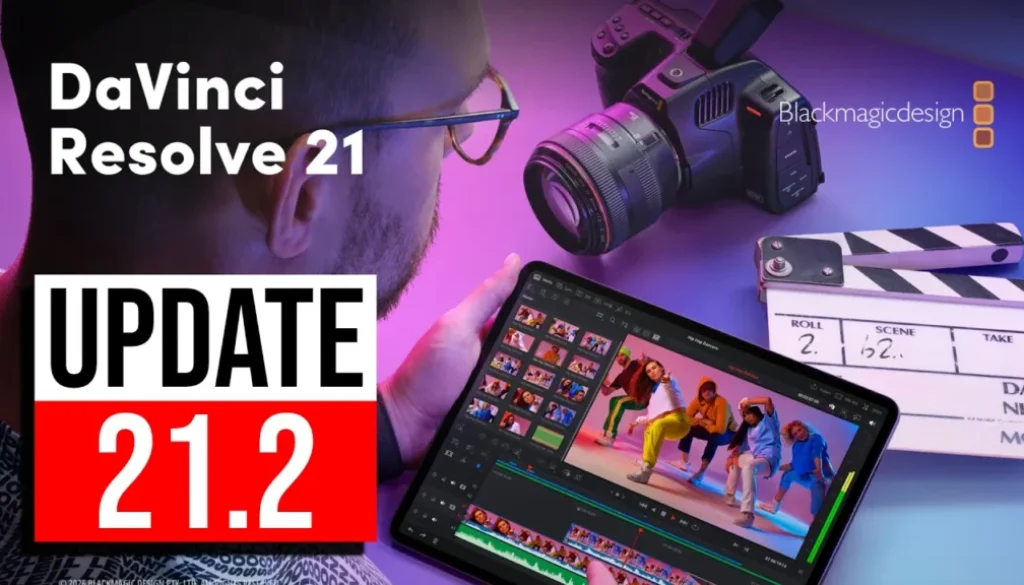
DaVinci Resolve for iPad just got a new update to Version 21.2. In this article/video I will show you what’s new in this update and a really cool trick from our community: how to use the Edit Page in vertical mode on the 13-inch iPad Pro.
Pro Tip: Make your Videos Cinematic (and save a tone of time) with our Seamless Transition Pack for DaVinci Resolve iPad.

Contents
- [Video] DaVinci Resolve iPad 21.2 Update: Vertical Edit Page on the 13-inch iPad Pro
- What’s new in DaVinci Resolve iPad 21.2
- Do all pages still work after the 21.2 Update?
- Vertical Mode in DaVinci Resolve for iPad mini and iPad Pro 11-inch
- Vertical Mode on the 13-inch iPad Pro
- How to use the Edit Page in Vertical Mode on iPad
- If you want to host your own Online Course use CC360
- BONUS: All DaVinci Resolve iPad Masterclass Students get the Transition Pack & the 8K Film Grain Pack for FREE!
[Video] DaVinci Resolve iPad 21.2 Update: Vertical Edit Page on the 13-inch iPad Pro
What’s new in DaVinci Resolve iPad 21.2
You can always see the full version history in the App Store. Just open DaVinci Resolve for iPad in the App Store and tap on “What’s New”. The biggest addition in this update is the support for Blackmagic Design Gen 6 LUTs.
DaVinci Resolve iPad Version 21.2 (04/11/2026)
• Support for Blackmagic Design Gen 6 LUTs.
• ResolveFX False Color support for Gen 5 and Gen 6 color science.
• Support for EXIF metadata in PNG files.
• Addressed slow MP3 audio only renders.
• Addressed incorrect channel order for WAV files with iXML tracks.
• Addressed crash decoding some multi-channel DNG files.
• Addressed audio input device preference reset after restart.
• Addressed missing Text+ inspector controls in older projects.
• Addressed some ACES 2.0 artifacts.
• General performance and stability improvements.
Do all pages still work after the 21.2 Update?
Yes. And that’s the most important part for me. After the update I still have access to all of the other pages and they still work.
Vertical Mode in DaVinci Resolve for iPad mini and iPad Pro 11-inch
With this new update I tested again if vertical view is now working on the smaller devices. I tried it on the iPad mini and on the iPad Pro 11-inch, and unfortunately it still doesn’t really work.
Vertical Mode on the 13-inch iPad Pro
But here’s the cool thing. In a previous video I showed you that with a 13-inch iPad you can actually use vertical mode. So I asked Chris from our community if he could send me a couple of screenshots from his devices. He even turned the screen on his Mac to vertical, and it works there too.
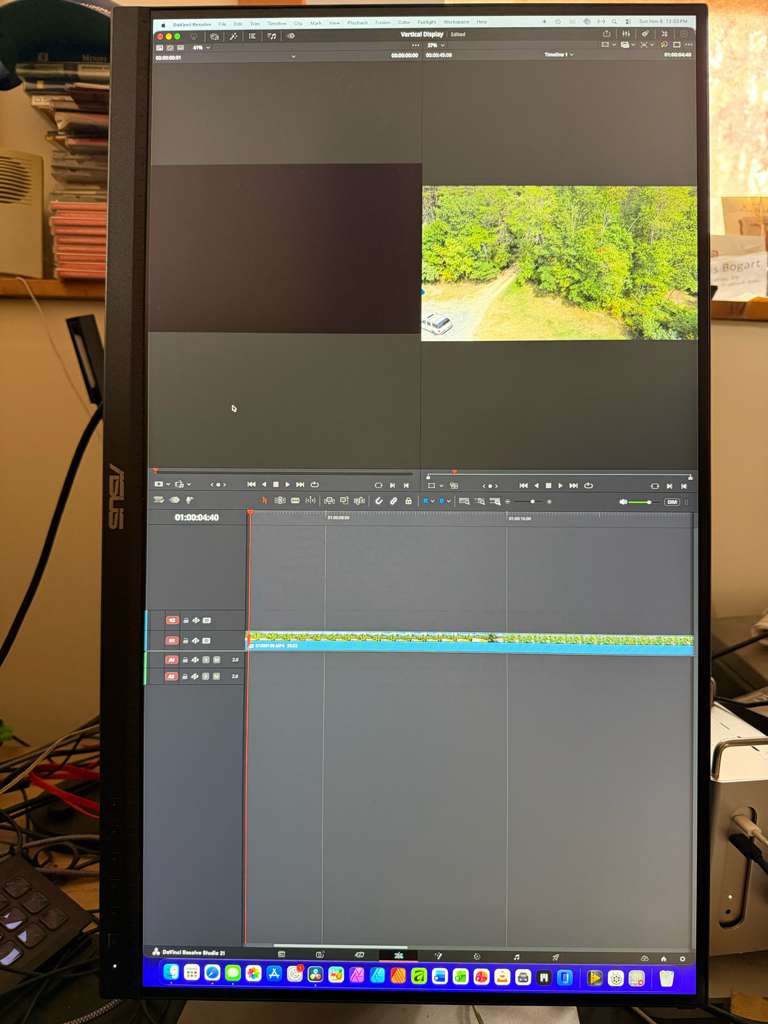
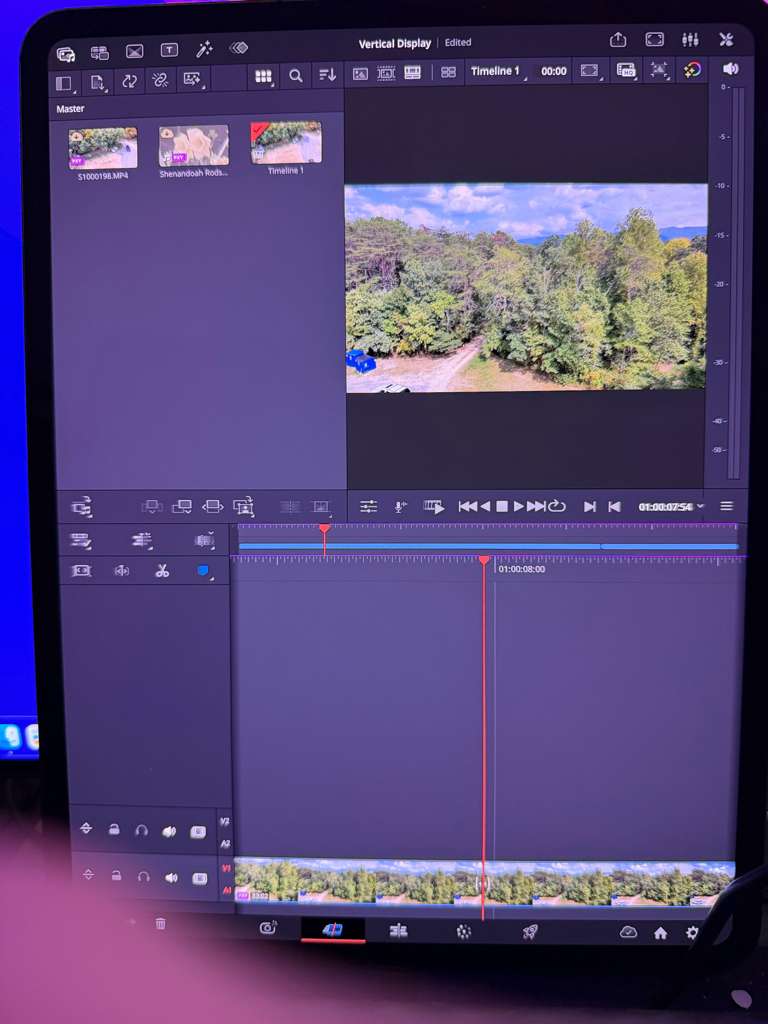
And the same works on the 13-inch iPad. In vertical mode he can use the Cut Page without any problems.
How to use the Edit Page in Vertical Mode on iPad
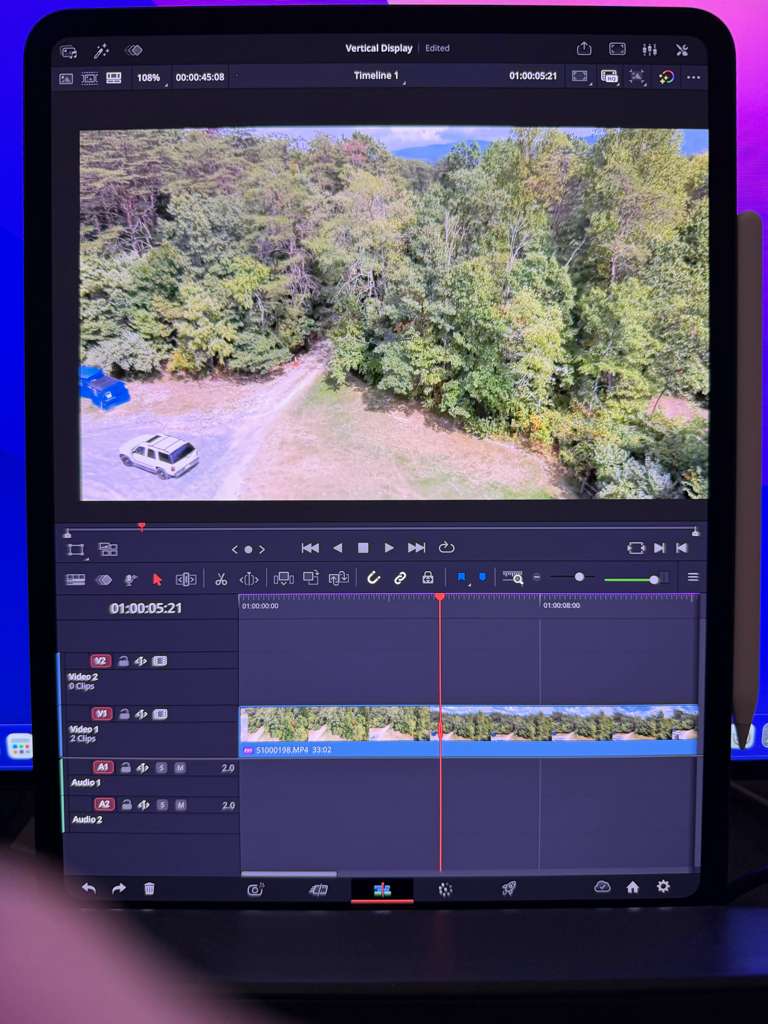
Now the even cooler part, and the reason why I included this in the video, because it was missing in my other video. If you open the Edit Page in vertical mode, you can close all the other tabs. Now you get the full size of your viewer and you can still work in the timeline. This is amazing.
Right now this only works on the 13-inch iPad. I hope that a future update brings this to the 11-inch iPad and the iPad mini as well. Let me know in the YouTube comments if you would use vertical mode for editing.
Tip: If you don’t know how to get the other pages (FUSION, FAIRLIGHT, EDIT) on the iPad read this article first: How to UNLOCK ALL PAGES in DaVinci Resolve for iPad Pro
If you want to host your own Online Course use CC360
I really believe, that CC360 is the best Platform to host your own Online Course currently on the market. And each week they introduce new features. Amazing. Check it out here.
BONUS: All DaVinci Resolve iPad Masterclass Students get the Transition Pack & the 8K Film Grain Pack for FREE!
You can either get the Transition Pack separate here: Seamless Transition Pack for DaVinci Resolve iPad. Or the 8K Film Grain Pack here: 8K Film Grain Bundle. but all of our DaVinci Resolve iPad Packs are a FREE Bonus for the DaVinci Resolve iPad Masterclass Students.
Check It Out here DaVinci Resolve iPad MasterClass: From Beginner To Pro.
Read Next
• How COPY Color Grade to MULTIPLE Clips in DaVinci Resolve iPad
• DO THIS to make DaVinci Resolve FASTER! (Instead of rage smashing your iPad)
• How To Delete Cache Files in DaVinci Resolve iPad
• How To Color Correct iPhone Footage in DaVinci Resolve iPad
• Easy Sync Audio & Video in DaVinci Resolve iPad