![How to Fix Blurry Video on iPad? [EASY FIX]](https://exlima.net/wp-content/uploads/2026/09/How-to-Fix-Blurry-Video-on-iPad-EASY-FIX-1024x576-1024x585.webp)
How to Fix Blurry Video on iPad? [EASY FIX]
If you film fast moving objects like race cars and your footage is just not sharp enough, DaVinci Resolve now has the AI UltraSharpen, a sharpener made for moving images. And it works even in DaVinci Resolve for the iPad. In this article i will show you how to apply it in the Color Page and in the Cut Page.
Pro Tip: Make your Videos Cinematic (and save a tone of time) with our Seamless Transition Pack for DaVinci Resolve iPad.

Contents
- [Video] How to Fix Blurry Video on iPad? [EASY FIX]
- How to add the AI UltraSharpen in the Color Page
- There is only ONE slider for the sharpening
- Use the AI UltraSharpen in the Cut Page or Edit Page
- Did you miss the big DaVinci Resolve 21 Update?
- If you want to host your own Online Course use CC360
- BONUS: All DaVinci Resolve iPad Masterclass Students get the Transition Pack & the 8K Film Grain Pack for FREE!
[Video] How to Fix Blurry Video on iPad? [EASY FIX]
How to add the AI UltraSharpen in the Color Page
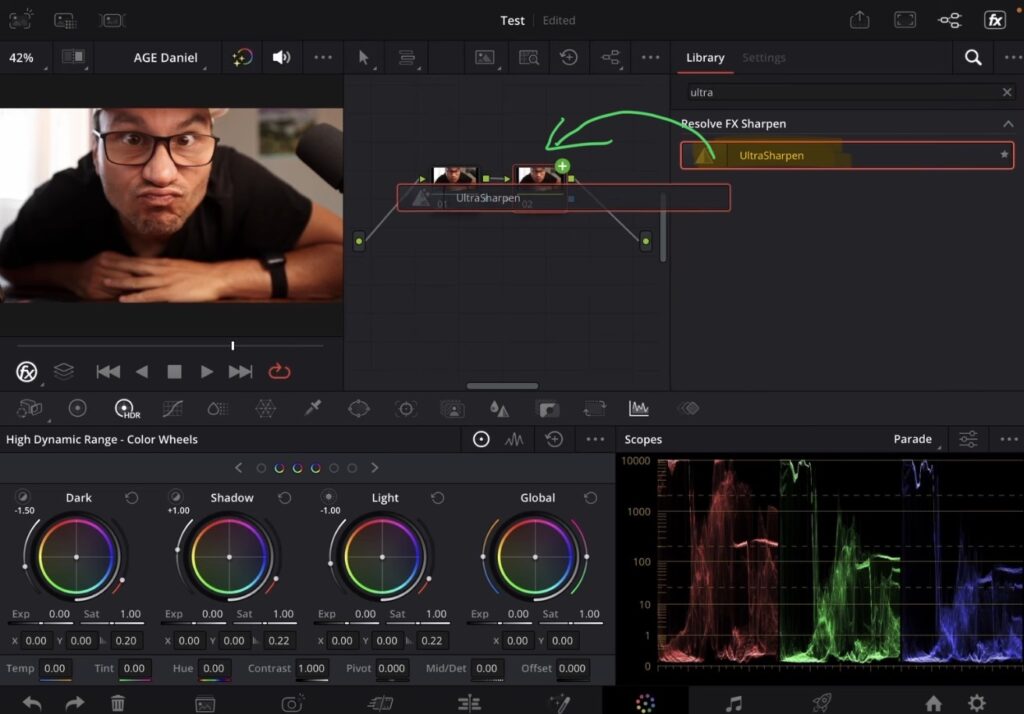
Select your clip, go to the Color Page and add a new node. Then open the Effects and type “ultra” in the search. The AI UltraSharpen shows up right away and you can drag and drop it onto your new node. That is already the whole setup.
There is only ONE slider for the sharpening
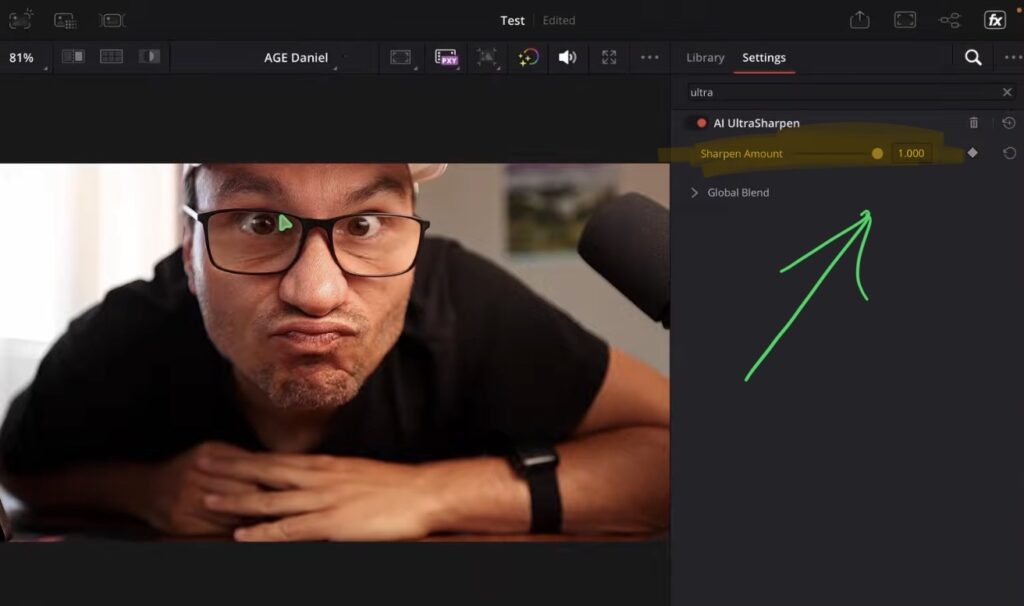
This tool is very simple. There is just one slider. At 0 no sharpening is happening at all. The higher you go, the sharper your image gets, even if the objects in it are moving. If you have a keyboard, hit Shift + F and the image in the Color Page gets bigger, so you can see the difference much better.
But don’t overdo it. If you push the slider way up and zoom in, you will see that every single pixel gets way too harsh. So zoom in, check your result and find the amount that still looks natural for your clip.
Use the AI UltraSharpen in the Cut Page or Edit Page
You don’t have to go to the Color Page at all. In the Cut Page open the Effects tab, search for “ultra” and you will find the AI UltraSharpen there too. Drag and drop it onto your clip and adjust the same slider in the Inspector. This works the same way in the Edit Page.
Tip: If you don’t know how to get the other pages (FUSION, FAIRLIGHT, EDIT) on the iPad read this article first: How to UNLOCK ALL PAGES in DaVinci Resolve for iPad Pro
Did you miss the big DaVinci Resolve 21 Update?
The AI UltraSharpen is just one of the many updates that came with the newest version of DaVinci Resolve. I made a full video where i go through the new tools, effects and features that we can use on the iPad. Check it out here: DaVinci Resolve iPad Version 21 – All Features explained
If you want to host your own Online Course use CC360
I really believe, that CC360 is the best Platform to host your own Online Course currently on the market. And each week they introduce new features. Amazing. Check it out here.
BONUS: All DaVinci Resolve iPad Masterclass Students get the Transition Pack & the 8K Film Grain Pack for FREE!
You can either get the Transition Pack separate here: Seamless Transition Pack for DaVinci Resolve iPad. Or the 8K Film Grain Pack here: 8K Film Grain Bundle. but all of our DaVinci Resolve iPad Packs are a FREE Bonus for the DaVinci Resolve iPad Masterclass Students.
Check It Out here DaVinci Resolve iPad MasterClass: From Beginner To Pro.
Read Next
• How COPY Color Grade to MULTIPLE Clips in DaVinci Resolve iPad
• DO THIS to make DaVinci Resolve FASTER! (Instead of rage smashing your iPad)
• How To Delete Cache Files in DaVinci Resolve iPad
• How To Color Correct iPhone Footage in DaVinci Resolve iPad
• Easy Sync Audio & Video in DaVinci Resolve iPad