Ripple Delete Silence in DaVinci Resolve iPad
In this article/video i will show you how to use Ripple Delete Silence in DaVinci Resolve for iPad. This AI feature automatically detects and removes all silent parts from your clips with one click. It is perfect for podcasts, Zoom recordings, or any long video where you want to cut out the dead space fast.
Pro Tip: Make your Videos Cinematic (and save a tone of time) with our Seamless Transition Pack for DaVinci Resolve iPad.

Contents
- [Video] AI Removes ALL Silence from Your Video on iPad!
- How to Use Ripple Delete Silence in DaVinci Resolve iPad
- The Ripple Delete Silence Settings
- Threshold Setting for Silence Detection
- Pre and Post Roll Frames
- Minimum Strip Length
- Audio Crossfade Option
- If you want to host your own Online Course use CC360
- BONUS: All DaVinci Resolve iPad Masterclass Students get the Transition Pack & the 8K Film Grain Pack for FREE!
[Video] AI Removes ALL Silence from Your Video on iPad!
How to Use Ripple Delete Silence in DaVinci Resolve iPad
This feature only works in the Edit Page. So make sure you have the Edit Page open first. If you don’t know how to open the other pages, check out the Tip section below.
Tip: If you don’t know how to get the other pages (FUSION, FAIRLIGHT, EDIT) on the iPad read this article first: How to UNLOCK ALL PAGES in DaVinci Resolve for iPad Pro
Once you are in the Edit Page, select the clip you want to remove silence from. Then go to the menu bar at the top of your screen. Navigate to Clip and then Audio Operations and select Ripple Delete Silence.

Very important: You need to have the menu bar visible. You only see the menu bar if you have your iPad Settings under Multitasking and Gestures set to allow windowed apps. If you have it on full screen you will not see the menu bar. In DaVinci Resolve you can hover with your mouse or swipe down with your finger to reveal the menu bar.

The Ripple Delete Silence Settings
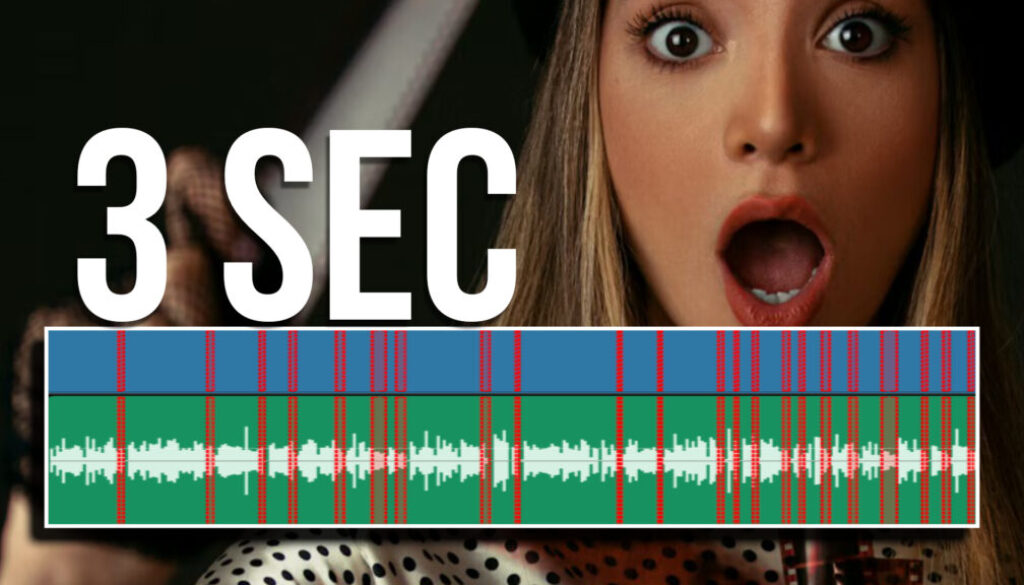
After you click Ripple Delete Silence a new window will pop up. You will already see red lines on your clip that show you where it would cut. These are the settings you can adjust:

Threshold Setting for Silence Detection
The threshold controls what DaVinci Resolve considers silence. Everything below this dB value is treated as dead space. The default is around -25 dB. If you lower it to something like -66 dB, only the truly silent parts will be detected. If you raise it to something like -10 dB, more of your audio will be flagged as silence, but be careful because it might also cut away parts where you are actually talking. A good starting point is around -40 to -30 dB.
Pre and Post Roll Frames
These two settings control how many frames of space are kept before and after each cut. If you set both to zero, the cuts will be very tight and the words will come right after each other with no breathing room. If you set them to 2 or 3 frames, the AI keeps a small gap so the audio sounds more natural. This is important for podcasts or talking head videos where you want the cuts to feel smooth.
Minimum Strip Length
This setting tells the AI how long a silent section needs to be before it gets removed. For example, if your timeline runs at 24 frames per second and you set this to 24 frames, the AI will only remove silence that lasts at least one second. Anything shorter stays in. This is useful if you want to keep short natural pauses in your audio.
Audio Crossfade Option
You can also enable a crossfade for all the cuts that the AI makes. This adds a smooth audio transition at every cut point so you don’t hear any harsh jumps in the audio. Once you are happy with all the settings, click Remove and DaVinci Resolve will cut the entire timeline for you.
Imagine you have a 3 hour podcast and normally you would spend 30 minutes to an hour just cutting out all the dead space. With Ripple Delete Silence you save all that time with one click.
If you want to host your own Online Course use CC360
I really believe, that CC360 is the best Platform to host your own Online Course currently on the market. And each week they introduce new features. Amazing. Check it out here.
BONUS: All DaVinci Resolve iPad Masterclass Students get the Transition Pack & the 8K Film Grain Pack for FREE!
You can either get the Transition Pack separate here: Seamless Transition Pack for DaVinci Resolve iPad. Or the 8K Film Grain Pack here: 8K Film Grain Bundle. but all of our DaVinci Resolve iPad Packs are a FREE Bonus for the DaVinci Resolve iPad Masterclass Students.
Check It Out here DaVinci Resolve iPad MasterClass: From Beginner To Pro.
Read Next
• How COPY Color Grade to MULTIPLE Clips in DaVinci Resolve iPad
• DO THIS to make DaVinci Resolve FASTER! (Instead of rage smashing your iPad)
• How To Delete Cache Files in DaVinci Resolve iPad
• How To Color Correct iPhone Footage in DaVinci Resolve iPad
• Easy Sync Audio & Video in DaVinci Resolve iPad



![Grainy Night Shots? [This Fixes It!]](https://exlima.net/wp-content/uploads/2026/10/Grainy-Night-Shots-This-Fixes-It-1024x576-394x330.webp)