Create INSANE Fireball Effects on iPad (Final Cut Pro Tutorial)
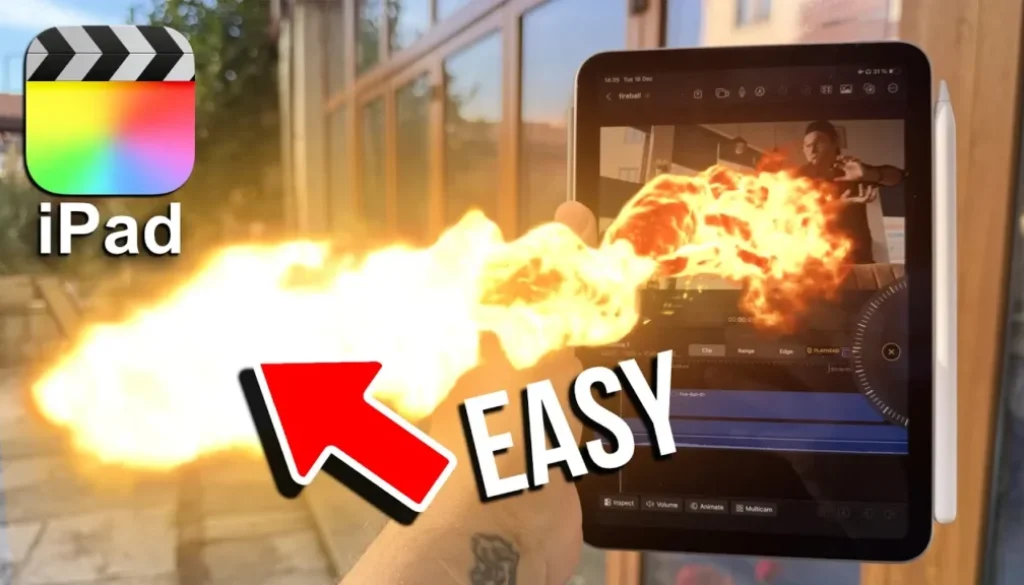
In this article/video I will show you a simple fireball animation that you can use in Final Cut Pro for the iPad. We are using the Big Films Superhero Pack, which are transparent background overlays that work without any official plugin support. Let me show you how to import, apply and position these effects.

Contents
- [Video] Simple Fireball Animation in Final Cut Pro for iPad
- What Are Big Films Effects and Why Do They Work on iPad?
- How to Import Big Films Effects in Final Cut Pro for iPad
- How to Apply the Fireball Effect in Final Cut Pro for iPad
- Using the Transform Tool to Position and Flip the Effect
- Are Big Films Effects Officially Supported on iPad?
- Storage Considerations for VFX Packs on iPad
- If you want to host your own Online Course use CC360
[Video] Simple Fireball Animation in Final Cut Pro for iPad
What Are Big Films Effects and Why Do They Work on iPad?
When Final Cut Pro launched on iPad, Apple said it would have third-party plugin support. They even mentioned Motion VFX as one of the biggest plugin makers. But since that time, we still have no official plugin support from third-party plugin makers.
So why can you use Big Films effects? Because Big Films packs are not traditional plugins. They are pre-rendered video animations with a transparent background. You simply take that transparent background video, put it into your editing software, and then adjust it on the screen. Change the speed, reposition it, whatever you like. It is already applied. Super simple.
 ✩✩✩ Make Movies like Marvel with this easy to use Drag & Drop Superhero FX from BigFilms.
How to Import Big Films Effects in Final Cut Pro for iPad
Because the Big Films files are very large, I recommend storing them on an external SSD drive. In Final Cut Pro on iPad, go to Import Media, then go to Files, navigate to your external drive and find the pack you want. For example, inside the Superhero Volume 2, you have different folders like Fire Attacks. The iPad even shows you a preview image of each animation so you can see what you are getting.


One big difference to DaVinci Resolve on iPad: In Final Cut Pro, every video will be copied to the internal storage. Even if you select a clip from an external drive, it creates a copy internally. So keep that in mind when working with these large files.
How to Apply the Fireball Effect in Final Cut Pro for iPad
Once imported, you can preview the animations in the media pool. Then simply drag and drop the effect onto your timeline above your video clip. Now you have to align the effect with your footage.

Using the Transform Tool to Position and Flip the Effect
If the animation goes in the wrong direction, you can fix this using the Inspector. Select the overlay clip, open the Inspector, and click on Transform Settings. Now you have handles that let you move the effect around and even rotate it. For example, if the fireball comes from left to right but you need it going the other way, just rotate it.

Position the effect so it starts where you want it (for example, from your hand) and then adjust the timing on the timeline. The more accurate you are with the positioning and timing, the better the result looks. If you add additional effects like camera shakes, you can make the animation look very professional.

Are Big Films Effects Officially Supported on iPad?
Big Films says their packs are not officially supported on iPad. The reason is simple: the iPad range is very big. There are iPads where loading these large files would probably cause lag. So as a company, if most iPads out there cannot handle these files smoothly, you just say it is not supported.
But if you have a newer iPad with an A17 Pro, M1, M2, M4 or even M5 chip, you have a very strong iPad. Even the iPad Mini with the A17 Pro chip can run these effects with no issues. It works because these are not traditional plugins. They are simply video overlays with a transparent background.
 ✩✩✩ Create amazing Blockbuster Movies with this easy to use Drag & Drop Blockbuster FX from BigFilms.
Storage Considerations for VFX Packs on iPad
The Big Films files are very large. If you have a small iPad with only 256 GB, you will run out of storage very fast. And remember, Final Cut Pro copies every imported file to internal storage. So using all of these effects is probably more fun on a desktop. But as you can see, they do work on the iPad and they work in Final Cut Pro for the iPad.
If you want to host your own Online Course use CC360
I really believe, that CC360 is the best Platform to host your own Online Course currently on the market. And each week they introduce new features. Amazing. Check it out here.
Check Out: Final Cut Pro iPad MasterClass: From Beginner to Pro
Read Next
• How To Turn ON/OFF Audio Skimming in Final Cut Pro iPad
• How To DUPLICATE Timeline in Final Cut Pro iPad
• How to add KEYFRAMES in Final Cut Pro iPad