
Blackmagic Camera App 3.2: Live Stream to YouTube, Twitch & Vimeo
The Blackmagic Camera app for iPhone and iPad just got updated to version 3.2, and the biggest new addition is live streaming. You can now go live directly to YouTube, Twitch, and Vimeo right from your phone or iPad. In this video I show you exactly how to set it up.
Pro Tip: Make your Videos Cinematic (and save a tone of time) with our Seamless Transition Pack for DaVinci Resolve iPad.

Contents
- [Video] Blackmagic Camera UPDATE: Live-Streaming to YouTube, Vimeo & Twitch!
- What’s New in Blackmagic Camera App Version 3.2
- How to Find the Live Stream Setting in the Blackmagic Camera App
- Fix: Platform Option Not Clickable
- How to Get Your YouTube Stream Key
- How to Go Live on YouTube with the Blackmagic Camera App
- Important: Don’t Screen Record While Live Streaming
- How to End Your Live Stream
- If you want to host your own Online Course use CC360
- BONUS: All DaVinci Resolve iPad Masterclass Students get the Transition Pack & the 8K Film Grain Pack for FREE!
[Video] Blackmagic Camera UPDATE: Live-Streaming to YouTube, Vimeo & Twitch!
What’s New in Blackmagic Camera App Version 3.2
Version 3.2 adds the following new features to the Blackmagic Camera app:
• Support for live streaming to YouTube, Vimeo, and Twitch
• Support for SRT streaming to Blackmagic stream processors
• Support for streaming to custom RTMP and SRT servers
• Improved feedback when connecting or disconnecting external storage
How to Find the Live Stream Setting in the Blackmagic Camera App
Open the Blackmagic Camera app and tap the Settings icon. You will now see a new Live Stream option in the settings menu. Tap it to open the live stream setup.
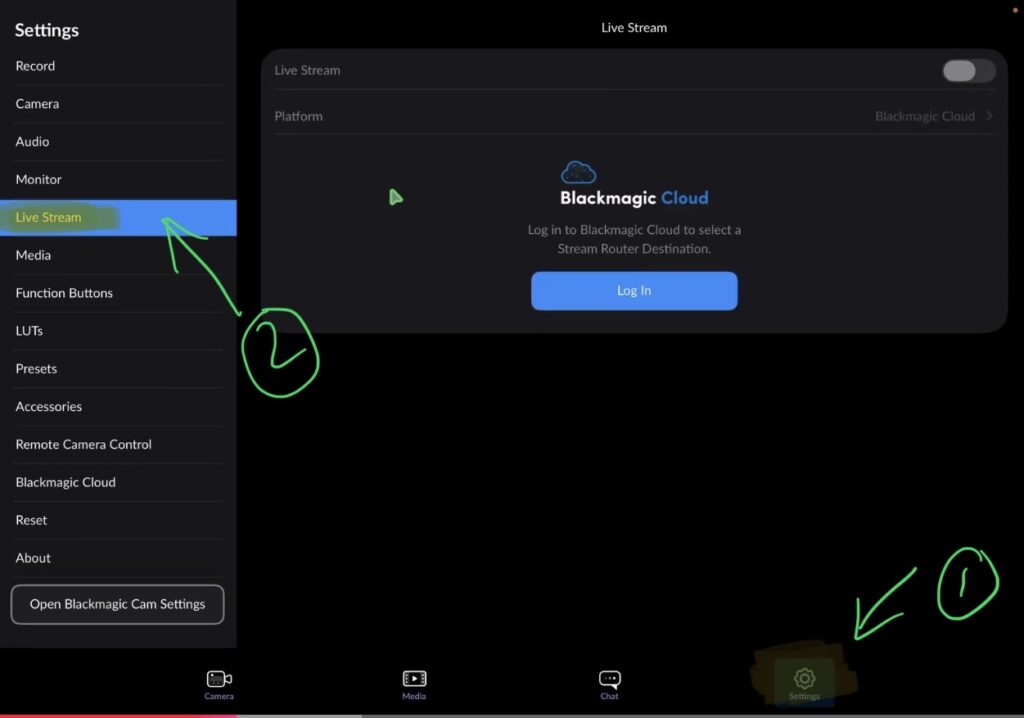
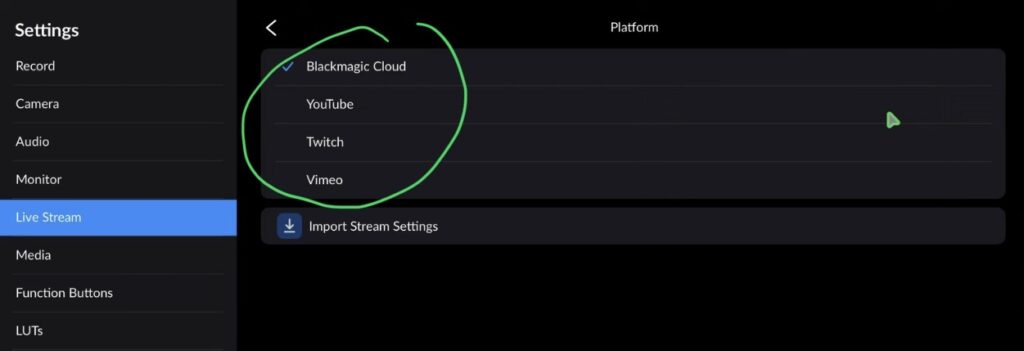
Attention: On my iPad Pro M1 i first had an issue and i was not able to change Platforms. But on my iPhone and my iPad Mini i had no issue at all. I still don’t know what cause this issue, but the fix was simple.
Fix: Platform Option Not Clickable
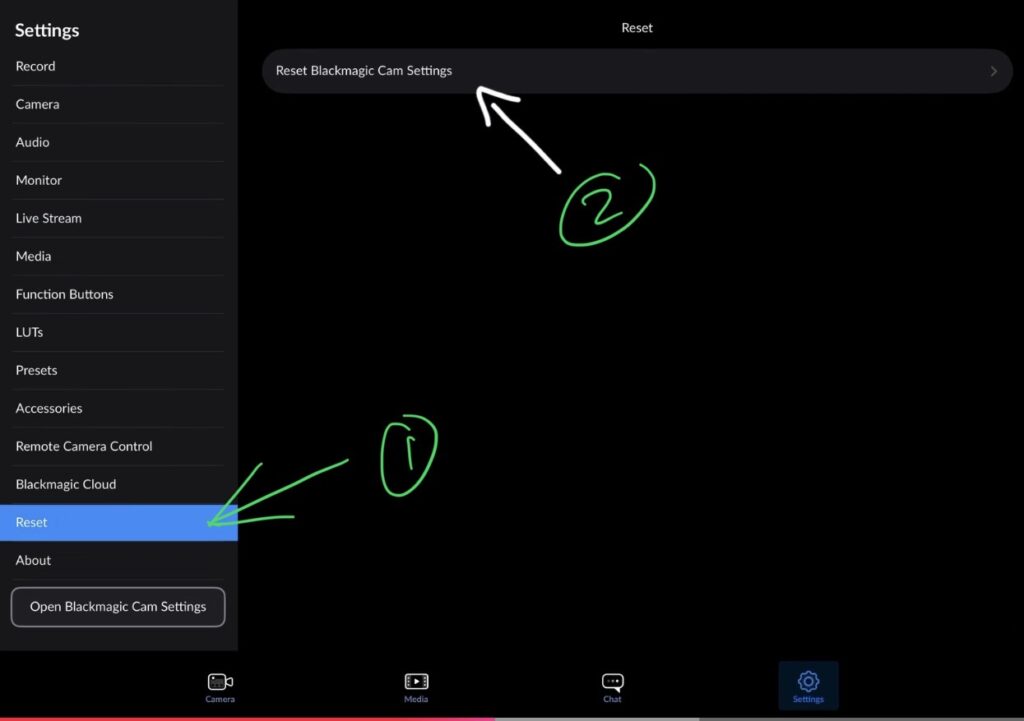
If you tap on Platform and nothing happens — you are not able to select YouTube or any other platform. Here is the fix. Scroll all the way to the bottom of the settings and tap Reset → Reset Blackmagic Camera Settings. This resets everything to the default settings. After that, go back to Live Stream and the Platform option will now be clickable.
How to Get Your YouTube Stream Key
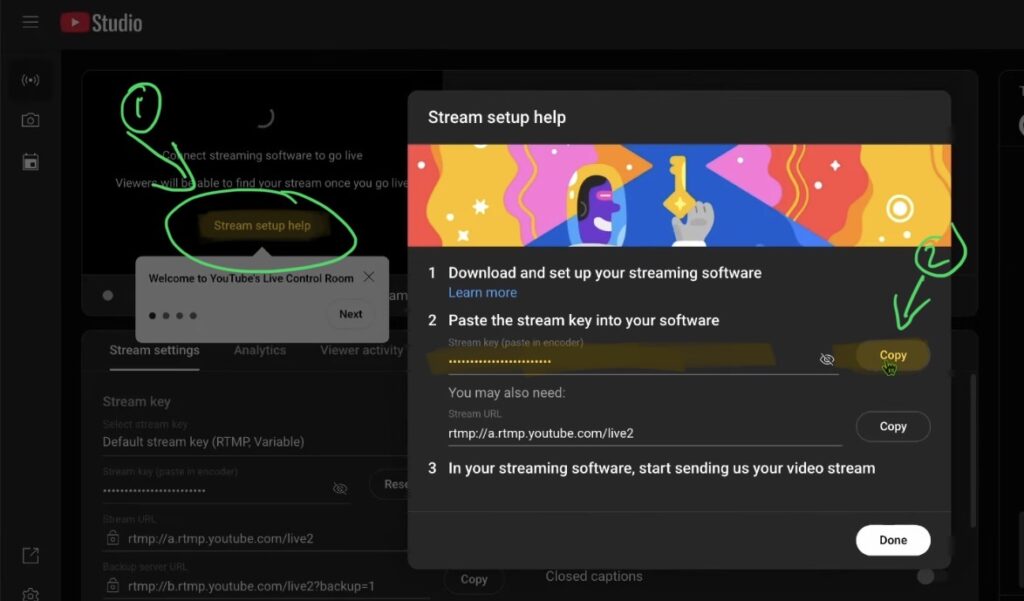
To go live on YouTube with the Blackmagic Camera App you need a stream key from YouTube. Here is how to get it:
1. Go to YouTube on your desktop and click Go Live
2. In the live stream setup, switch the software to an External Software option (like OBS or Blackmagic Camera)
3. Under Stream Setup, copy your Stream Key
4. Save the key somewhere (e.g. Notes app on your iPad)
How to Go Live on YouTube with the Blackmagic Camera App
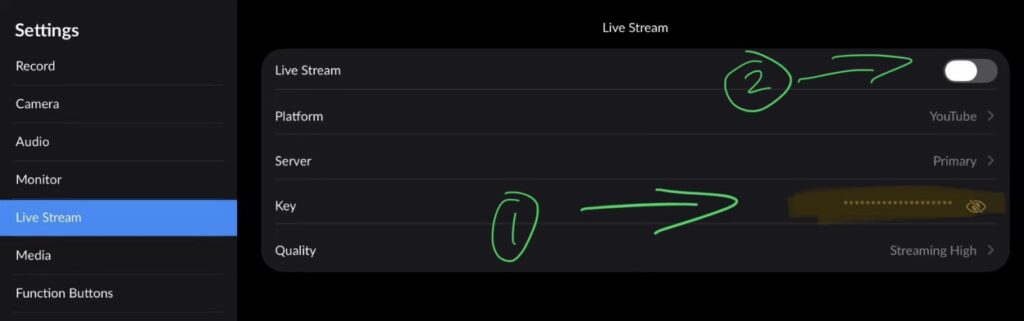
Back in the Blackmagic Camera app, go to Settings → Live Stream. Set the Platform to YouTube, then paste your stream key into the Key field. Now tap Go Live — your live stream is now active on your YouTube channel. The stream key is saved automatically so you do not have to re-enter it next time.
Important: Don’t Screen Record While Live Streaming
One thing to be aware of: if you screen record on your iPad at the same time as you go live, it will immediately affect your stream quality. The audio and video will both become choppy. On an M1 iPad (2021) the device cannot handle both tasks at the same time. So if you want a clean live stream, don’t screen record simultaneously.
How to End Your Live Stream
To stop your stream, tap End Stream in the live stream controls. Then go back to Settings → Live Stream and turn the live stream toggle off. Your stream key stays saved for next time.
Tip: If you don’t know how to get the other pages (FUSION, FAIRLIGHT, EDIT) on the iPad read this article first: How to UNLOCK ALL PAGES in DaVinci Resolve for iPad Pro
If you want to host your own Online Course use CC360
I really believe, that CC360 is the best Platform to host your own Online Course currently on the market. And each week they introduce new features. Amazing. Check it out here.
BONUS: All DaVinci Resolve iPad Masterclass Students get the Transition Pack & the 8K Film Grain Pack for FREE!
You can either get the Transition Pack separate here: Seamless Transition Pack for DaVinci Resolve iPad. Or the 8K Film Grain Pack here: 8K Film Grain Bundle. but all of our DaVinci Resolve iPad Packs are a FREE Bonus for the DaVinci Resolve iPad Masterclass Students.
Check It Out here DaVinci Resolve iPad MasterClass: From Beginner To Pro.
Read Next
• How COPY Color Grade to MULTIPLE Clips in DaVinci Resolve iPad
• DO THIS to make DaVinci Resolve FASTER! (Instead of rage smashing your iPad)
• How To Delete Cache Files in DaVinci Resolve iPad
• How To Color Correct iPhone Footage in DaVinci Resolve iPad
• Easy Sync Audio & Video in DaVinci Resolve iPad



![How to Fix Blurry Video on iPad? [EASY FIX]](https://exlima.net/wp-content/uploads/2026/09/How-to-Fix-Blurry-Video-on-iPad-EASY-FIX-1024x576-394x330.webp)