Node Stacks Changed How I Color Grade Forever
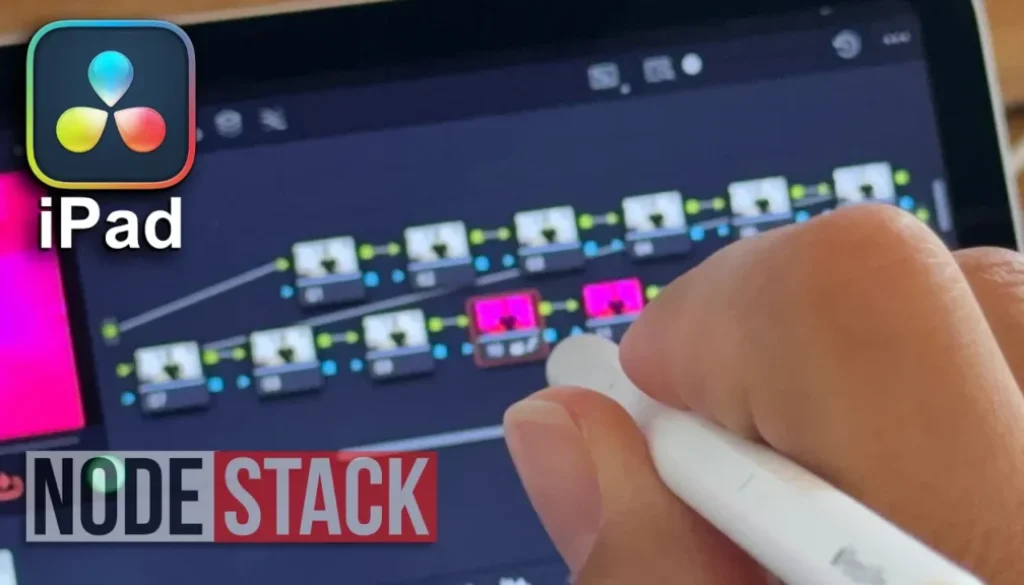
In this article/video I will show you how to use Node Stacks in the Color Page of DaVinci Resolve for iPad. Node Stacks allow you to organize complex color grading into separate layers, so your node tree stays clean and manageable. Let me show you how to set it up and how it works.
Pro Tip: Make your Videos Cinematic (and save a tone of time) with our Seamless Transition Pack for DaVinci Resolve iPad.

Contents
- [Video] How to Use Node Stacks in DaVinci Resolve iPad
- What Are Node Stacks in DaVinci Resolve iPad?
- Color Changes on Clip base vs. Timeline
- How to Enable Node Stack Layers in DaVinci Resolve iPad
- How Do Node Stack Layers Work?
- How to Copy Color Grades with Node Stack Layers
- If you want to host your own Online Course use CC360
- BONUS: All DaVinci Resolve iPad Masterclass Students get the Transition Pack & the 8K Film Grain Pack for FREE!
[Video] How to Use Node Stacks in DaVinci Resolve iPad
What Are Node Stacks in DaVinci Resolve iPad?
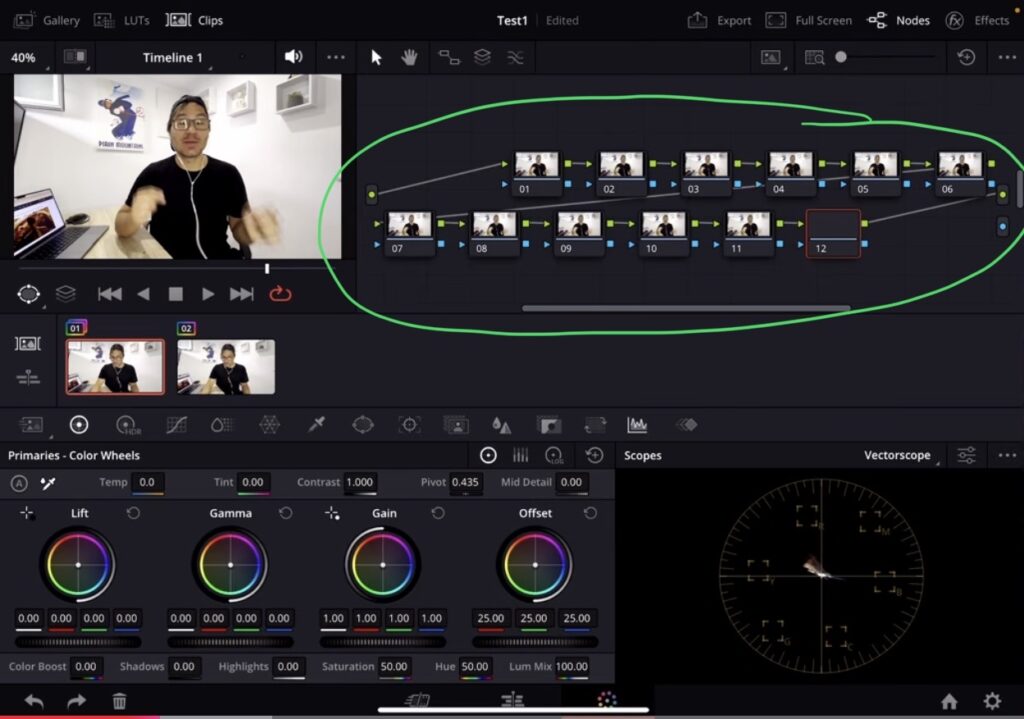
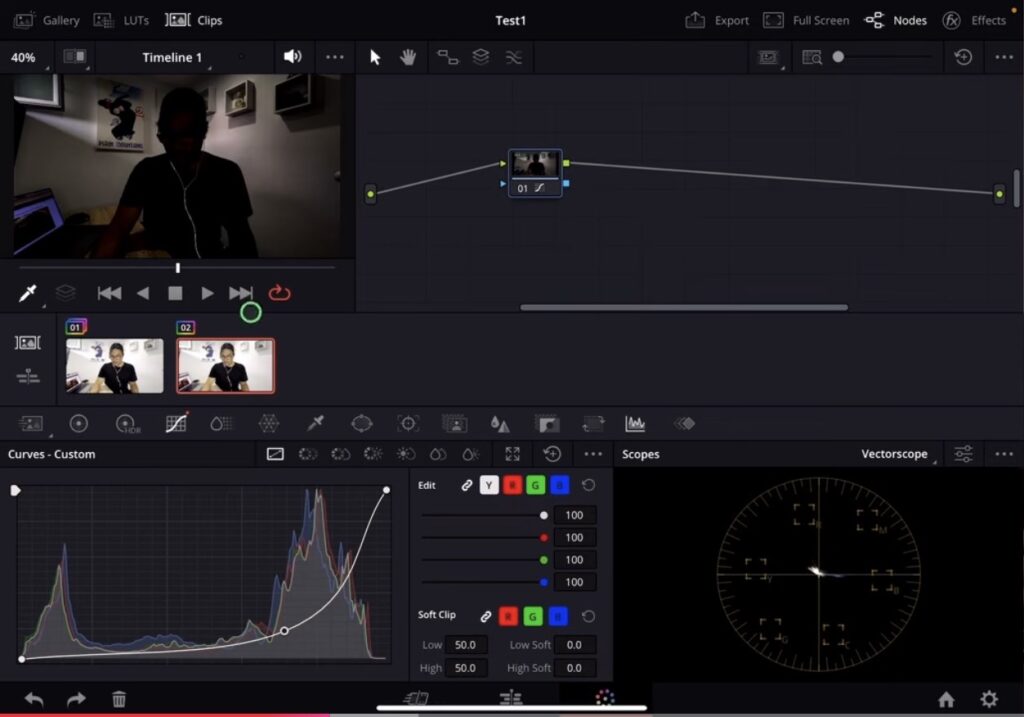
When you do complex color grading in DaVinci Resolve for iPad, your node tree can become very messy over time. Especially on the iPad where the screen is a bit smaller. Node Stacks solve this by letting you split your color grading into separate layers. Instead of cramming everything into one long node tree, you can spread your work across up to four layers.
Color Changes on Clip base vs. Timeline
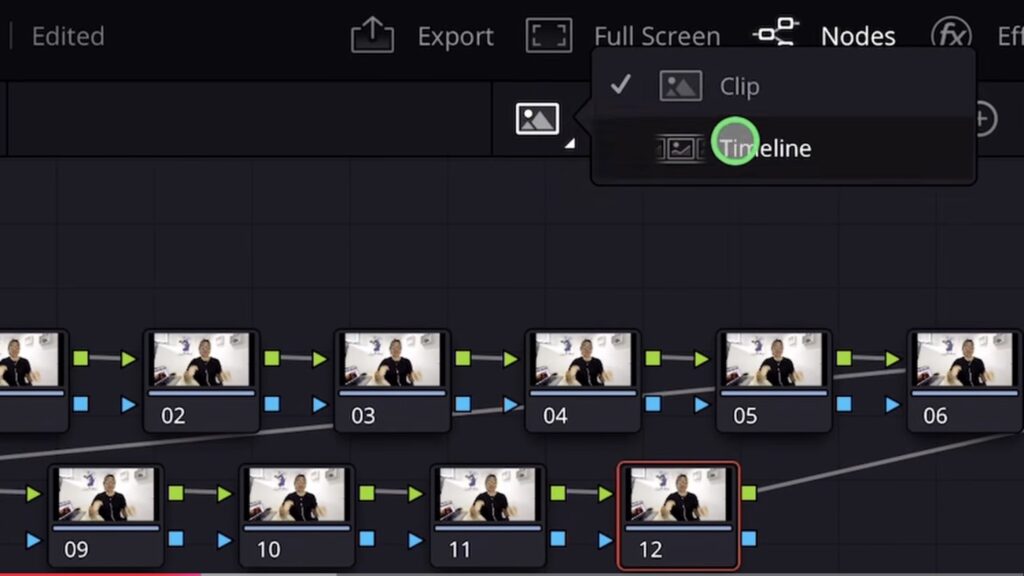
Before i show you how to use the Node Stacks first you have to know that by default you can always do Color Changes either on a clip base or you can do a color change for the entire timeline which will effect all Clips in your Timeline. And to change that you can change it here with this little icon on the top right. By default its set to Clip.
How to Enable Node Stack Layers in DaVinci Resolve iPad
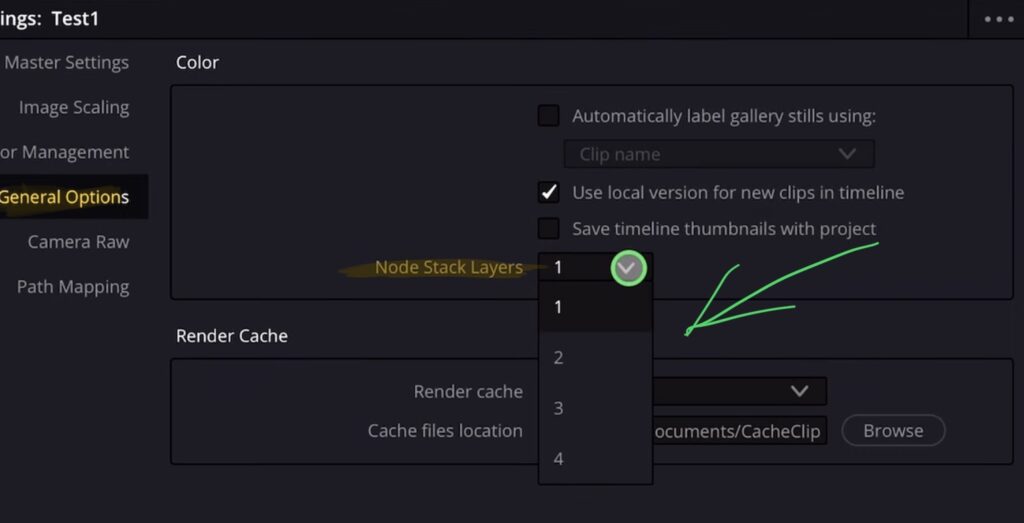
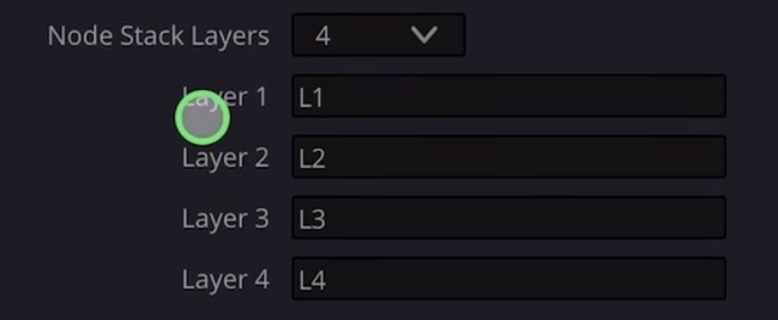
To enable Node Stacks, go to the Color Page and open the Settings. Under General Options, you will find a setting called “Color Node Stack Layer”. By default, this is set to one layer. You can now change it up to four layers. You can even give each layer a custom name to match your workflow, for example “Primary”, “Secondary”, or just keep them as L1, L2, L3, L4.
How Do Node Stack Layers Work?
Once you have enabled multiple layers, you can switch between them using the layer selector at the top of your node graph. You will see options like Clip 1 L1, Clip 1 L2, Clip 1 L3, and so on. Each layer gives you a fresh node graph where you can start making your adjustments.
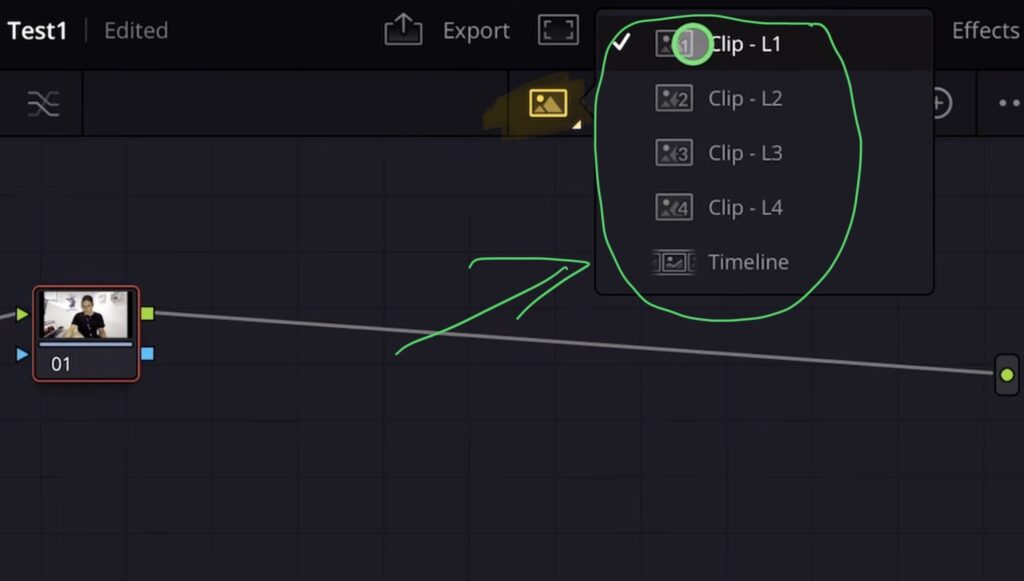
The way it works is simple: DaVinci Resolve processes all the nodes in Layer 1 first, then moves to Layer 2, then Layer 3, and so on. It is just another way of separating your work to keep things organized.
One thing to keep in mind: if you are working in Layer 3 and you switch to another clip, you will still be in Layer 3. The layer selection stays where you are. So if you want to start fresh on a new clip, remember to switch back to Layer 1.
The Timeline node still works the same way as before. Anything you apply in the Timeline node will go on top of everything across all clips.
How to Copy Color Grades with Node Stack Layers
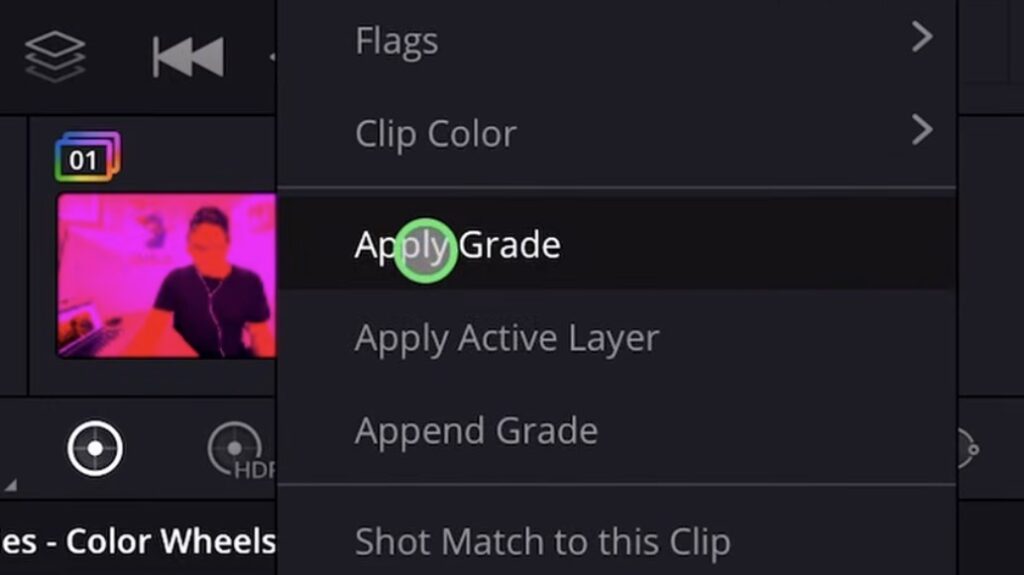
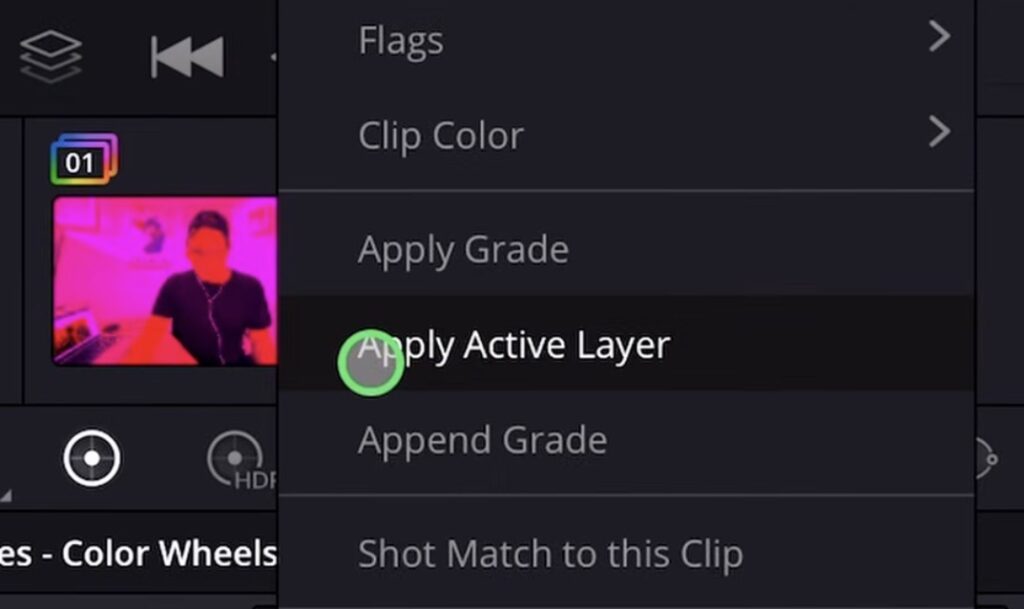
You can still copy color grades the way you always have. Select the clip where you want to paste the grade, then right-click on the clip you want to copy from and choose “Apply”. This will copy all layers.
But there is a new option now: “Apply Active Layer”. If you are currently in Layer 1 and you only want to copy the Layer 1 settings from another clip (without touching Layer 2, 3, or 4), you can right-click and choose “Apply Active Layer”. This will only copy the layer you are currently on.
Tip: If you don’t know how to get the other pages (FUSION, FAIRLIGHT, EDIT) on the iPad read this article first: How to UNLOCK ALL PAGES in DaVinci Resolve for iPad Pro
If you want to host your own Online Course use CC360
I really believe, that CC360 is the best Platform to host your own Online Course currently on the market. And each week they introduce new features. Amazing. Check it out here.
BONUS: All DaVinci Resolve iPad Masterclass Students get the Transition Pack & the 8K Film Grain Pack for FREE!
You can either get the Transition Pack separate here: Seamless Transition Pack for DaVinci Resolve iPad. Or the 8K Film Grain Pack here: 8K Film Grain Bundle. but all of our DaVinci Resolve iPad Packs are a FREE Bonus for the DaVinci Resolve iPad Masterclass Students.
Check It Out here DaVinci Resolve iPad MasterClass: From Beginner To Pro.
Read Next
• How COPY Color Grade to MULTIPLE Clips in DaVinci Resolve iPad
• DO THIS to make DaVinci Resolve FASTER! (Instead of rage smashing your iPad)
• How To Delete Cache Files in DaVinci Resolve iPad
• How To Color Correct iPhone Footage in DaVinci Resolve iPad
• Easy Sync Audio & Video in DaVinci Resolve iPad



![Grainy Night Shots? [This Fixes It!]](https://exlima.net/wp-content/uploads/2026/10/Grainy-Night-Shots-This-Fixes-It-1024x576-394x330.webp)