DaVinci Resolve iPad: Font Browser Explained!
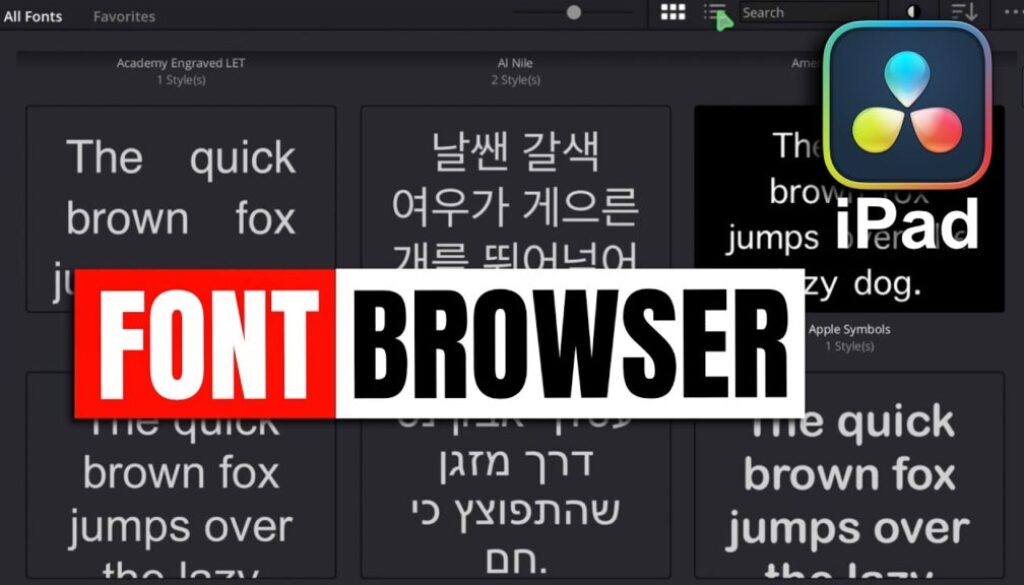
DaVinci Resolve never had a real font library. With DaVinci Resolve 21 we finally get a Font Browser where you can preview, search and sort all your fonts, including your own custom fonts. In this article I will show you how it works on the iPad for normal Text and Text+.
Pro Tip: Make your Videos Cinematic (and save a tone of time) with our Seamless Transition Pack for DaVinci Resolve iPad.

Contents
- [Video] DaVinci Resolve iPad: Font Browser Explained!
- How to open the Font Browser in DaVinci Resolve iPad
- Thumbnail View, List View and Preview Size
- How to scroll through your fonts on the iPad
- How to apply a font
- Using the Font Browser with Text+
- Search, Sorting and Custom Preview Text
- If you want to host your own Online Course use CC360
- BONUS: All DaVinci Resolve iPad Masterclass Students get the Transition Pack & the 8K Film Grain Pack for FREE!
[Video] DaVinci Resolve iPad: Font Browser Explained!
How to open the Font Browser in DaVinci Resolve iPad
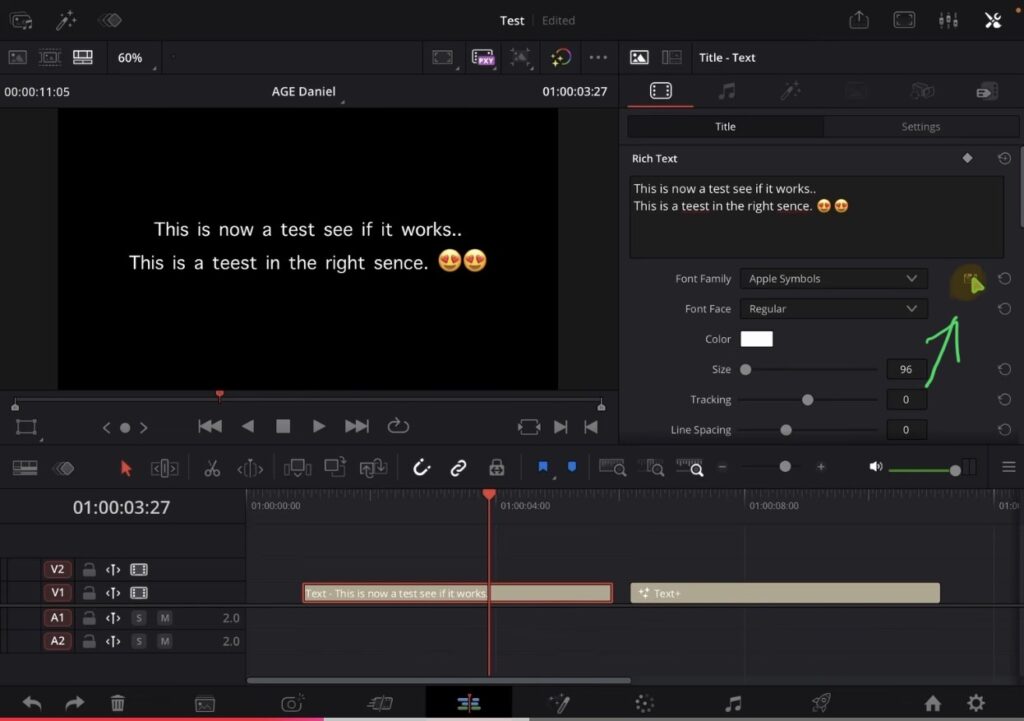
Place a normal Text into your timeline, select it and open the Inspector. Scroll down to Font Family. You still get the small preview list like before, but now there is also a button that opens the new Font Browser.
Thumbnail View, List View and Preview Size
The Font Browser opens very big on the iPad, but you can resize the window. At the top you can switch between Thumbnail View and List View, and with the size slider you make the font previews bigger or smaller.
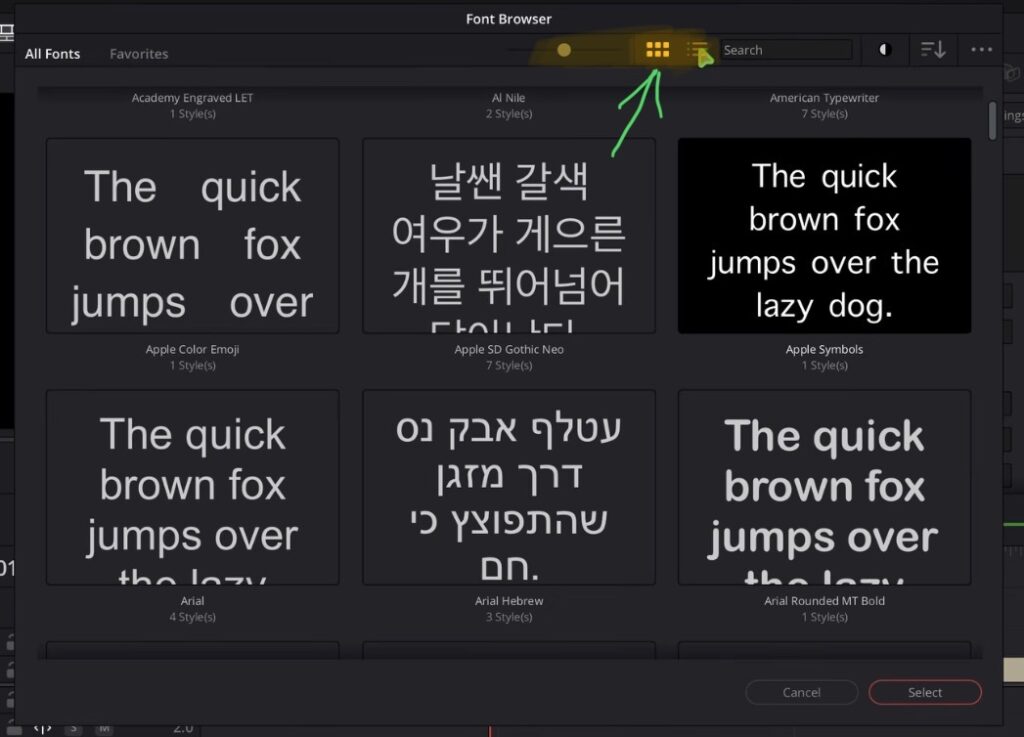
How to scroll through your fonts on the iPad
Here is one thing that is missing on the iPad right now: you can’t scroll the Font Browser with a finger swipe. Instead, tap on the scroll bar at the side. With a Magic Trackpad or a mouse wheel you can scroll normally, and with the Apple Pencil you can drag the handle to move up and down.
How to apply a font
You see immediately how each font will look. When you find the one you want, just double tap it and the font is applied to your Text.
Using the Font Browser with Text+
The Font Browser works for Text+ as well. The button is just in a slightly weird spot: it sits on the left side, but still next to the font field in the Inspector.
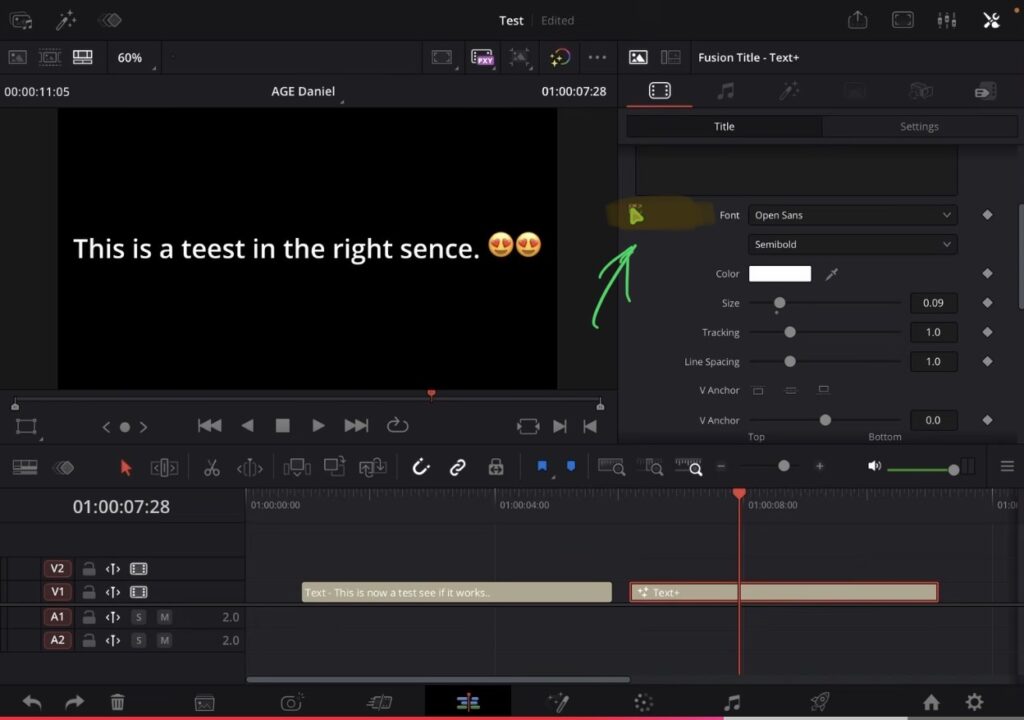
Search, Sorting and Custom Preview Text
Inside the Font Browser you can search for fonts, change the background from white to gray and use the sorting settings. You can also choose between Display Default Text or Display User Custom Text, so you preview the fonts with your own words.
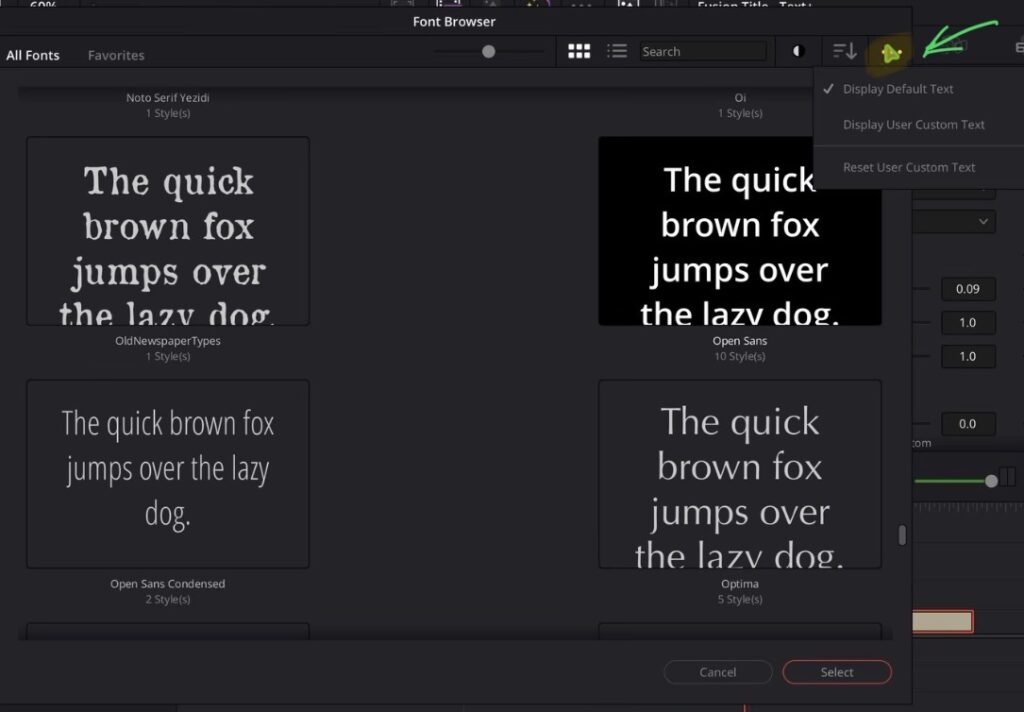
The Font Browser is just one of many updates in DaVinci Resolve 21. I cover most of them in my full overview video.
Tip: If you don’t know how to get the other pages (FUSION, FAIRLIGHT, EDIT) on the iPad read this article first: How to UNLOCK ALL PAGES in DaVinci Resolve for iPad Pro
If you want to host your own Online Course use CC360
I really believe, that CC360 is the best Platform to host your own Online Course currently on the market. And each week they introduce new features. Amazing. Check it out here.
BONUS: All DaVinci Resolve iPad Masterclass Students get the Transition Pack & the 8K Film Grain Pack for FREE!
You can either get the Transition Pack separate here: Seamless Transition Pack for DaVinci Resolve iPad. Or the 8K Film Grain Pack here: 8K Film Grain Bundle. but all of our DaVinci Resolve iPad Packs are a FREE Bonus for the DaVinci Resolve iPad Masterclass Students.
Check It Out here DaVinci Resolve iPad MasterClass: From Beginner To Pro.
Read Next
• How COPY Color Grade to MULTIPLE Clips in DaVinci Resolve iPad
• DO THIS to make DaVinci Resolve FASTER! (Instead of rage smashing your iPad)
• How To Delete Cache Files in DaVinci Resolve iPad
• How To Color Correct iPhone Footage in DaVinci Resolve iPad
• Easy Sync Audio & Video in DaVinci Resolve iPad