DaVinci Resolve iPad: The New AI Face Reshaper Explained
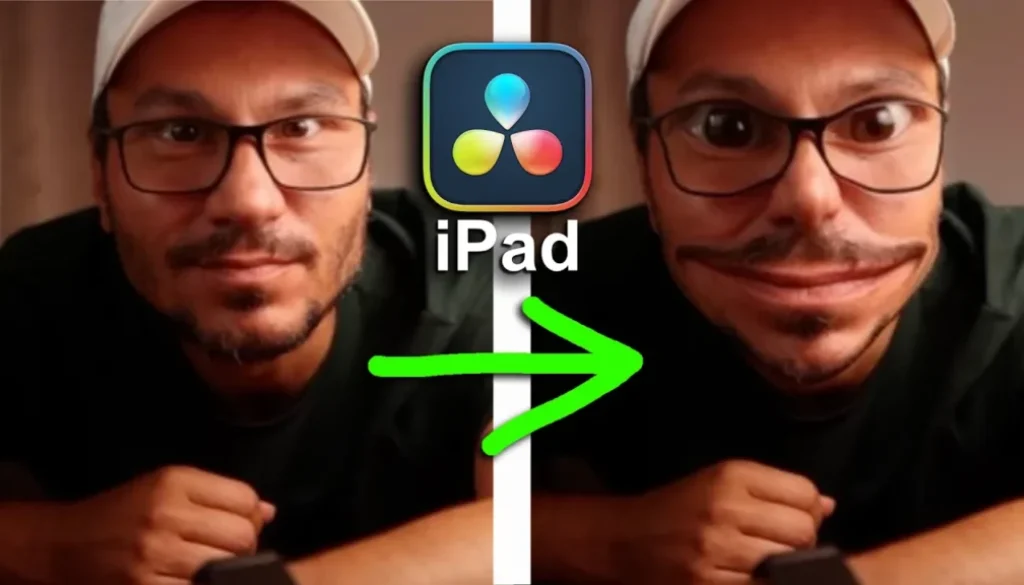
In this article/video i will show you how you can use the new AI Face Reshaper in DaVinci Resolve for iPad. This is a new AI feature that came with DaVinci Resolve 21 and it lets you resize and reshape facial features in real time, even on the iPad. Let me show you how it works.
Pro Tip: Make your Videos Cinematic (and save a tone of time) with our Seamless Transition Pack for DaVinci Resolve iPad.

Contents
- [Video] NEW AI Face Reshaper in DaVinci Resolve iPad (Reshape ANY Face!)
- How to add the AI Face Reshaper in DaVinci Resolve for iPad
- Detect and Track the Face
- Reshape the Face (Face Shapes)
- Adjust the Eyes, Nose and Mouth
- Animate Everything with Keyframes
- It Works in Real Time (No Rendering Needed)
- Tip for Older iPads
- If you want to host your own Online Course use CC360
- BONUS: All DaVinci Resolve iPad Masterclass Students get the Transition Pack & the 8K Film Grain Pack for FREE!
[Video] NEW AI Face Reshaper in DaVinci Resolve iPad (Reshape ANY Face!)
How to add the AI Face Reshaper in DaVinci Resolve for iPad
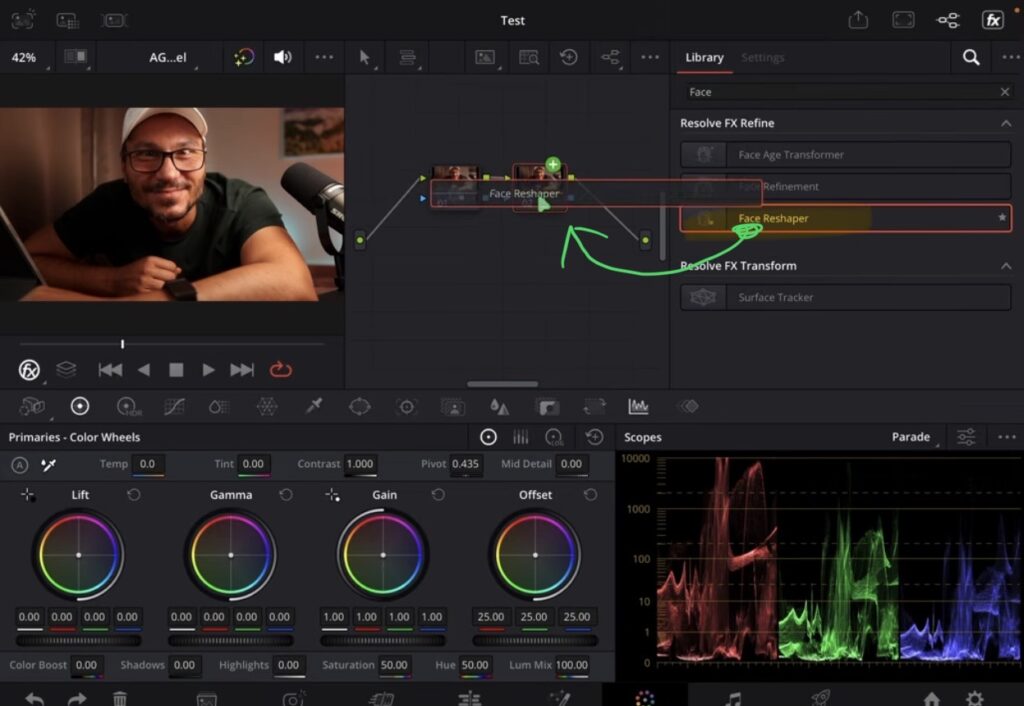
Select your clip and go to the Color Page. Add a new node, then search for “face” under the Effects. You will find the Face Reshaper there. Just drag and drop it onto your node.
Detect and Track the Face
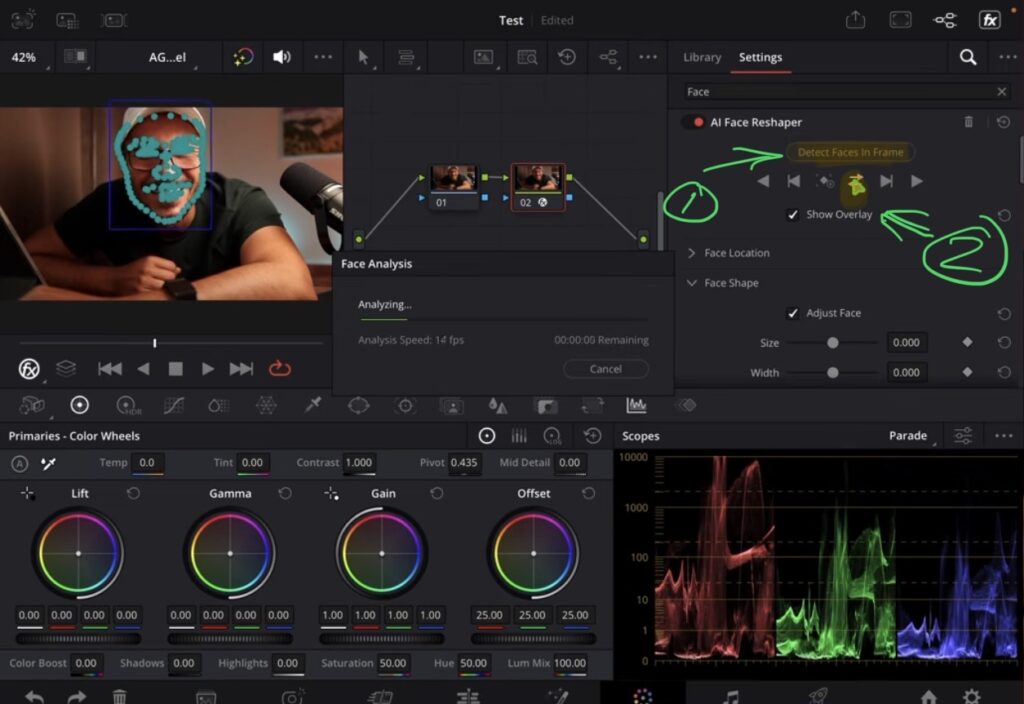
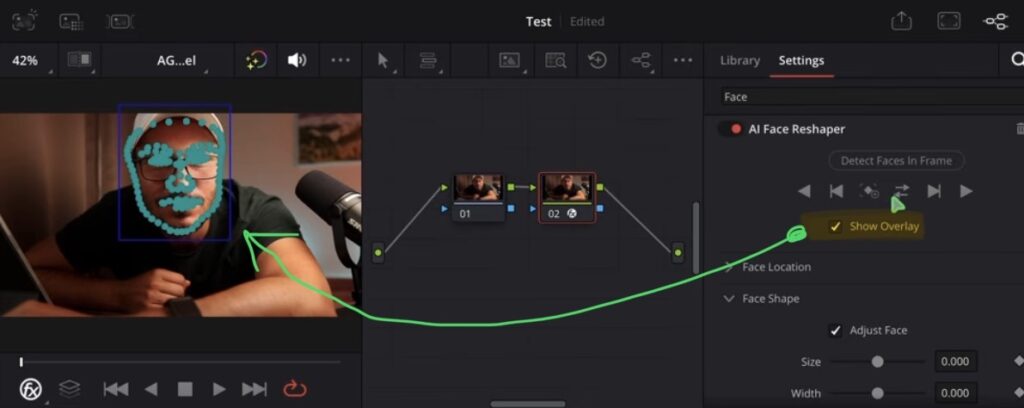
Once the effect is on your node, open the menu and scroll all the way up. The first thing you do is Detect the face in the frame. After it detects the face, track the movement forward and backward across the clip. The longer the clip, the longer this takes. I recommend you only chop up the part you actually want to reshape, that makes everything faster and easier. You can also toggle the overlay on and off.
Reshape the Face (Face Shapes)
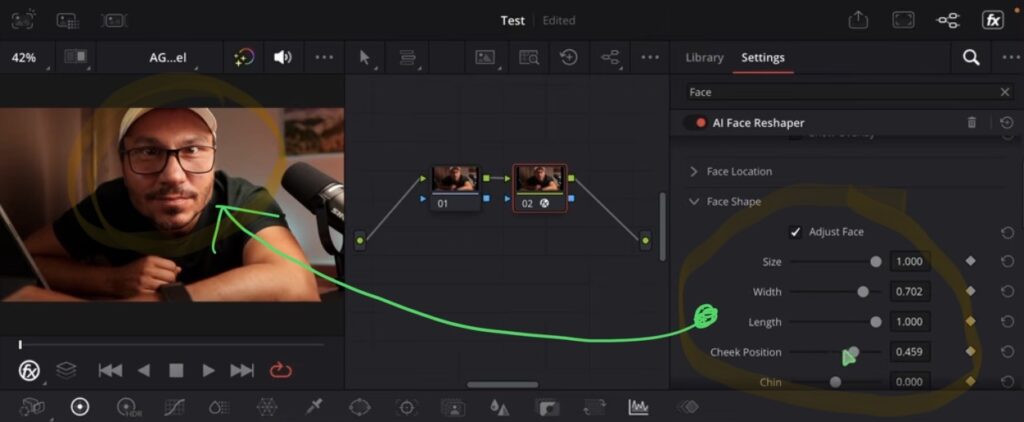
Now go to the Face Shapes tab. Here you can change the size of the face, make it smaller or bigger, adjust the width and even the length. You can also change the cheek position, the chin, the jaw and the forehead.
Adjust the Eyes, Nose and Mouth
There are separate tabs for the Eyes, the Nose and the Mouth. In the Eyes tab you can make the eyes smaller or bigger, change the height, the separation, the position and even the angle. The Nose tab lets you change the size, the width and the height of the nose. The Mouth tab lets you change the size, the position, the width and even the smile.
Animate Everything with Keyframes
The cool thing is that all of these adjustments support Keyframes. So you can even animate the reshaping later in your movie if you want. You have the positions, the angle and a lot more that you can keyframe over time.
It Works in Real Time (No Rendering Needed)
What i noticed with this feature is that you don’t even have to render it. On my M1 iPad this AI feature actually works in real time, so you can preview the reshaped face right away.
Tip for Older iPads
If you have an older iPad and the clip is laggy, you can highlight just the part you want with the in point and the out point, then render out only that section. Create a video from it and drag it back into your timeline. Now it is baked in and you can preview it smoothly inside your timeline.
This feature is very similar to the AI Face Age Transformer that was also introduced. I made a separate video about that one, so definitely check that out too if you haven’t seen it yet.
Tip: If you don’t know how to get the other pages (FUSION, FAIRLIGHT, EDIT) on the iPad read this article first: How to UNLOCK ALL PAGES in DaVinci Resolve for iPad Pro
If you want to host your own Online Course use CC360
I really believe, that CC360 is the best Platform to host your own Online Course currently on the market. And each week they introduce new features. Amazing. Check it out here.
BONUS: All DaVinci Resolve iPad Masterclass Students get the Transition Pack & the 8K Film Grain Pack for FREE!
You can either get the Transition Pack separate here: Seamless Transition Pack for DaVinci Resolve iPad. Or the 8K Film Grain Pack here: 8K Film Grain Bundle. but all of our DaVinci Resolve iPad Packs are a FREE Bonus for the DaVinci Resolve iPad Masterclass Students.
Check It Out here DaVinci Resolve iPad MasterClass: From Beginner To Pro.
Read Next
• How COPY Color Grade to MULTIPLE Clips in DaVinci Resolve iPad
• DO THIS to make DaVinci Resolve FASTER! (Instead of rage smashing your iPad)
• How To Delete Cache Files in DaVinci Resolve iPad
• How To Color Correct iPhone Footage in DaVinci Resolve iPad
• Easy Sync Audio & Video in DaVinci Resolve iPad



![Grainy Night Shots? [This Fixes It!]](https://exlima.net/wp-content/uploads/2026/10/Grainy-Night-Shots-This-Fixes-It-1024x576-394x330.webp)