Mouse Drag to Live Overwrite: No Speed Editor Needed!
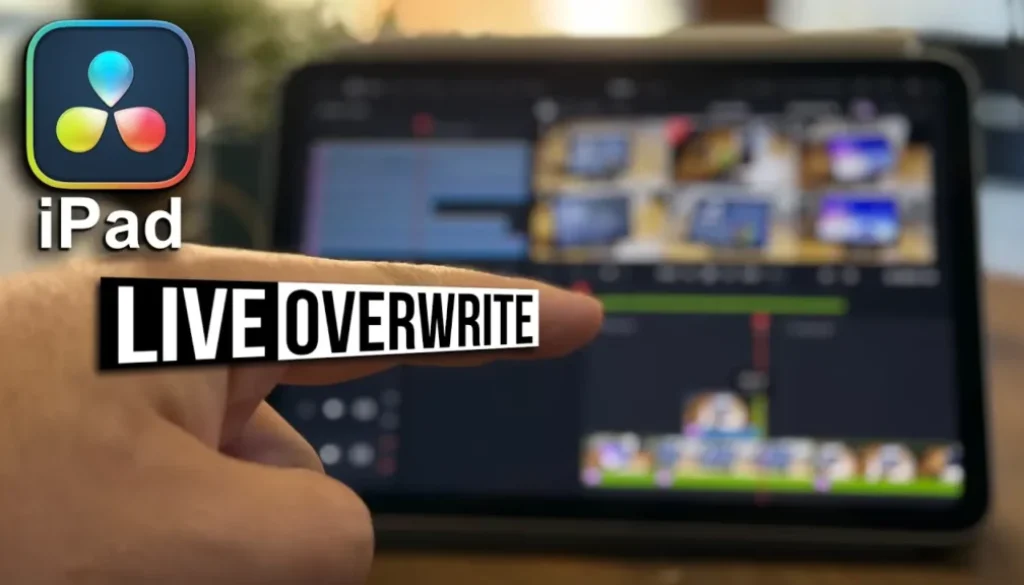
In this article/video I will show you how you can use your mouse or Apple Pencil to drag and overwrite clips in multicam and sync bins. This is a new feature that came with DaVinci Resolve 20 for iPad that gives you the same functionality as the Speed Editor, but without needing the hardware.
Pro Tip: Make your Videos Cinematic (and save a tone of time) with our Seamless Transition Pack for DaVinci Resolve iPad.

Contents
[Video] Mouse Drag to Live Overwrite: No Speed Editor Needed!
How to use Mouse Drag with Multicam and Sync Bins
This feature is perfect if you work with multicam clips or sync bins and you don’t have a Speed Editor. Now you can use your mouse or Apple Pencil to drag clips directly onto your timeline.
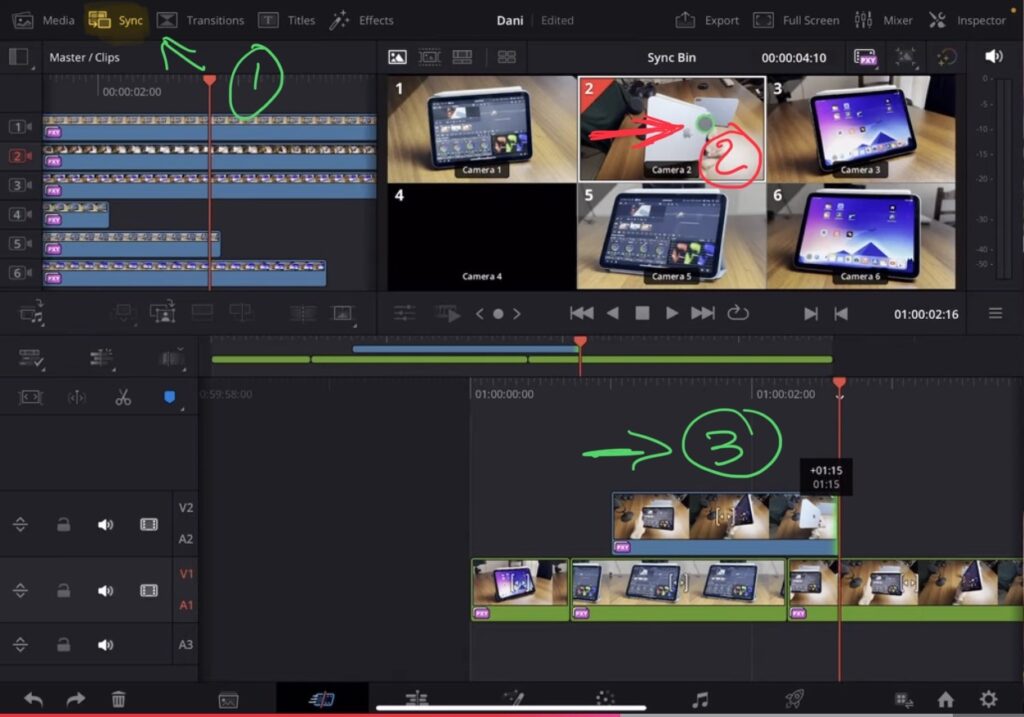
(1) Click on Sync Bin for Multicam Edit in the Cut Page.
(2) You can drag with your mouse or pencil to the left or right on a Camera Angle. Hold the the mouse click down aslong as you want to draw to the Timeline.
(3) The selected camera angle will be drawn to the current position of your Playhead in the Timeline.
To use this feature, simply place your playhead where you want to insert the clip. Then hold down with your mouse or Apple Pencil on the clip you want to use from the sync bin. As long as you’re holding down, you can drag left or right to set the length of the clip exactly like using the search dial on the Speed Editor.
Why This Feature is Useful
This feature brings Speed Editor functionality to everyone – no hardware needed. You get the same precise control over your multicam edits using just your mouse or Apple Pencil. It’s especially useful when you’re switching between different camera angles and want to control exactly how long each clip should be on your timeline.
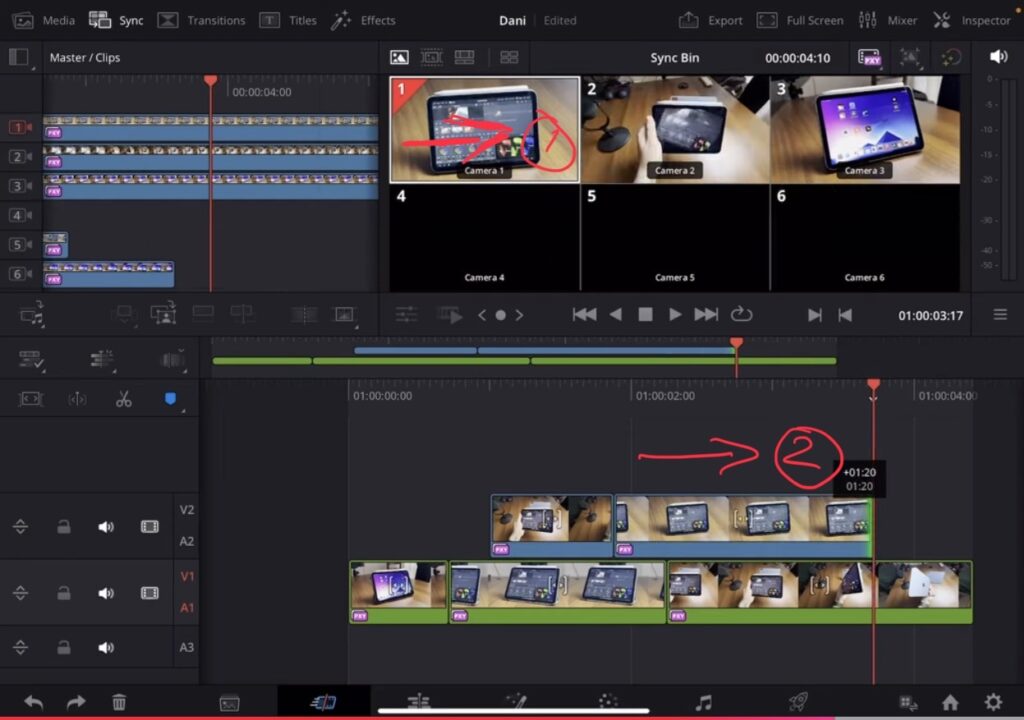
Watch the video above to see this feature in action – it’s much easier to understand when you see the dragging motion and how the clip length changes as you drag.
Tip: If you don’t know how to get the other pages (FUSION, FAIRLIGHT, EDIT) on the iPad read this article first: How to UNLOCK ALL PAGES in DaVinci Resolve for iPad Pro
If you want to host your own Online Course use CC360
I really believe, that CC360 is the best Platform to host your own Online Course currently on the market. And each week they introduce new features. Amazing. Check it out here.
BONUS: All DaVinci Resolve iPad Masterclass Students get the Transition Pack & the 8K Film Grain Pack for FREE!
You can either get the Transition Pack separate here: Seamless Transition Pack for DaVinci Resolve iPad. Or the 8K Film Grain Pack here: 8K Film Grain Bundle. but all of our DaVinci Resolve iPad Packs are a FREE Bonus for the DaVinci Resolve iPad Masterclass Students.
Check It Out here DaVinci Resolve iPad MasterClass: From Beginner To Pro.
Read Next
• How COPY Color Grade to MULTIPLE Clips in DaVinci Resolve iPad
• DO THIS to make DaVinci Resolve FASTER! (Instead of rage smashing your iPad)
• How To Delete Cache Files in DaVinci Resolve iPad
• How To Color Correct iPhone Footage in DaVinci Resolve iPad
• Easy Sync Audio & Video in DaVinci Resolve iPad