Dynamic Trimming with JKL Is Finally in the Cut Page!
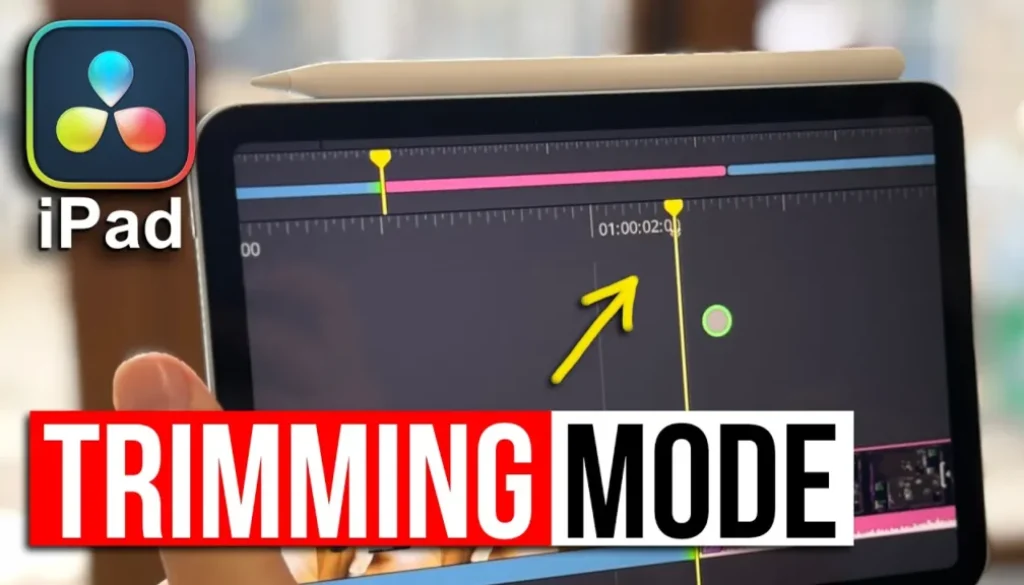
The Dynamic Trimming Mode (J,K,L) is now finally also available in the Cut Page of DaVinci Resolve for iPad. This was a feature that already exist in the Edit Page. But what does it do and how can it help you make editing easier? In this video i will show you how you can use the many ways of Dynamic Trimming Mode.
Pro Tip: Make your Videos Cinematic (and save a tone of time) with our Seamless Transition Pack for DaVinci Resolve iPad.

Contents
- [Video] Dynamic Trimming with JKL Is Finally in the Cut Page!
- How to activate Dynamic Trimming Mode in the Cut Page of DVR iPad?
- What can you normally do with the Keyboard Shortcuts J,K,L?
- What can you do with Dynamic Trimming Mode?
- If you want to host your own Online Course use CC360
- BONUS: All DaVinci Resolve iPad Masterclass Students get the Transition Pack & the 8K Film Grain Pack for FREE!
[Video] Dynamic Trimming with JKL Is Finally in the Cut Page!
How to activate Dynamic Trimming Mode in the Cut Page of DVR iPad?
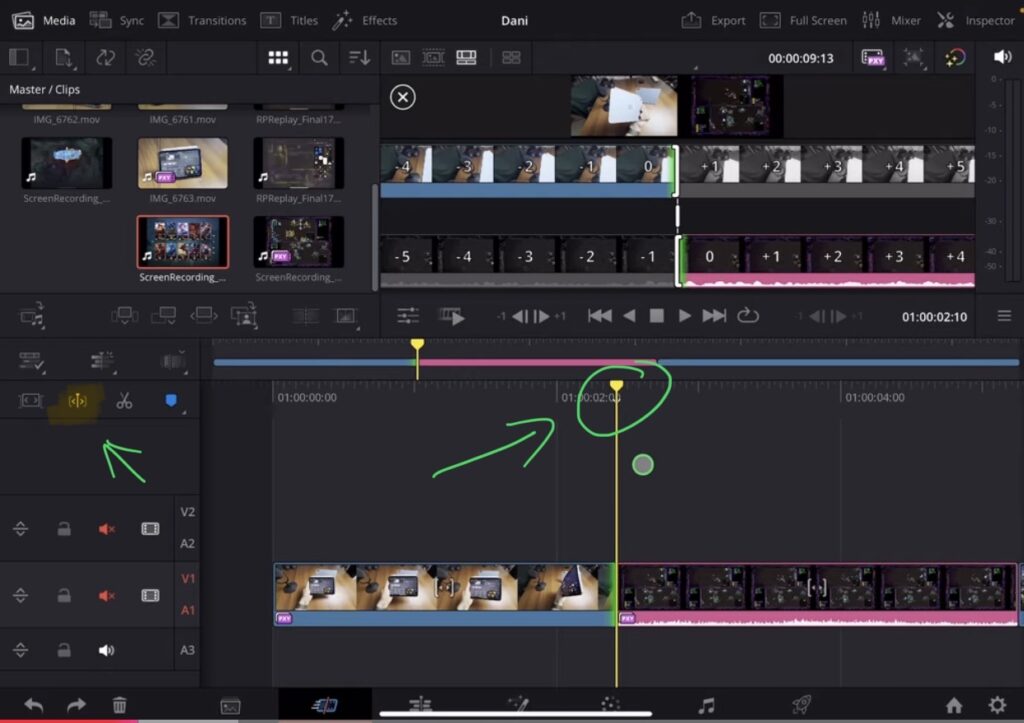
Okay now the Playhead is yellow, but what can you do with it? And if you don’t have a bluetooth keyboard nothing changes for you because in order to use the many features Dynamic Trimming Mode offers we have to use the keyboard shortcuts J,K,L.
Tip: If you don’t know how to get the other pages (FUSION, FAIRLIGHT, EDIT) on the iPad read this article first: How to UNLOCK ALL PAGES in DaVinci Resolve for iPad Pro
What can you normally do with the Keyboard Shortcuts J,K,L?
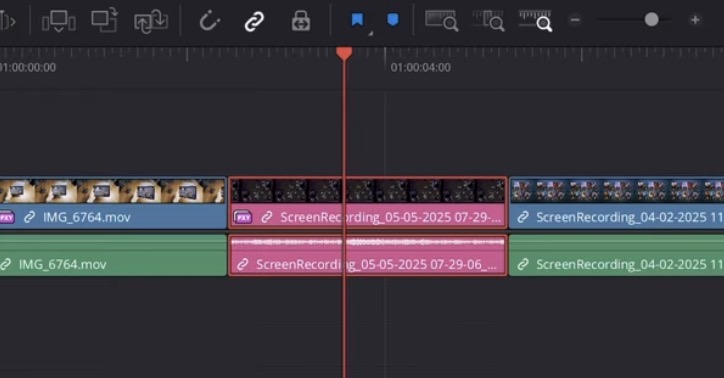
J = Preview the Timeline Backward (If you press again speed up the reverse preview)
K = Start and Stop your playback
L = Preview the Timeline Forward (If you press again speed up the preview)
What can you do with Dynamic Trimming Mode?
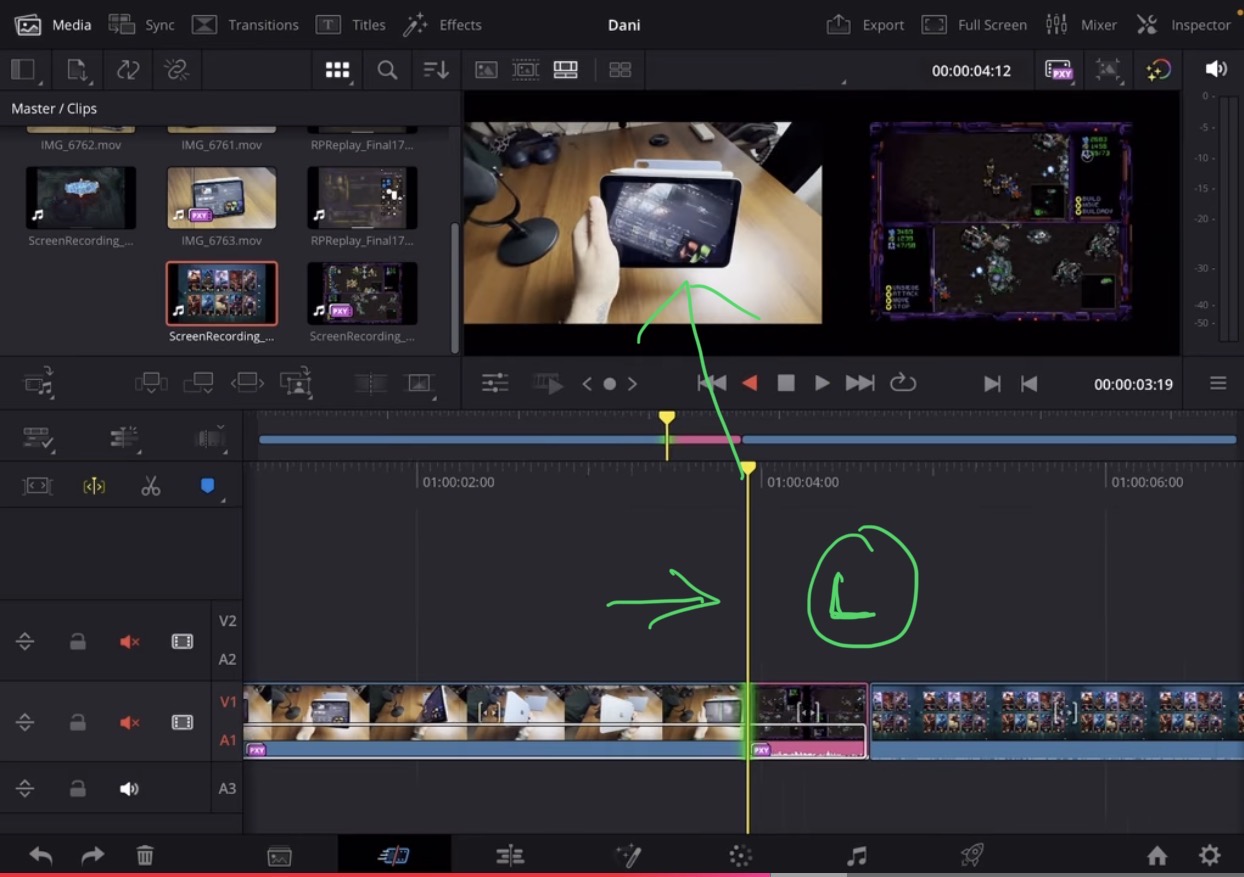
So the behavior of the J,K,L Button changes while in Dynamic Trimming Mode. Instead of just preview the timeline you can edit the timeline with these Buttons. In short that is the whole idea of Dynamic Trimming Mode. You as the Editor can watch the Timeline in preview mode and make edits on the fly.
But there are many ways how the Dynamic Trimming Mode can be used based on what you select or not select. It’s all about what edit point you select.
• You can select a entire clip and move the clip.
• You can select the end of a clip to extend or shorten the clip.
• You can select the middle edit point between two clips to use the roll feature in preview mode.
• You can even enable or disable the magnetic timeline while using the Dynamic Trimming Mode and this will also effect the behavior.
Usually try to grab screenshots of important parts of my video and explain it with the screenshot. This is one of the rar moment where i would advice please watch the video, it is easier to understand if you see it when i use the Dynamic Trimming Mode.
If you want to host your own Online Course use CC360
I really believe, that CC360 is the best Platform to host your own Online Course currently on the market. And each week they introduce new features. Amazing. Check it out here.
BONUS: All DaVinci Resolve iPad Masterclass Students get the Transition Pack & the 8K Film Grain Pack for FREE!
You can either get the Transition Pack separate here: Seamless Transition Pack for DaVinci Resolve iPad. Or the 8K Film Grain Pack here: 8K Film Grain Bundle. but all of our DaVinci Resolve iPad Packs are a FREE Bonus for the DaVinci Resolve iPad Masterclass Students.
Check It Out here DaVinci Resolve iPad MasterClass: From Beginner To Pro.
Read Next
• How COPY Color Grade to MULTIPLE Clips in DaVinci Resolve iPad
• DO THIS to make DaVinci Resolve FASTER! (Instead of rage smashing your iPad)
• How To Delete Cache Files in DaVinci Resolve iPad
• How To Color Correct iPhone Footage in DaVinci Resolve iPad
• Easy Sync Audio & Video in DaVinci Resolve iPad