Can’t Copy Text on a Website? Here’s the Fast Fix!
Some websites block you from selecting or copying text. In this article I will show you how to get around that using the browser inspector in Google Chrome. No extensions needed, just a quick CSS change.
Pro Tip: Make your Videos Cinematic (and save a tone of time) with our Seamless Transition Pack for DaVinci Resolve iPad.

Contents
- [Video] How to Select Text on a Website When It’s Turned Off
- Why Can’t You Select Text on Some Websites?
- Solution 1: Use the Element Selector in Chrome Inspector
- Solution 2: Change user-select from none to auto (The Better Way)
- Can’t Find user-select? Use the Search Field
- Important: This Resets Every Time You Reload the Page
- If you want to host your own Online Course use CC360
- BONUS: All DaVinci Resolve iPad Masterclass Students get the Transition Pack & the 8K Film Grain Pack for FREE!
[Video] How to Select Text on a Website When It’s Turned Off
Why Can’t You Select Text on Some Websites?
Websites can disable text selection using a single CSS rule called user-select. When a developer sets this to none, your cursor simply can’t grab any text on the page. That’s it. One line of code locks you out.
Solution 1: Use the Element Selector in Chrome Inspector
Right-click anywhere on the page and choose Inspect. This opens Chrome DevTools. In the top-left of the DevTools panel you’ll see a small cursor icon. Click that, then hover over any text on the page. You can then copy the text directly from the inspector panel. This works, but it’s slow if you need to copy a lot of text.
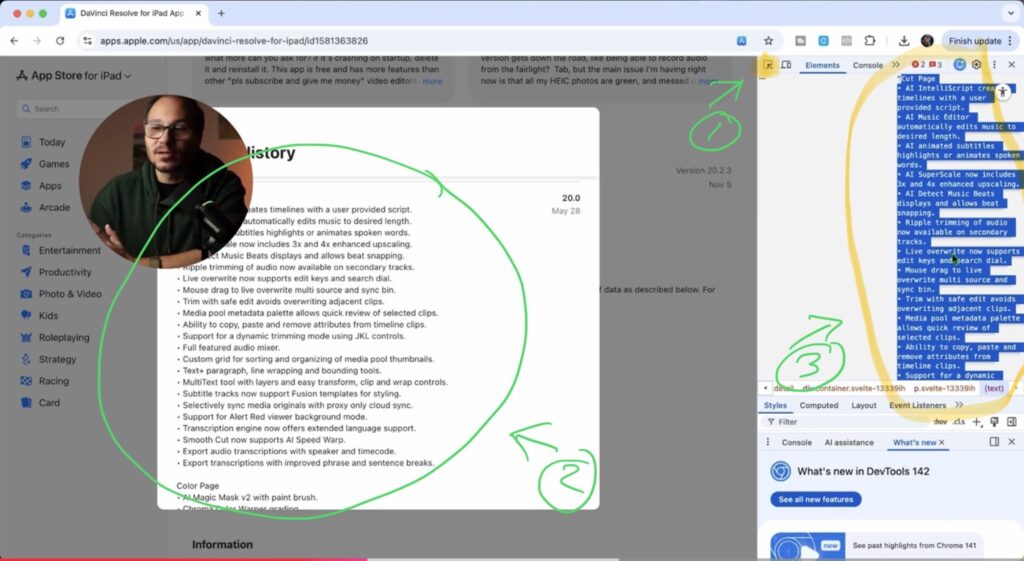
Solution 2: Change user-select from none to auto (The Better Way)
This is the faster method when you need to copy a lot of text. Open the inspector again (right-click, Inspect), then find the body element in the HTML panel and look at its styles on the right side. Scroll down until you see user-select: none. Click on the word none and change it to auto. Text selection is instantly unlocked across the entire page.
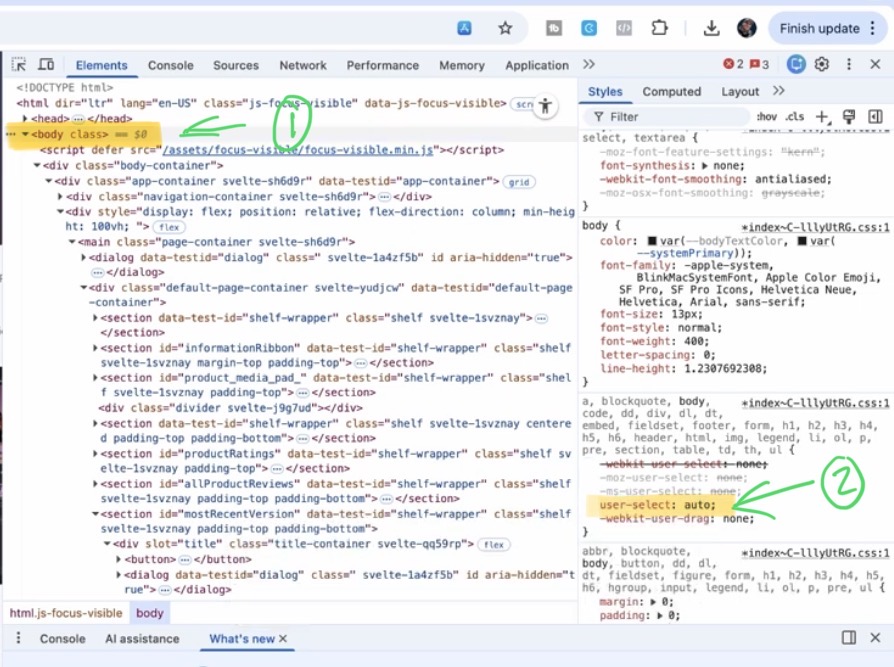
Can’t Find user-select? Use the Search Field
If you have trouble finding the property by scrolling, you can use the filter/search field at the top of the Styles panel. Just type user and it will show you user-select right away. Change the value from none to auto and you’re done.
Important: This Resets Every Time You Reload the Page
Keep in mind that this change only lasts as long as the page is open. When you reload or reopen the website, the original code loads again and text selection is blocked again. You will have to repeat the steps each time. But as long as you stay on the page without reloading, you can close the inspector and freely select and copy everything.
Tip: If you don’t know how to get the other pages (FUSION, FAIRLIGHT, EDIT) on the iPad read this article first: How to UNLOCK ALL PAGES in DaVinci Resolve for iPad Pro
If you want to host your own Online Course use CC360
I really believe, that CC360 is the best Platform to host your own Online Course currently on the market. And each week they introduce new features. Amazing. Check it out here.
BONUS: All DaVinci Resolve iPad Masterclass Students get the Transition Pack & the 8K Film Grain Pack for FREE!
You can either get the Transition Pack separate here: Seamless Transition Pack for DaVinci Resolve iPad. Or the 8K Film Grain Pack here: 8K Film Grain Bundle. but all of our DaVinci Resolve iPad Packs are a FREE Bonus for the DaVinci Resolve iPad Masterclass Students.
Check It Out here DaVinci Resolve iPad MasterClass: From Beginner To Pro.
Read Next
• How COPY Color Grade to MULTIPLE Clips in DaVinci Resolve iPad
• DO THIS to make DaVinci Resolve FASTER! (Instead of rage smashing your iPad)
• How To Delete Cache Files in DaVinci Resolve iPad
• How To Color Correct iPhone Footage in DaVinci Resolve iPad
• Easy Sync Audio & Video in DaVinci Resolve iPad