DaVinci Resolve iPad: ANOTHER UPDATE INSANE!
DaVinci Resolve for iPad just got Version 21.1.1. This is a very minor update with mostly bug fixes, but in this article/video I will show you the two new features and how you can open the Data Burn-In window on the iPad, even though there is no button for it.
Pro Tip: Make your Videos Cinematic (and save a tone of time) with our Seamless Transition Pack for DaVinci Resolve iPad.

Contents
- [Video] DaVinci Resolve iPad: ANOTHER UPDATE INSANE!
- CR3 RAW Support for the Canon EOS R8 Mark II
- How to open Data Burn-In in DaVinci Resolve iPad
- New Data Burn Option: Source Feet and Frames
- How to get the Menu Bar on the iPad
- Bug Fixes in Version 21.1.1
- If you want to host your own Online Course use CC360
- BONUS: All DaVinci Resolve iPad Masterclass Students get the Transition Pack & the 8K Film Grain Pack for FREE!
[Video] DaVinci Resolve iPad: ANOTHER UPDATE INSANE!
DaVinci Resolve iPad Version 21.1.1 (2.10.2026)
• Support for CR3 RAW decodes for EOS R8 Mark II.
• Data burn options to show source feet and frames.
• Addressed inspector combining multiple Fusion effects for a clip.
• Addressed transitions on clips with foreground composite mode.
• Addressed auto captions sometimes cropping in vertical timelines in Studio.
• Addressed issue adding plain Text+ or MultiText to a subtitle track.
• Sync bin multi angle view now displays record timecode and frame.
• Addressed issue with Halation controls in Film Look Creator.
• Addressed multi-user collaboration connectivity issues.
• Addressed poor audio quality with older Bluetooth headsets.
• General performance and stability improvements.
CR3 RAW Support for the Canon EOS R8 Mark II
The first new feature is support for CR3 RAW. This is the Canon RAW format, and with this update DaVinci Resolve for iPad can now also decode the CR3 files from the Canon EOS R8 Mark II.
How to open Data Burn-In in DaVinci Resolve iPad
The second new feature is a new Data Burn option. This one is kind of funny. On the Desktop you find Data Burn-In in the menu bar under Workspace. On the iPad there is no menu entry for it, but I found out that you can still open it with a keyboard shortcut.
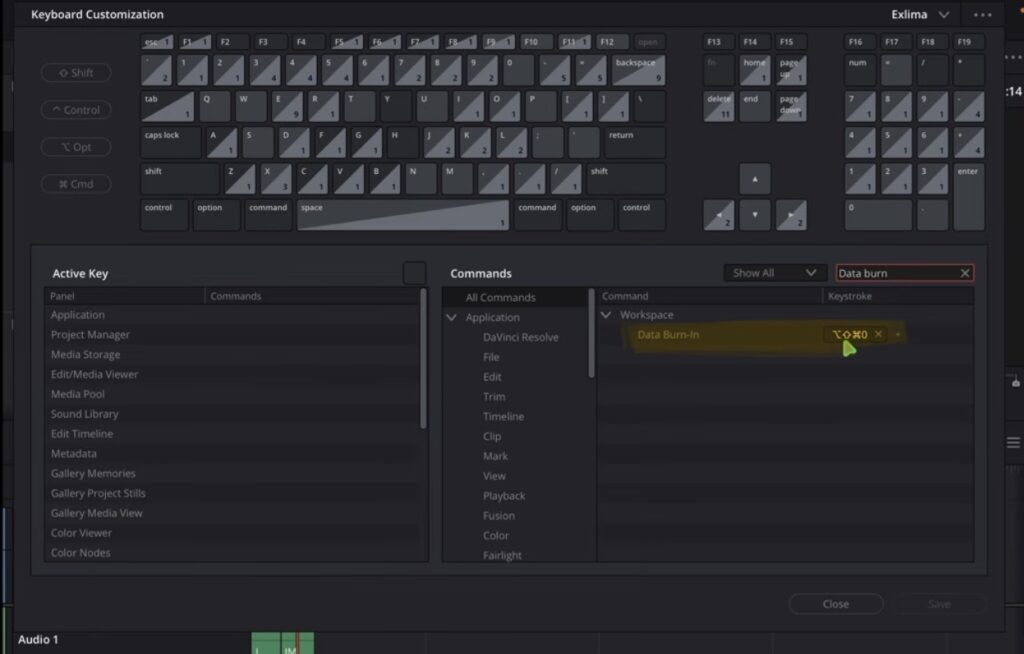
You can open the Keyboard Customization in two ways. Either click on DaVinci Resolve in the menu bar and choose Keyboard Customization, or use the shortcut Option + Command + K.
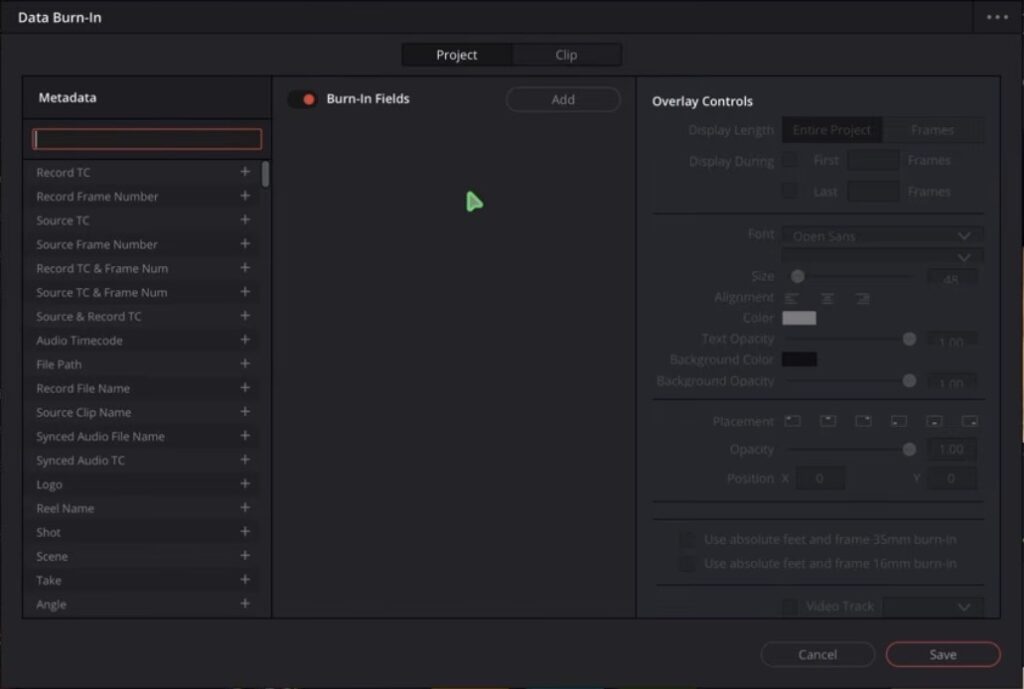
Important: You have to be on the Edit Page. If you try the shortcut in the Cut Page, the window will not open.
Tip: If you don’t know how to get the other pages (FUSION, FAIRLIGHT, EDIT) on the iPad read this article first: How to UNLOCK ALL PAGES in DaVinci Resolve for iPad Pro
New Data Burn Option: Source Feet and Frames
These two options are what is new in Version 21.1.1. You can now show the source feet and frames of your clip as a burn-in on top of your video, either for 16mm or for 35mm film.
How to get the Menu Bar on the iPad
If you don’t see the menu bar on the top of DaVinci Resolve, this is the reason. With Windowed Apps every app has a menu bar. If you are in Full Screen, the menu bar doesn’t appear. I explain this in more detail here: iPadOS 26 Menu Bar: The Game Changer for DaVinci Resolve on iPad
Bug Fixes in Version 21.1.1
The rest of the list are basically bug fixes. They addressed the Inspector combining multiple Fusion effects for a clip, transitions on clips with foreground composite mode, auto captions that got cropped in vertical timelines (Studio) and the poor audio quality with older Bluetooth headsets. So it’s just a minor update.
The bigger one was the last update, Version 21.1. I made a full video and article about that here: DaVinci Resolve iPad UPDATE: All New Features Explained!
If you want to host your own Online Course use CC360
I really believe, that CC360 is the best Platform to host your own Online Course currently on the market. And each week they introduce new features. Amazing. Check it out here.
BONUS: All DaVinci Resolve iPad Masterclass Students get the Transition Pack & the 8K Film Grain Pack for FREE!
You can either get the Transition Pack separate here: Seamless Transition Pack for DaVinci Resolve iPad. Or the 8K Film Grain Pack here: 8K Film Grain Bundle. but all of our DaVinci Resolve iPad Packs are a FREE Bonus for the DaVinci Resolve iPad Masterclass Students.
Check It Out here DaVinci Resolve iPad MasterClass: From Beginner To Pro.
Read Next
• How COPY Color Grade to MULTIPLE Clips in DaVinci Resolve iPad
• DO THIS to make DaVinci Resolve FASTER! (Instead of rage smashing your iPad)
• How To Delete Cache Files in DaVinci Resolve iPad
• How To Color Correct iPhone Footage in DaVinci Resolve iPad
• Easy Sync Audio & Video in DaVinci Resolve iPad