
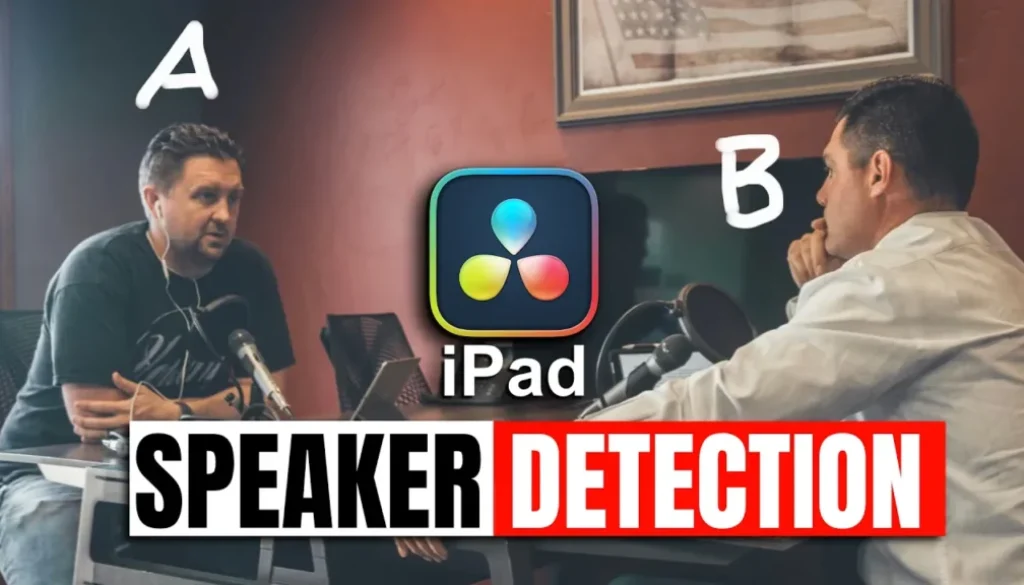
How to Detect Speakers in Text Based Editing (DaVinci Resolve iPad)
In this article/video i will show you how you can use Speaker Detection with Audio Transcription in DaVinci Resolve for iPad. This is a powerful AI feature that recognizes different speakers in your audio and lets you edit your video based on who is talking. Perfect for podcasts and interviews.
Pro Tip: Make your Videos Cinematic (and save a tone of time) with our Seamless Transition Pack for DaVinci Resolve iPad.

Contents
- [Video] Speaker Detection for Audio Transcription in DaVinci Resolve iPad
- How to use Speaker Detection in DaVinci Resolve for iPad
- How to Rename Speakers in the Transcription
- Text-Based Editing with the Transcription
- If you want to host your own Online Course use CC360
- BONUS: All DaVinci Resolve iPad Masterclass Students get the Transition Pack & the 8K Film Grain Pack for FREE!
[Video] Speaker Detection for Audio Transcription in DaVinci Resolve iPad
How to use Speaker Detection in DaVinci Resolve for iPad
DaVinci Resolve for iPad has a built-in audio transcription feature that uses AI to convert your audio into text. But now there is also Speaker Detection. This means the AI can recognize different speakers in your audio. So if you have an interview or a podcast where multiple people are talking, DaVinci Resolve can separate the speakers for you.
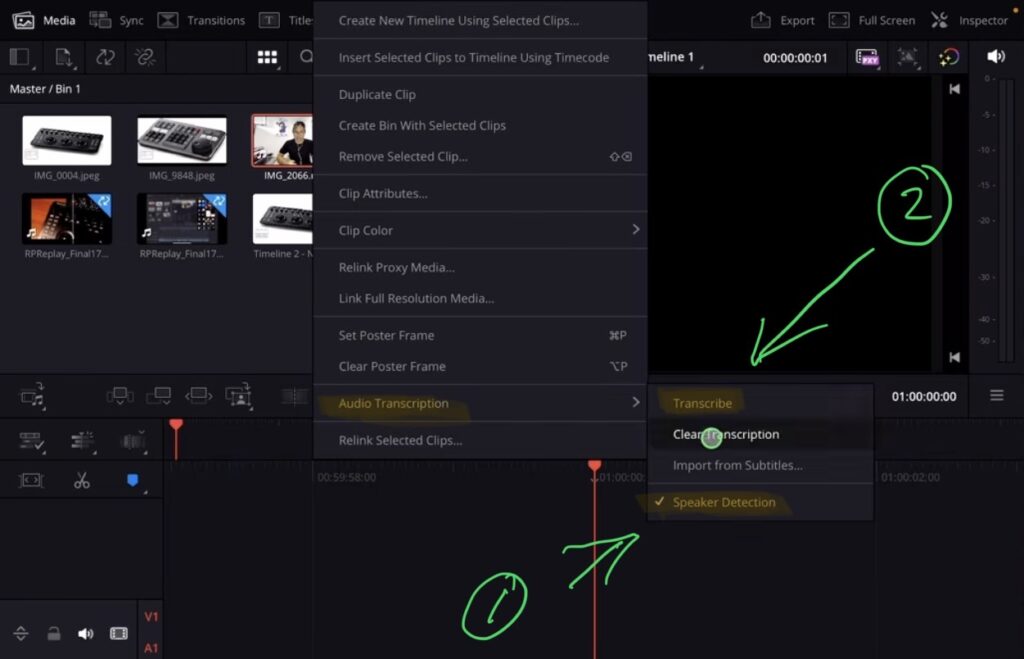
To activate Speaker Detection, right click on your clip in the Timeline. Then go to Audio Transcription. Here you will find the new option for Speaker Detection. Enable it and then click on Transcribe Audio. DaVinci Resolve will now analyze the video and create a transcript of your audio with speaker labels.
How to Rename Speakers in the Transcription
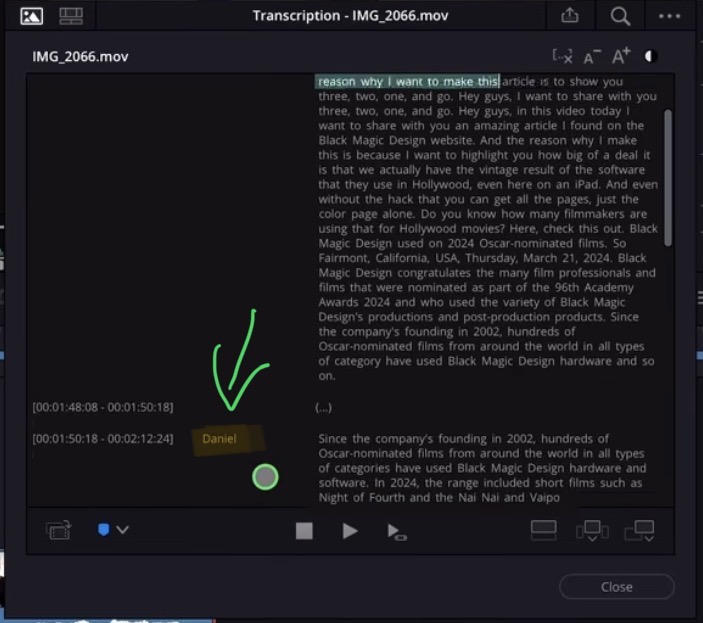
Once the transcription is done, you will see the text labeled with Speaker 1, Speaker 2 and so on. You can double click on a speaker name and rename it to the actual name of the person. For example change “Speaker 1” to “Daniel”. This makes it much easier to navigate the transcription and find the parts you need.
Text-Based Editing with the Transcription
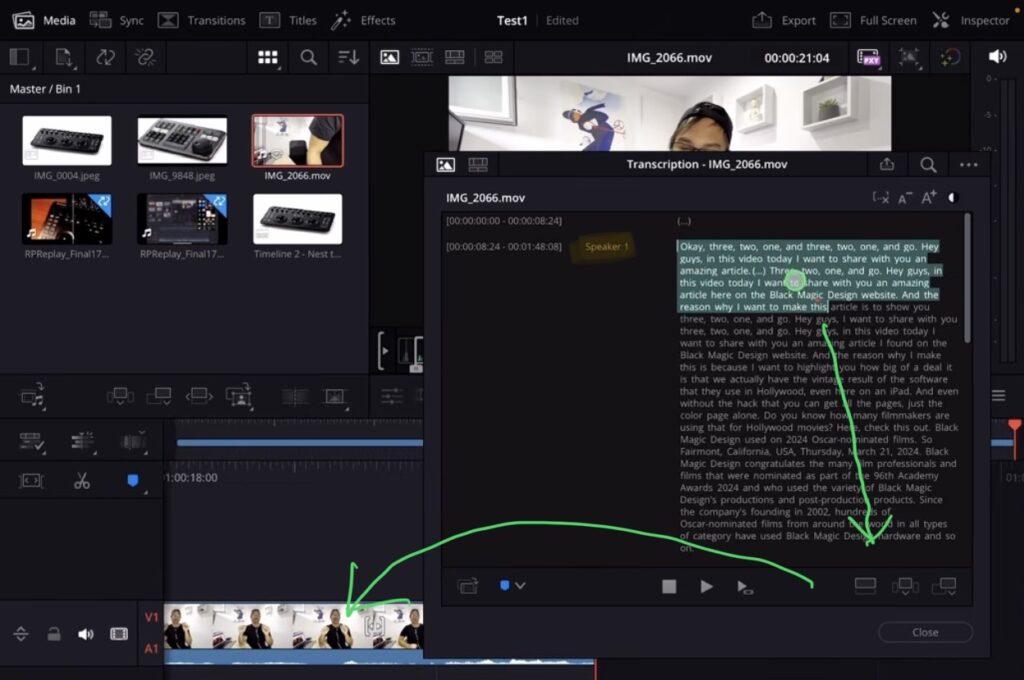
The really powerful part is that you can use the transcription for text-based editing. You can mark words or sentences in the transcription and then place them directly into your Timeline. So instead of scrubbing through your footage, you can just read what was said and build your edit based on the text. If you hit play, you will even see the words highlighted in real time.
This feature was first introduced with DaVinci Resolve 18.6, but the Speaker Detection makes it even more useful. If you right click on a clip that was already transcribed and go to Transcribe Audio again, DaVinci Resolve will not re-analyze the video. It remembers the transcription and you can continue editing right away.
Tip: If you don’t know how to get the other pages (FUSION, FAIRLIGHT, EDIT) on the iPad read this article first: How to UNLOCK ALL PAGES in DaVinci Resolve for iPad Pro
If you want to host your own Online Course use CC360
I really believe, that CC360 is the best Platform to host your own Online Course currently on the market. And each week they introduce new features. Amazing. Check it out here.
BONUS: All DaVinci Resolve iPad Masterclass Students get the Transition Pack & the 8K Film Grain Pack for FREE!
You can either get the Transition Pack separate here: Seamless Transition Pack for DaVinci Resolve iPad. Or the 8K Film Grain Pack here: 8K Film Grain Bundle. but all of our DaVinci Resolve iPad Packs are a FREE Bonus for the DaVinci Resolve iPad Masterclass Students.
Check It Out here DaVinci Resolve iPad MasterClass: From Beginner To Pro.
Read Next
• How COPY Color Grade to MULTIPLE Clips in DaVinci Resolve iPad
• DO THIS to make DaVinci Resolve FASTER! (Instead of rage smashing your iPad)
• How To Delete Cache Files in DaVinci Resolve iPad
• How To Color Correct iPhone Footage in DaVinci Resolve iPad
• Easy Sync Audio & Video in DaVinci Resolve iPad



![How to Fix Blurry Video on iPad? [EASY FIX]](https://exlima.net/wp-content/uploads/2026/09/How-to-Fix-Blurry-Video-on-iPad-EASY-FIX-1024x576-394x330.webp)