Trim with Safe Edit Is a Game Changer! (DVR iPad)
In this article/video I will show you a new feature in DaVinci Resolve for iPad called “Trim with Safe Edit”. This feature protects your clips from accidental overwrites when trimming, making your editing workflow safer and faster.
Pro Tip: Make your Videos Cinematic (and save a tone of time) with our Seamless Transition Pack for DaVinci Resolve iPad.

Contents
- [Video] Trim Smarter, Not Harder — How Safe Edit Just Fixed DaVinci Resolve iPad
- What is Trim with Safe Edit?
- How to activate Trim with Safe Edit in DaVinci Resolve iPad
- How Trim with Safe Edit works
- Why use Trim with Safe Edit?
- If you want to host your own Online Course use CC360
- BONUS: All DaVinci Resolve iPad Masterclass Students get the Transition Pack & the 8K Film Grain Pack for FREE!
[Video] Trim Smarter, Not Harder — How Safe Edit Just Fixed DaVinci Resolve iPad
What is Trim with Safe Edit?
When you’re editing in DaVinci Resolve, it’s easy to accidentally overwrite clips when extending or shortening them. The new “Trim with Safe Edit” feature gives you a warning before you overwrite adjacent clips, preventing accidental deletions.
How to activate Trim with Safe Edit in DaVinci Resolve iPad
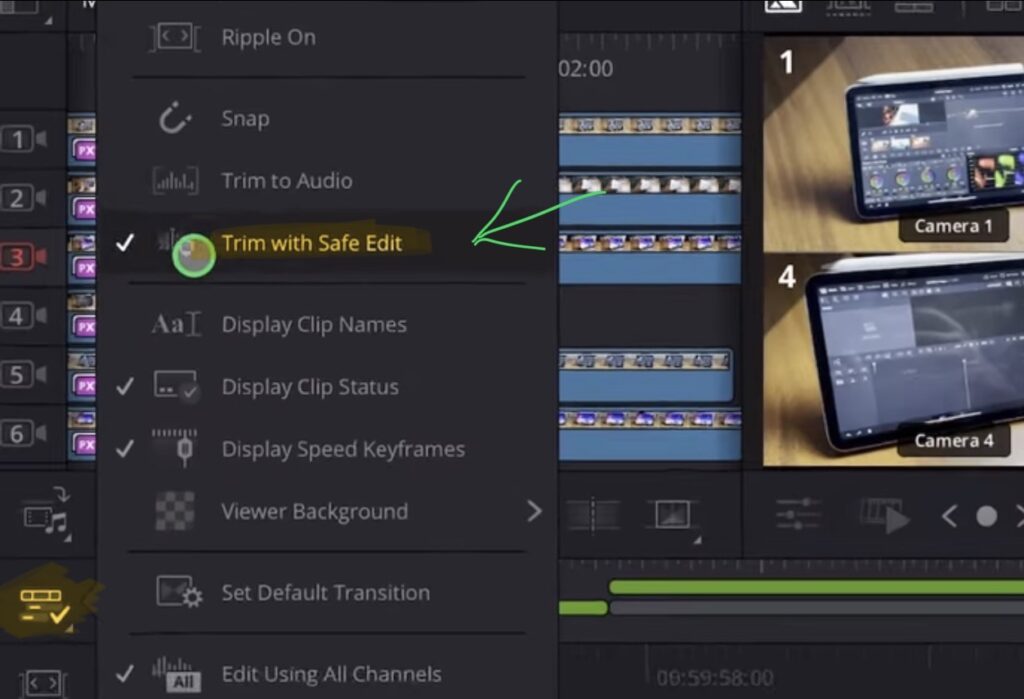
To activate this feature, go to the Cut Page and click on the icon next to the Magnetic Timeline toggle. Once activated, you’ll see the “Trim with Safe Edit” option that you can turn on or off.
How Trim with Safe Edit works
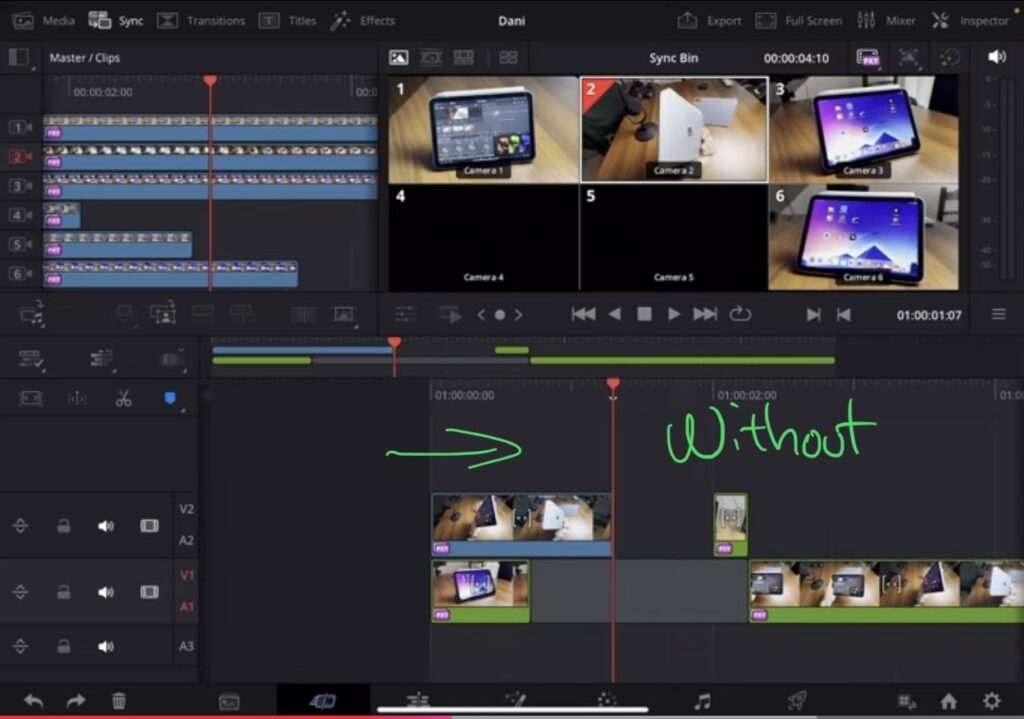
Without Safe Edit mode activated, when you drag a clip and extend it over the next clip, it will immediately replace the adjacent clip. But with Trim with Safe Edit turned on, the behavior changes completely.
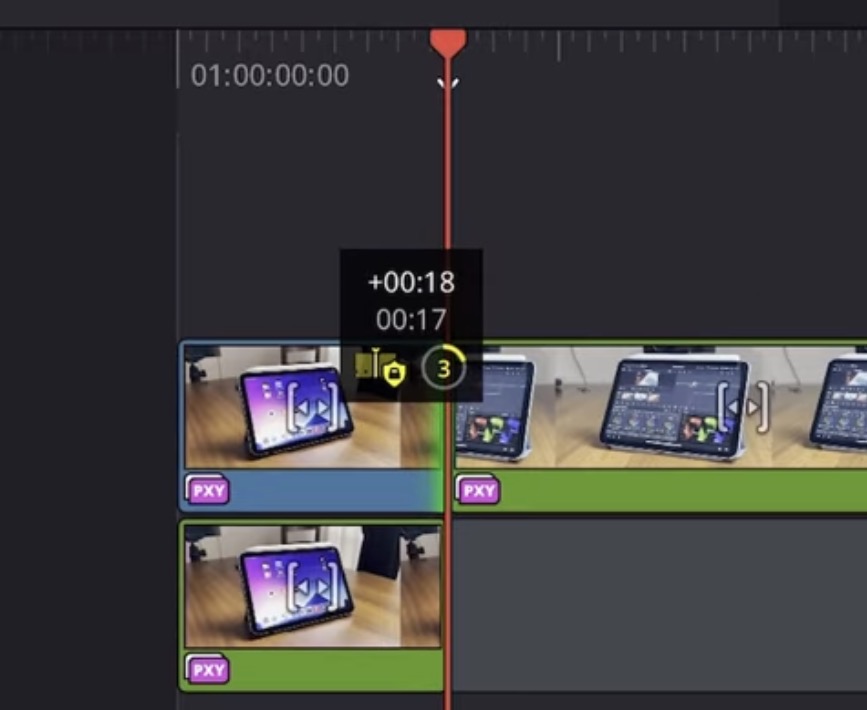
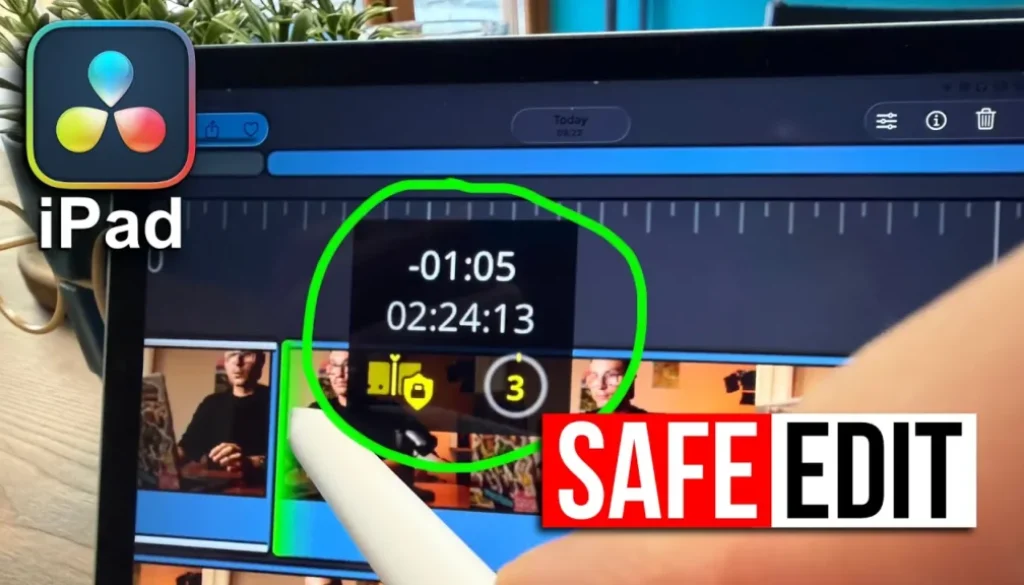
When you drag a clip toward another clip with Safe Edit enabled, a counter appears. The counter counts down from 3 to 1, giving you a clear warning that you’re about to overwrite the next clip. If you keep dragging past the countdown, you can still overwrite the clip – it just warns you first. This gives you the option to stop before accidentally deleting content, or continue if that’s what you intended.
Why use Trim with Safe Edit?
This feature is incredibly useful when you’re working quickly and want to extend a clip right up to the next one without going over. You can drag freely, and if you see the countdown appear, you know to stop right there. It’s a simple but powerful safety feature that prevents frustrating mistakes while still giving you full control when you actually need to overwrite clips.
Tip: If you don’t know how to get the other pages (FUSION, FAIRLIGHT, EDIT) on the iPad read this article first: How to UNLOCK ALL PAGES in DaVinci Resolve for iPad Pro
If you want to host your own Online Course use CC360
I really believe, that CC360 is the best Platform to host your own Online Course currently on the market. And each week they introduce new features. Amazing. Check it out here.
BONUS: All DaVinci Resolve iPad Masterclass Students get the Transition Pack & the 8K Film Grain Pack for FREE!
You can either get the Transition Pack separate here: Seamless Transition Pack for DaVinci Resolve iPad. Or the 8K Film Grain Pack here: 8K Film Grain Bundle. but all of our DaVinci Resolve iPad Packs are a FREE Bonus for the DaVinci Resolve iPad Masterclass Students.
Check It Out here DaVinci Resolve iPad MasterClass: From Beginner To Pro.
Read Next
• How COPY Color Grade to MULTIPLE Clips in DaVinci Resolve iPad
• DO THIS to make DaVinci Resolve FASTER! (Instead of rage smashing your iPad)
• How To Delete Cache Files in DaVinci Resolve iPad
• How To Color Correct iPhone Footage in DaVinci Resolve iPad
• Easy Sync Audio & Video in DaVinci Resolve iPad