How to create SubClip in DaVinci Resolve iPad?
In this article/video i will show you how you can use and create a SubClip in DaVinci Resolve for iPad. This is very helpful for organising your Clips especially with large projects. Have fun!
Pro Tip: Make your Videos Cinematic (and save a tone of time) with our Seamless Transition Pack for DaVinci Resolve iPad.

Contents
- [Video] How to create Subclips in DaVinci Resolve iPad?
- What is a SubClip in DVR?
- Step 1: Create a selection of your Clips with In and Out Points.
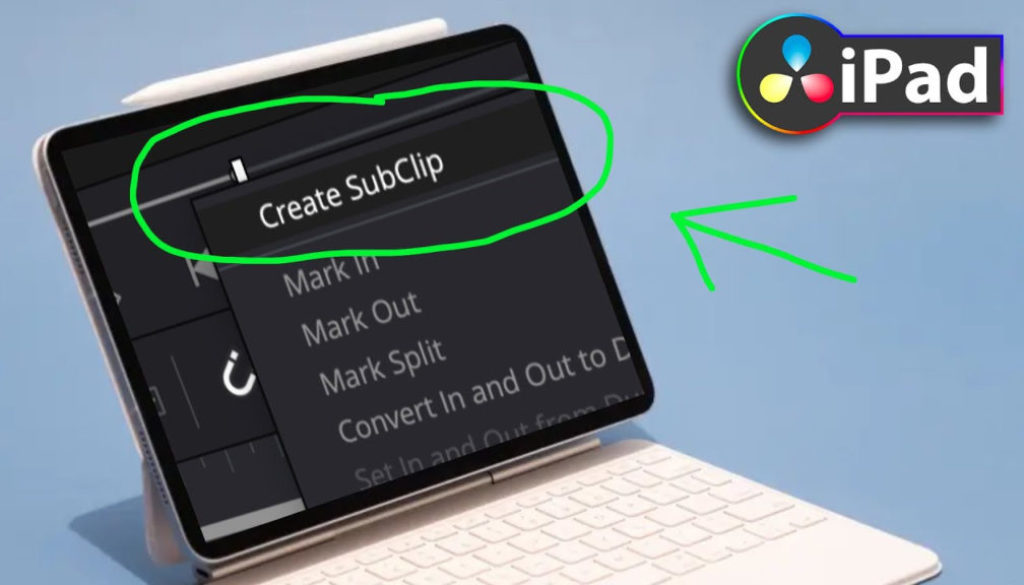
- Step 2: Create a SubClip from the Right Click Context Menu
- How to use a SubClip in DaVinci Resolve?
- If you want to host your own Online Course use CC360
- BONUS: All DaVinci Resolve iPad Masterclass Students get the Transition Pack & the 8K Film Grain Pack for FREE!
[Video] How to create Subclips in DaVinci Resolve iPad?
What is a SubClip in DVR?
In short it’s another way to organize and use your clips in your project. For example traditional you have two ways to work with your footage.
First Method you can make your selections from the Media Pool with In and Out Points and drag & drop only the selected parts of your source clip into the timeline. Then you continue and make new selections via In and Out Points and drag them as well into the Timeline.
Second Method you drag & drop all your entire sources clips into the timeline and make your selections on the timeline itself.
Pro Tip: In Method two i also drag the better selections to video track 2 and change the color of these clips. The very best parts i even drag to video track 3. The rest stays on video track 1. This timeline is only for making selections and getting myself familiar with the source clips. For the final Video i created a separate Timeline. Btw DVR can show two timelines at the same time. This very useful. Read more about how to view two timelines here.
So then what is the SubClip Method? I’m glad you ask.
What if you want to keep the selections with In and Out Points from Method 1 and even have these as separate Clips in the Media Pool to select?
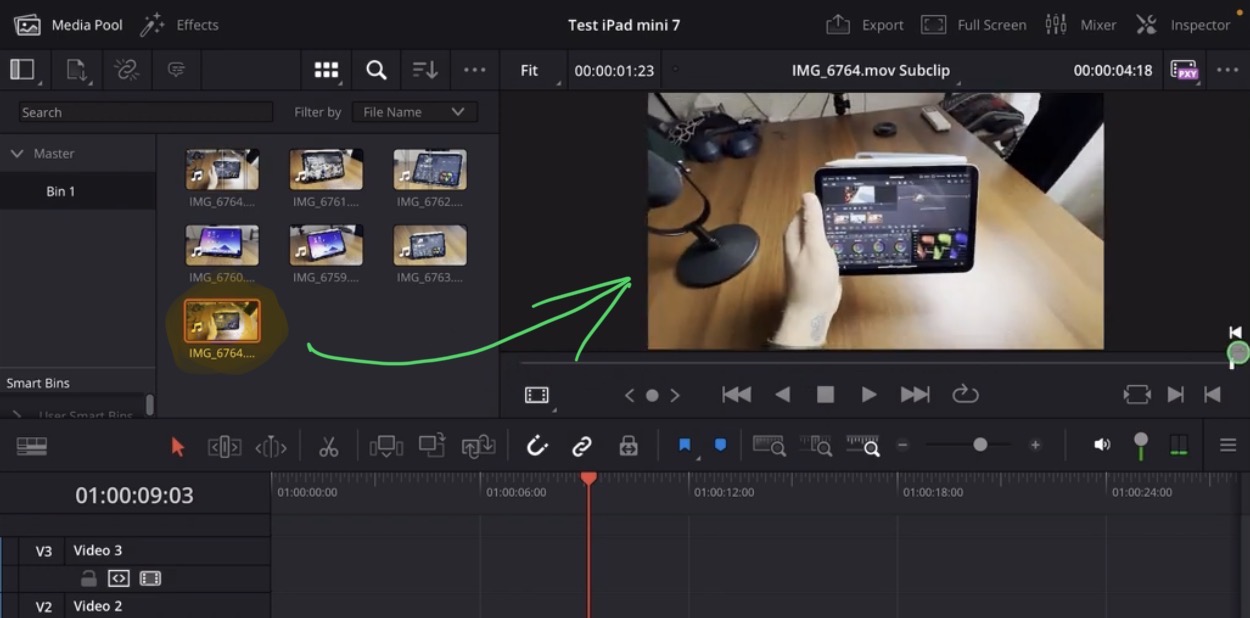
Because with In and Out Points you can only select one part of your Source Clip. Imagine you have a long source clip where you want to create a bunch of selections and you don’t want that your previous selections get lost. And this is what we can do with a SubClip. It will make more sense when you create your first SubClip. Let’s start.
Step 1: Create a selection of your Clips with In and Out Points.
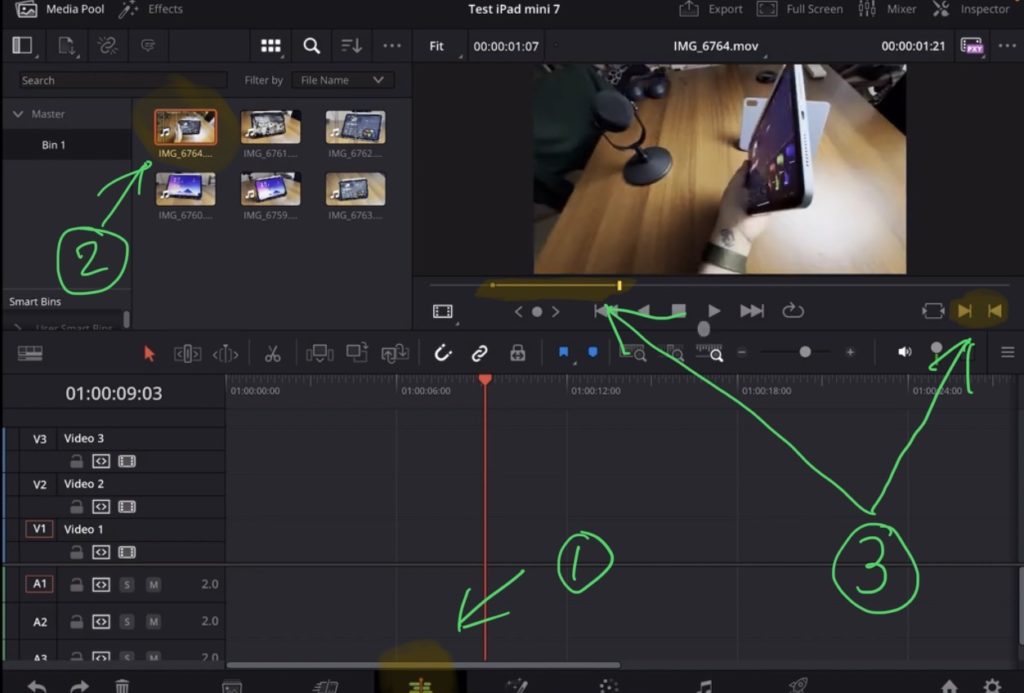
Tip: If you don’t know how to get the other pages (FUSION, FAIRLIGHT, EDIT) on the iPad read this article first: How to UNLOCK ALL PAGES in DaVinci Resolve for iPad Pro
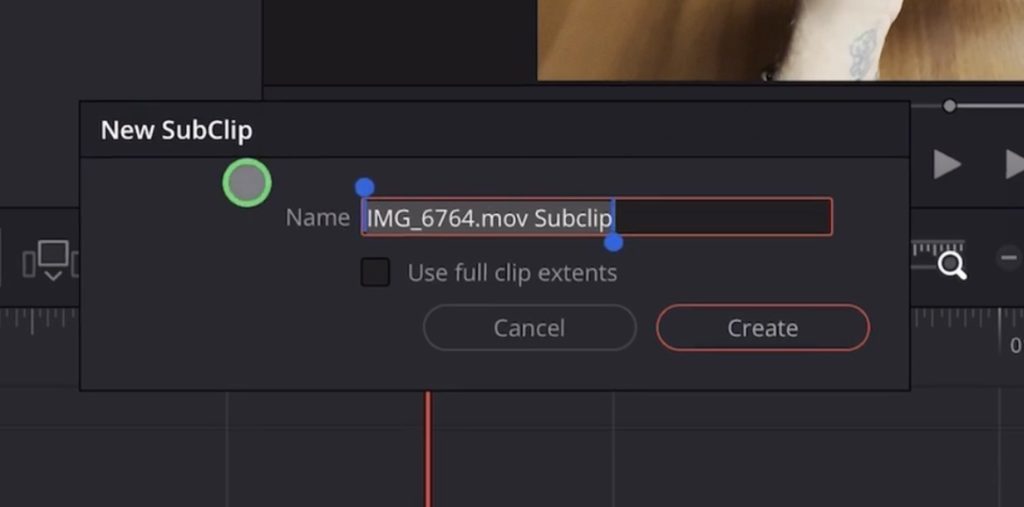
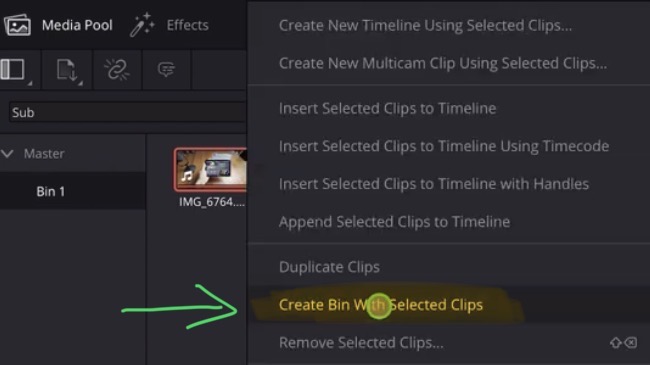
Step 2: Create a SubClip from the Right Click Context Menu
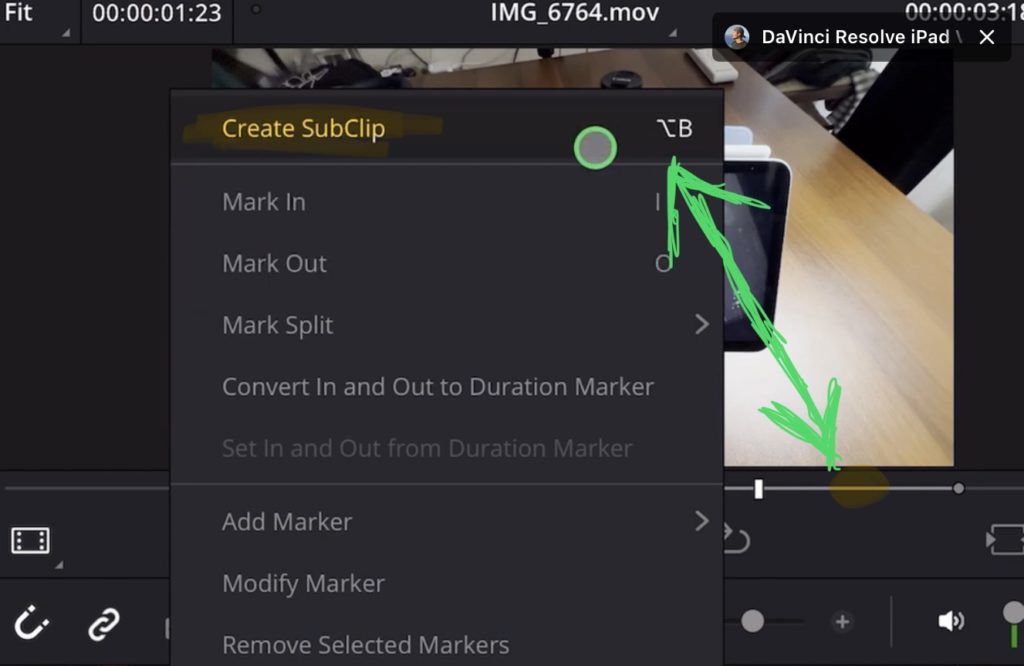
Info: The right click (longer press with Apple Pencil) only works in the Edit Page and not in the Cut Page. Because the Context Menu from right click does not appear in the Cut Page.
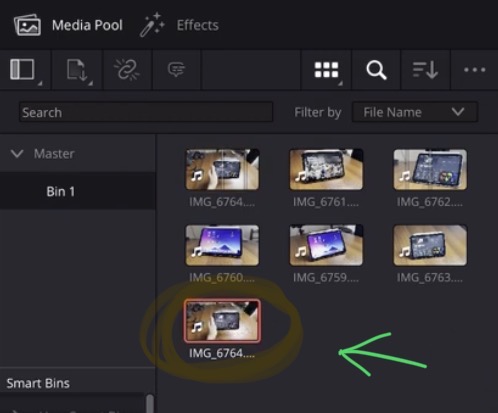
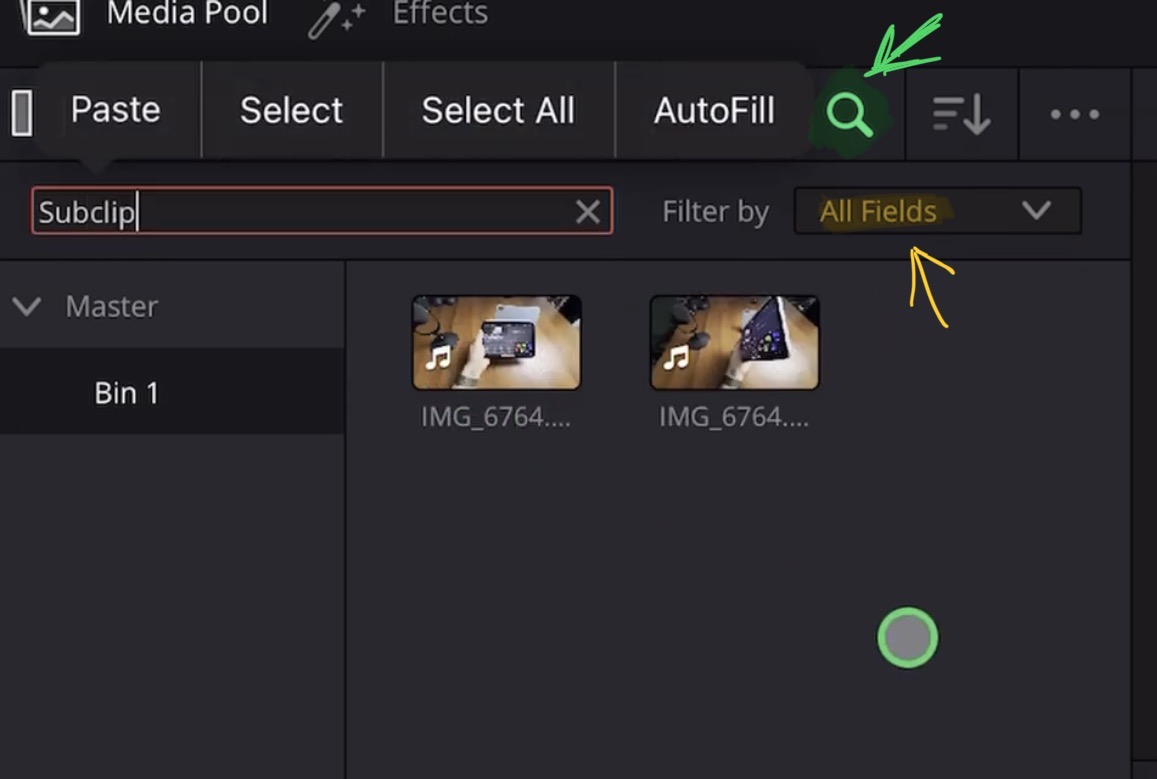
How to use a SubClip in DaVinci Resolve?
If you want to host your own Online Course use CC360
I really believe, that CC360 is the best Platform to host your own Online Course currently on the market. And each week they introduce new features. Amazing. Check it out here.
BONUS: All DaVinci Resolve iPad Masterclass Students get the Transition Pack & the 8K Film Grain Pack for FREE!
You can either get the Transition Pack separate here: Seamless Transition Pack for DaVinci Resolve iPad. Or the 8K Film Grain Pack here: 8K Film Grain Bundle. but all of our DaVinci Resolve iPad Packs are a FREE Bonus for the DaVinci Resolve iPad Masterclass Students.
Check It Out here DaVinci Resolve iPad MasterClass: From Beginner To Pro.
Read Next
• How COPY Color Grade to MULTIPLE Clips in DaVinci Resolve iPad
• DO THIS to make DaVinci Resolve FASTER! (Instead of rage smashing your iPad)
• How To Delete Cache Files in DaVinci Resolve iPad
• How To Color Correct iPhone Footage in DaVinci Resolve iPad
• Easy Sync Audio & Video in DaVinci Resolve iPad