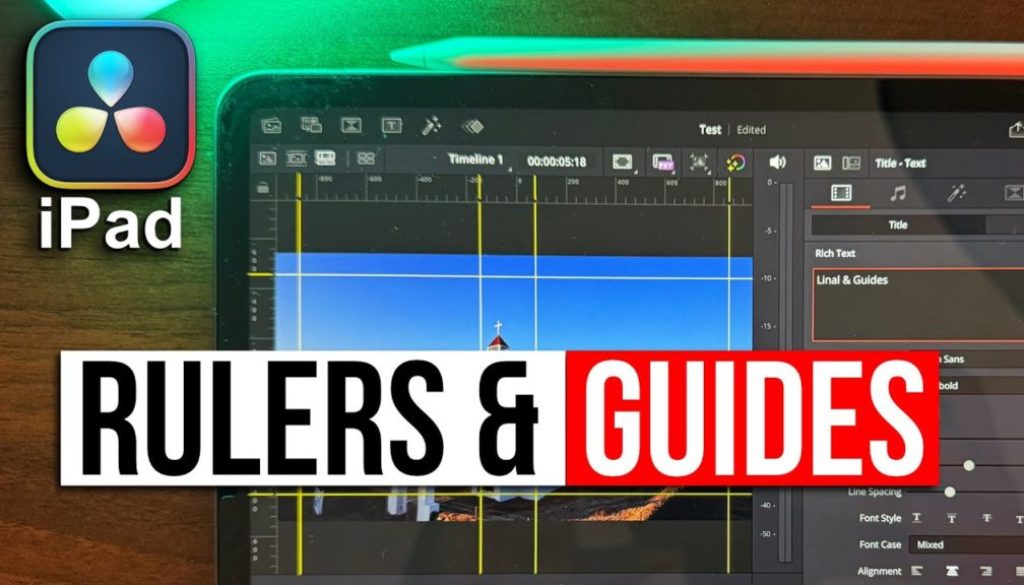
Perfect Eye Level & Rule of Thirds on iPad: DaVinci Resolve’s New Rulers & Guides
In this article/video i will show you the new Rulers and Guides Feature in DaVinci Resolve for iPad that makes editing so much smoother and easier on the iPad. This was a Feature that was missing and now we finally have it! This is a must known for real editors. I will show your how you can use the Guides and change the values to match what you need.
Pro Tip: Make your Videos Cinematic (and save a tone of time) with our Seamless Transition Pack for DaVinci Resolve iPad.

Contents
- [Video] Perfect Eye Level & Rule of Thirds on iPad: DaVinci Resolve’s New Rulers & Guides
- How to enable the Rulers & Guides in DaVinci Resolve for iPad?
- What are the Rulers & Guides in DVR iPad?
- How to add a new Guide in DVR iPad?
- How to edit a guide and change the position afterwards (Edit Page)?
- How to delete a Guide?
- How to edit a guide in the Cut Page?
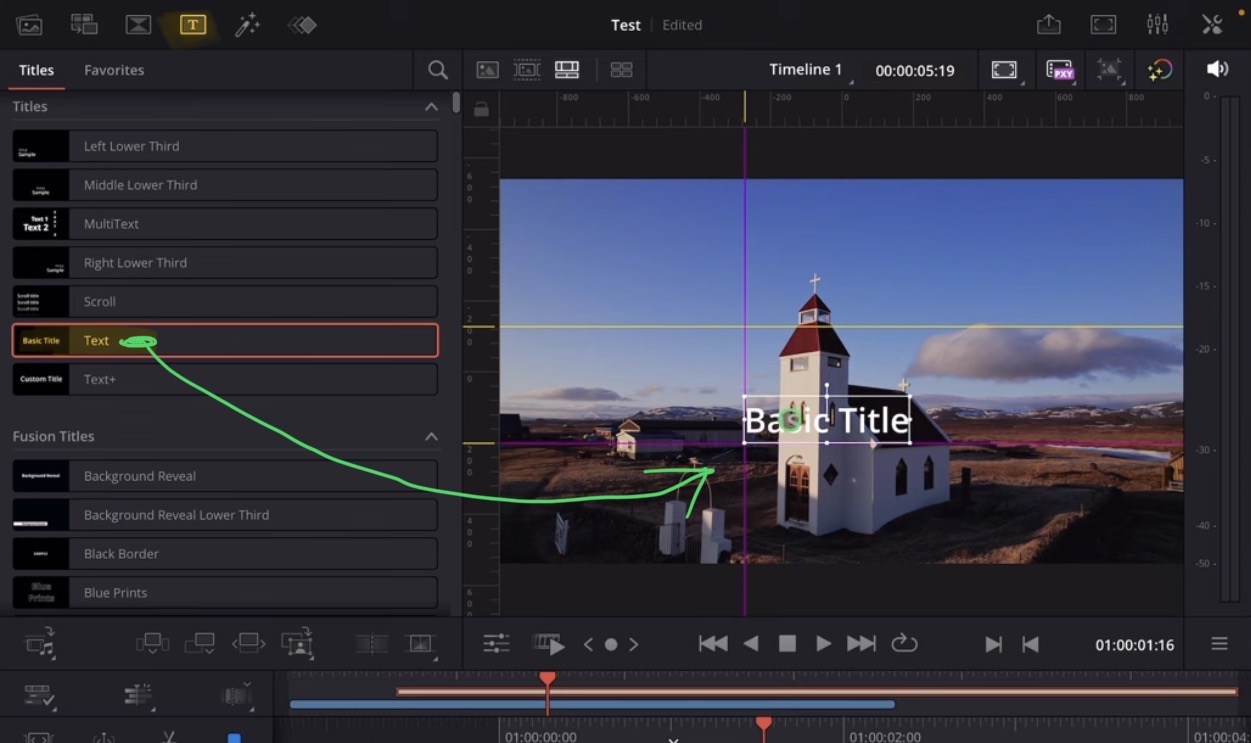
- How to use Guides to align Titles?
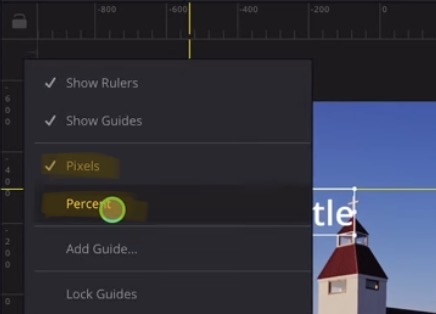
- How to change the Rulers from Pixels to Percentage?
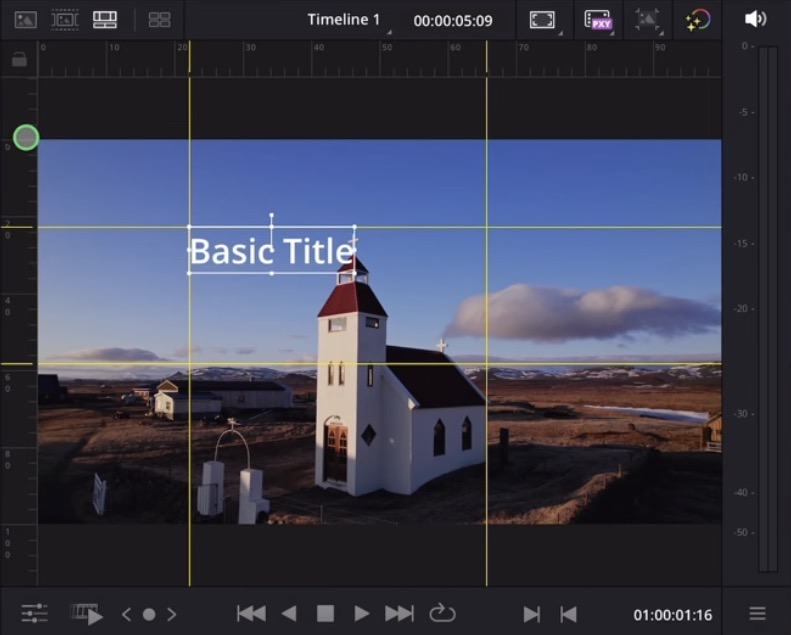
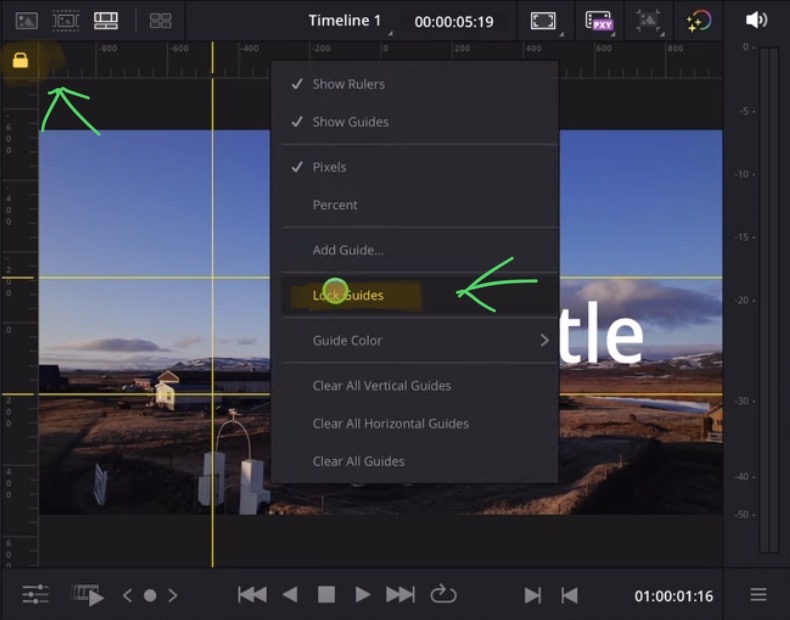
- How to lock the Guides?
- If you want to host your own Online Course use CC360
- BONUS: All DaVinci Resolve iPad Masterclass Students get the Transition Pack & the 8K Film Grain Pack for FREE!
[Video] Perfect Eye Level & Rule of Thirds on iPad: DaVinci Resolve’s New Rulers & Guides
How to enable the Rulers & Guides in DaVinci Resolve for iPad?

Tip: You can always toggle the Rulers & Guides by clicking on the icon.
What are the Rulers & Guides in DVR iPad?
Like the name suggests the Rulers add a ruler in the viewer window so you see exactly where objects, subjects in your video are positioned. And with the Guides you can add lines to the viewer that are not rendered in the finished video. These guides are to help you make your edits. For example what if all your shoots the subject should be on the same eye line lever? Easy place a horizontal guide on the eye line level and you see where the subjects should be placed.
How to add a new Guide in DVR iPad?
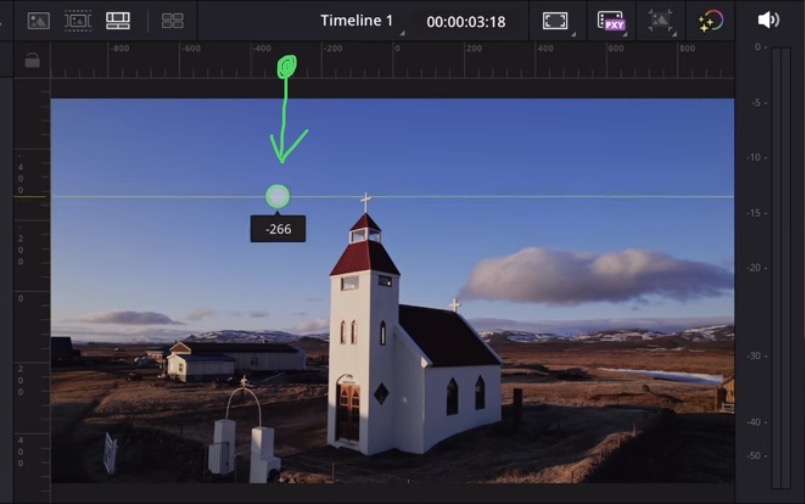
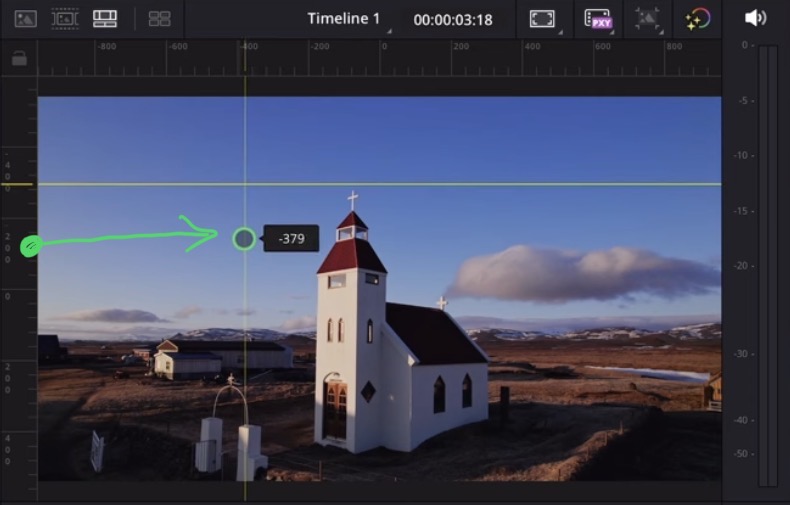
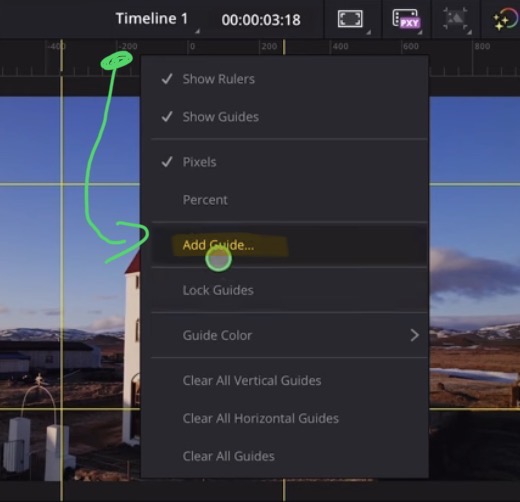
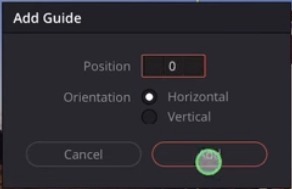
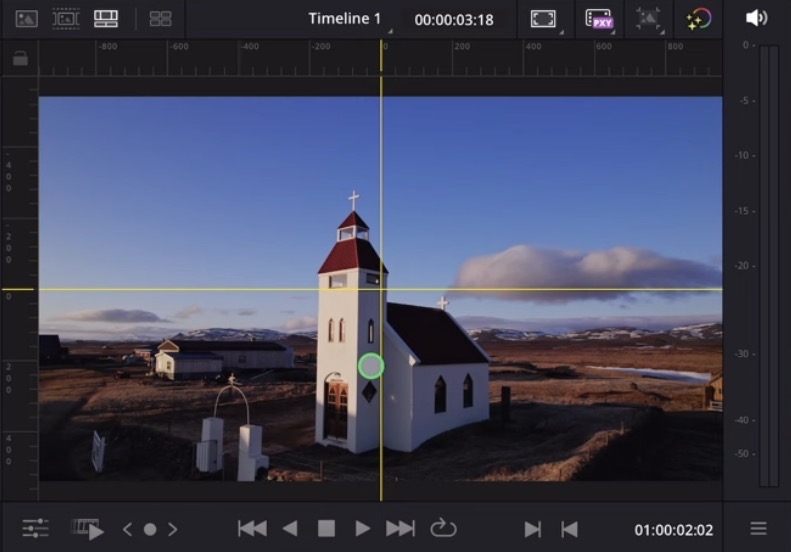
How to edit a guide and change the position afterwards (Edit Page)?
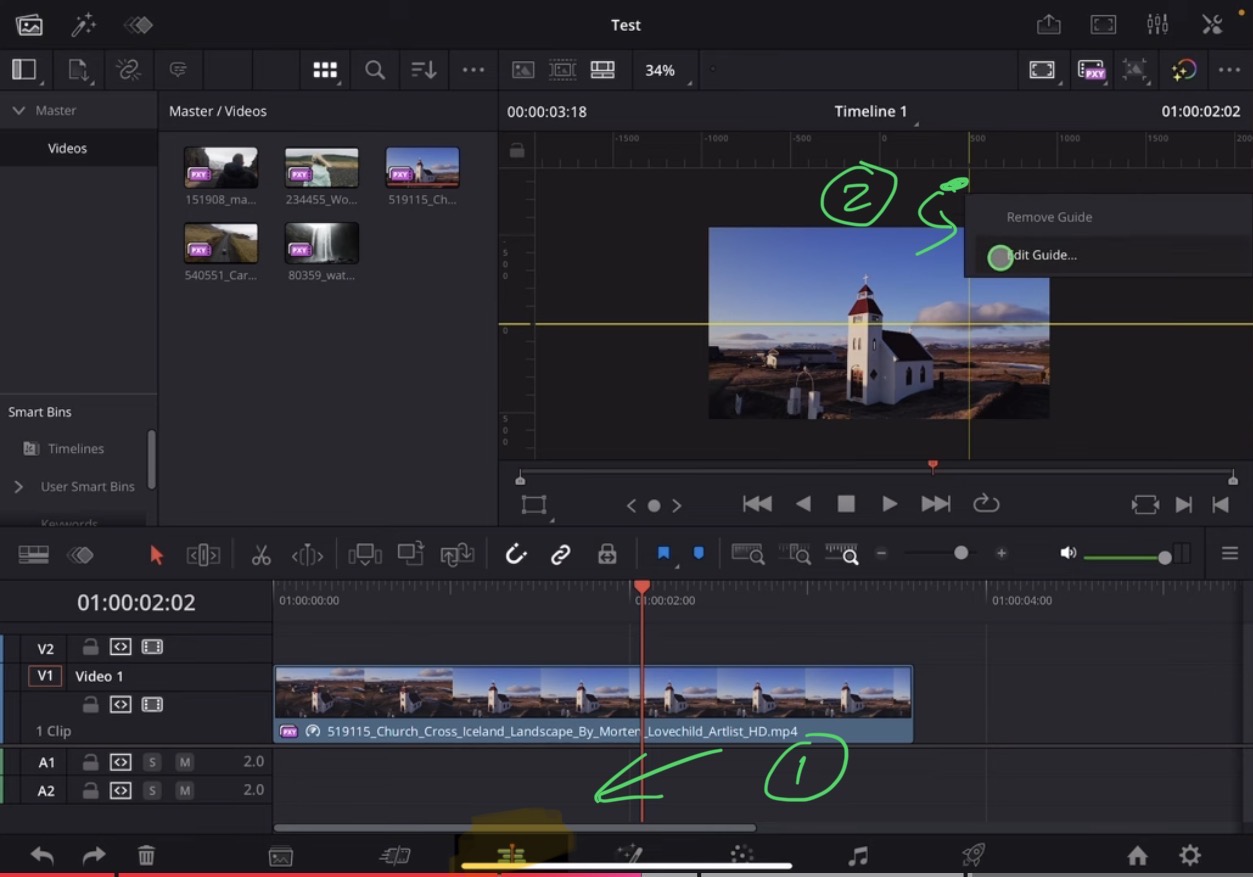
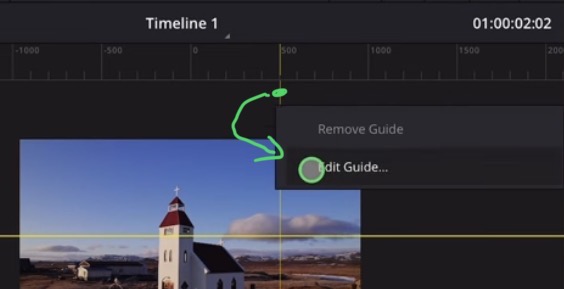
Tip: If you don’t know how to get the other pages (FUSION, FAIRLIGHT, EDIT) on the iPad read this article first: How to UNLOCK ALL PAGES in DaVinci Resolve for iPad Pro
How to delete a Guide?
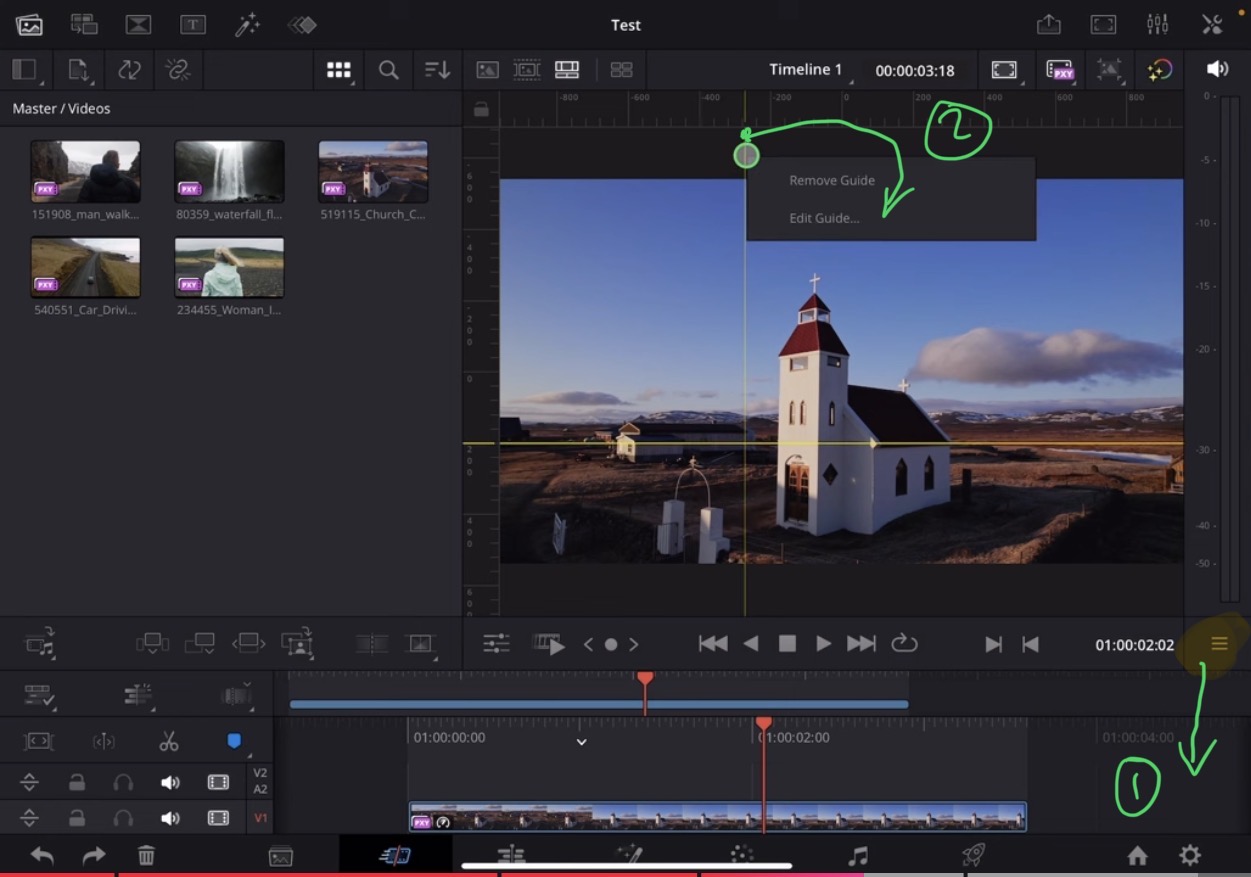
If you right-click on the guide itself and you see the context menu where you can also edit a guide there you can individually delete a guide by clicking on “Remove Guides”. Or you can delete all verticals, all horizontal or all guides at once by right click on the rulers.
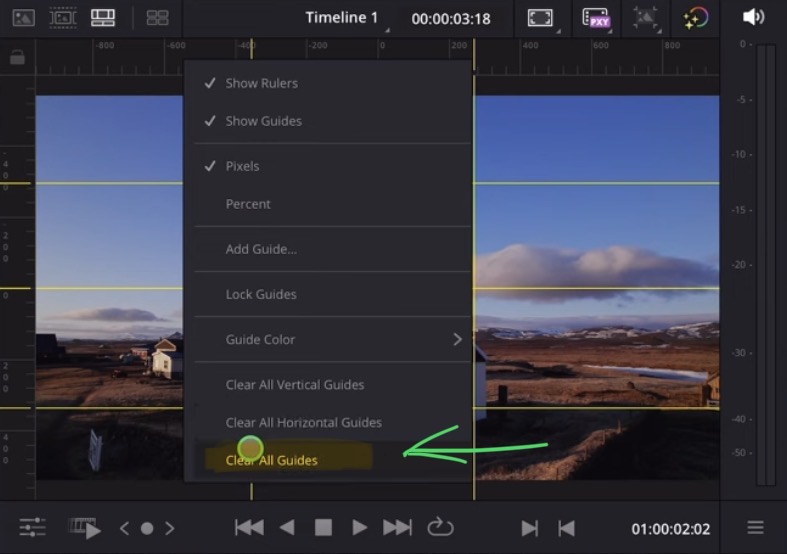
How to edit a guide in the Cut Page?
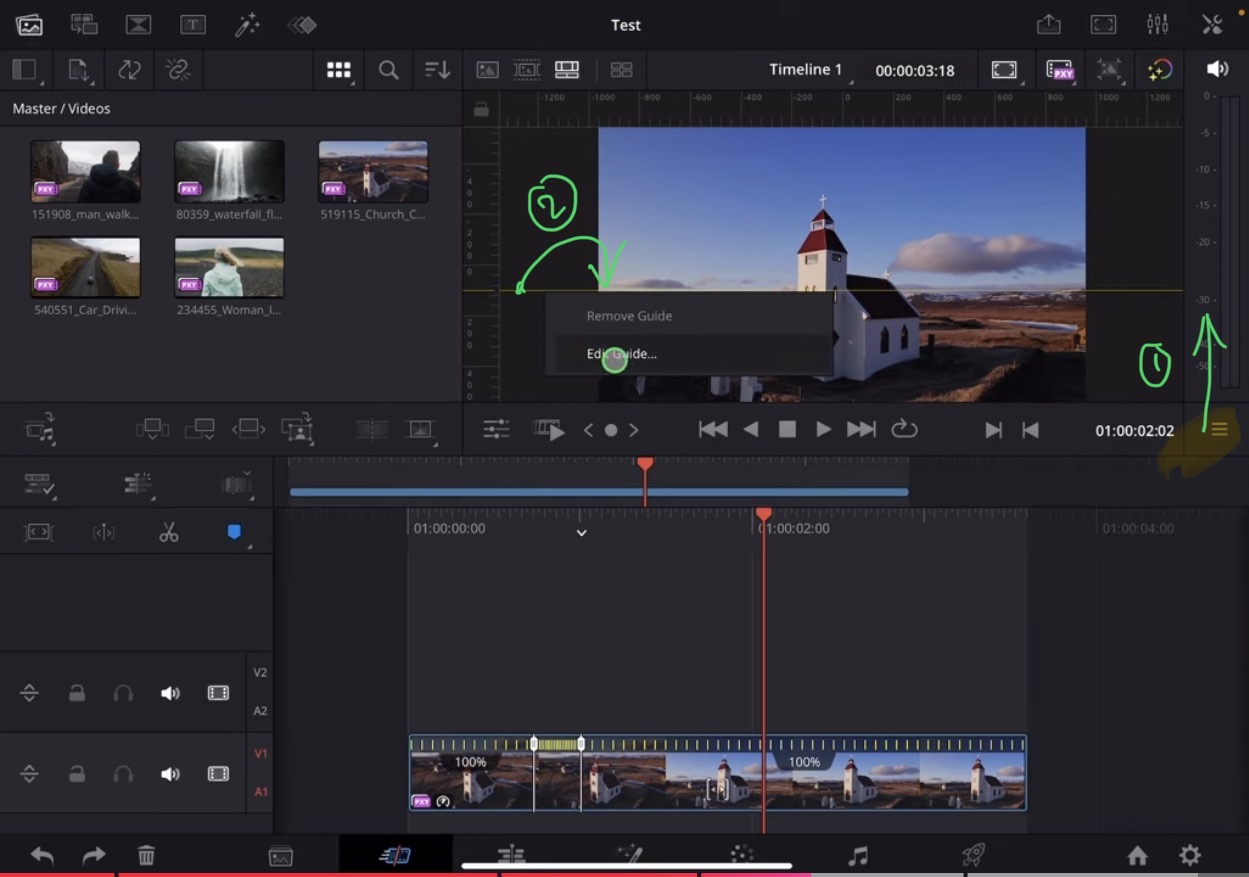
How to use Guides to align Titles?
How to change the Rulers from Pixels to Percentage?
How to lock the Guides?
If you want to host your own Online Course use CC360
I really believe, that CC360 is the best Platform to host your own Online Course currently on the market. And each week they introduce new features. Amazing. Check it out here.
BONUS: All DaVinci Resolve iPad Masterclass Students get the Transition Pack & the 8K Film Grain Pack for FREE!
You can either get the Transition Pack separate here: Seamless Transition Pack for DaVinci Resolve iPad. Or the 8K Film Grain Pack here: 8K Film Grain Bundle. but all of our DaVinci Resolve iPad Packs are a FREE Bonus for the DaVinci Resolve iPad Masterclass Students.
Check It Out here DaVinci Resolve iPad MasterClass: From Beginner To Pro.
Read Next
• How COPY Color Grade to MULTIPLE Clips in DaVinci Resolve iPad
• DO THIS to make DaVinci Resolve FASTER! (Instead of rage smashing your iPad)
• How To Delete Cache Files in DaVinci Resolve iPad
• How To Color Correct iPhone Footage in DaVinci Resolve iPad
• Easy Sync Audio & Video in DaVinci Resolve iPad